


Watch the video or scroll down for step-by-step instructions.
Tiers: All
Step-by-step instructions
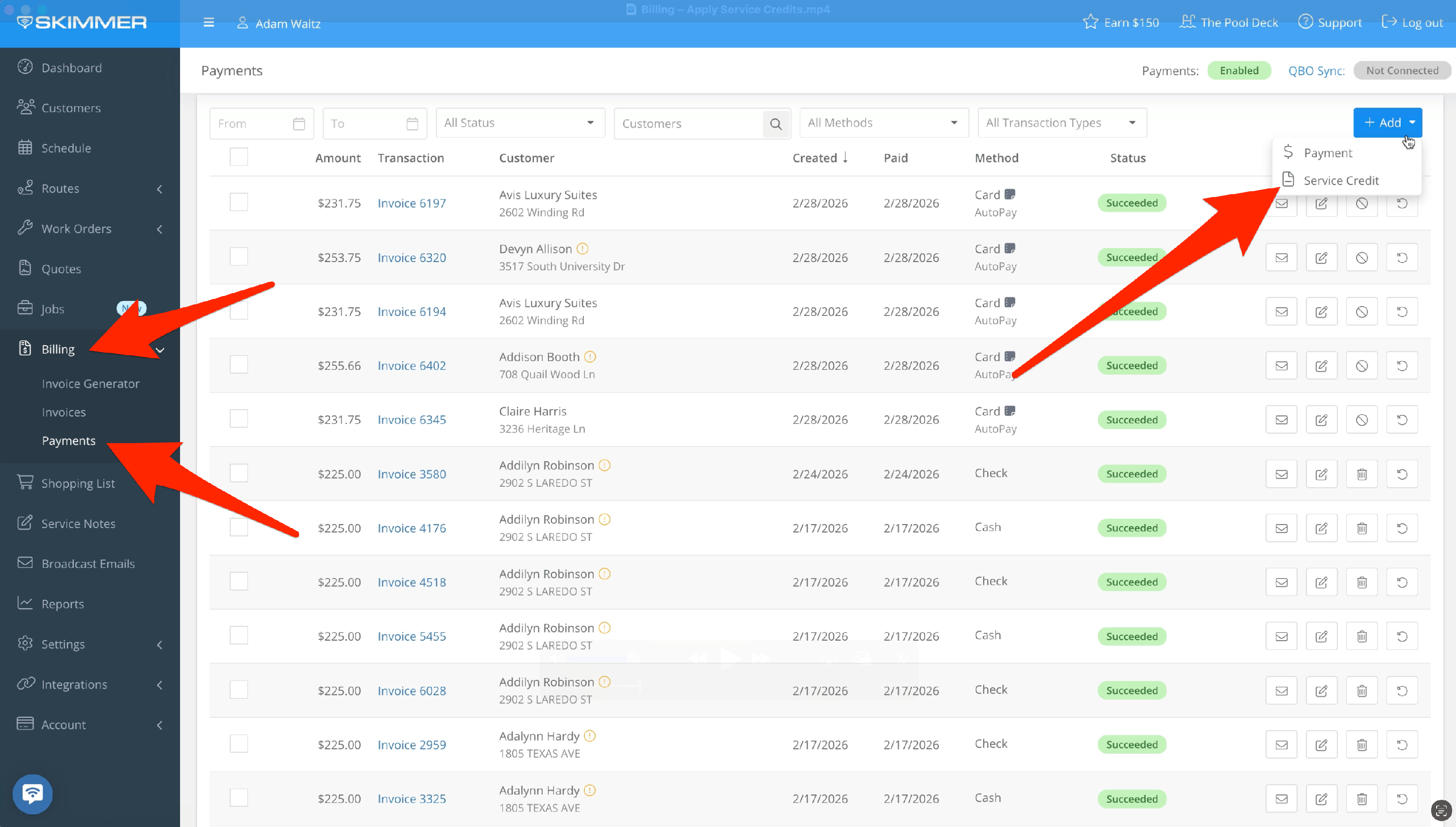
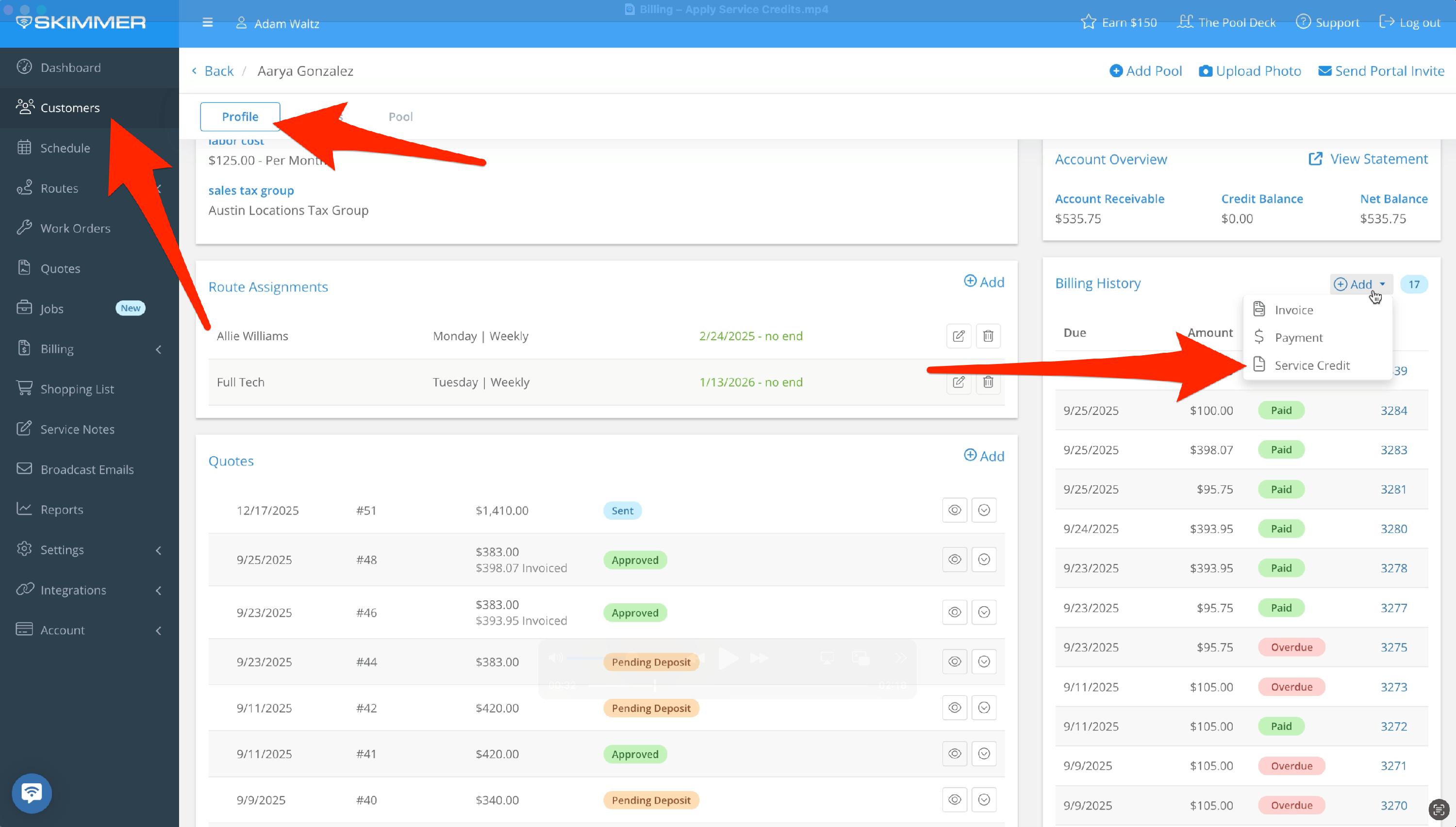
1. Service Credits give you a way to manage refunds or give discounts without actually shuffling money around. For instance, instead of refunding a charge, you can apply a service credit to their next invoice. You can initiate a service credit from the Payments screen, where you click the Add button and get the option to create a credit. You can also initiate from the customer profile screen. In the Billing History box, click Add, then click Service Credit.
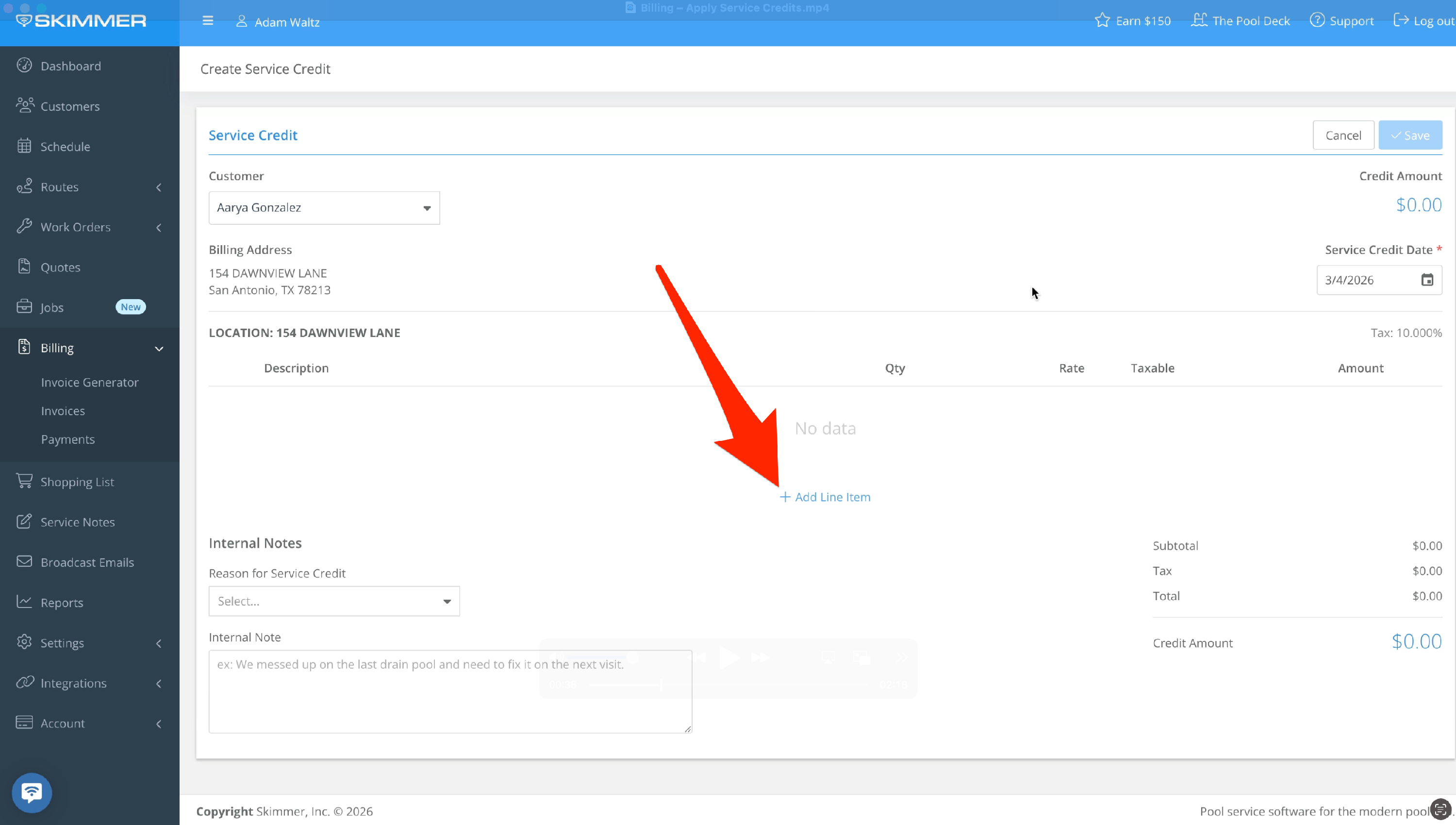
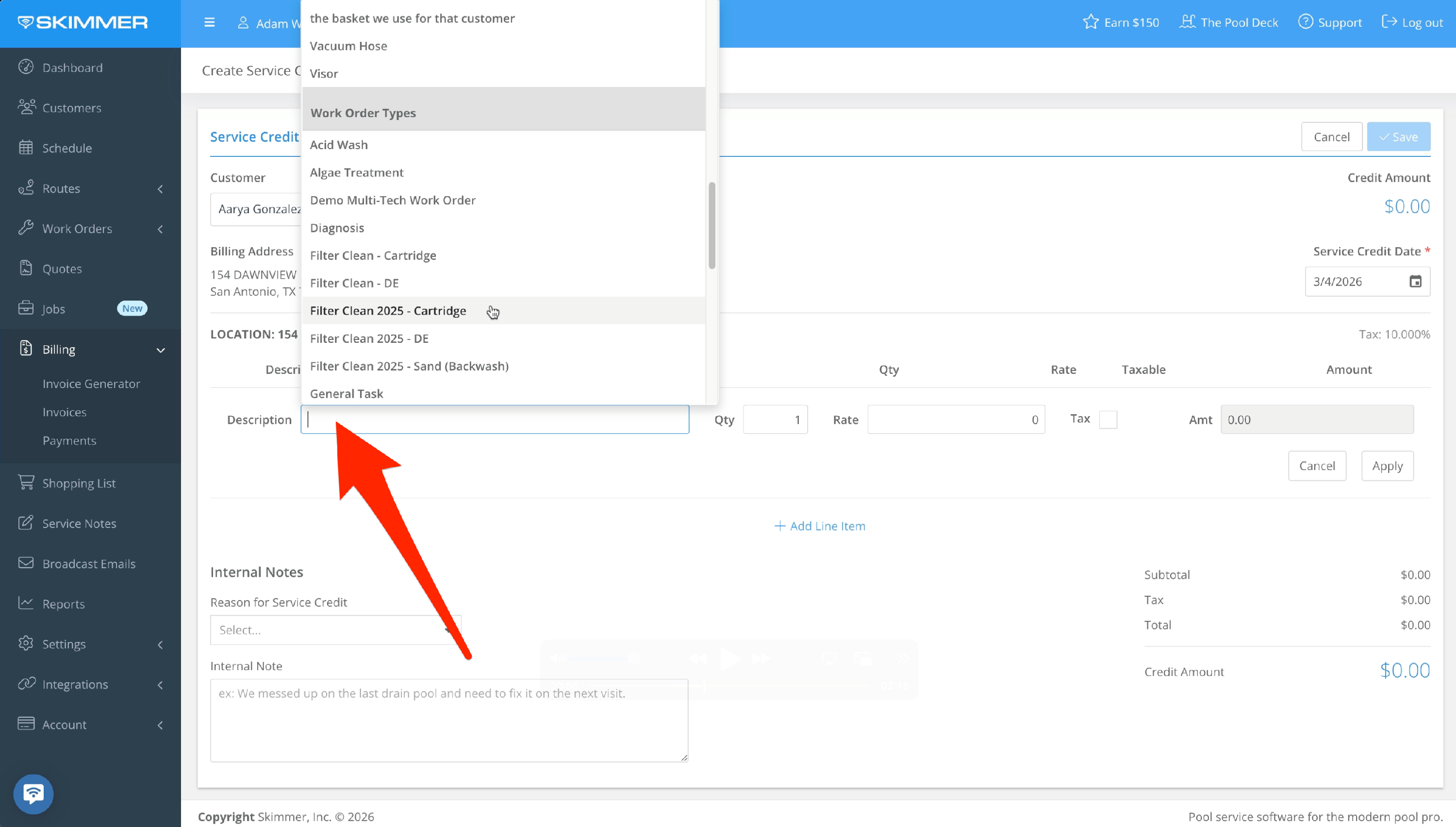
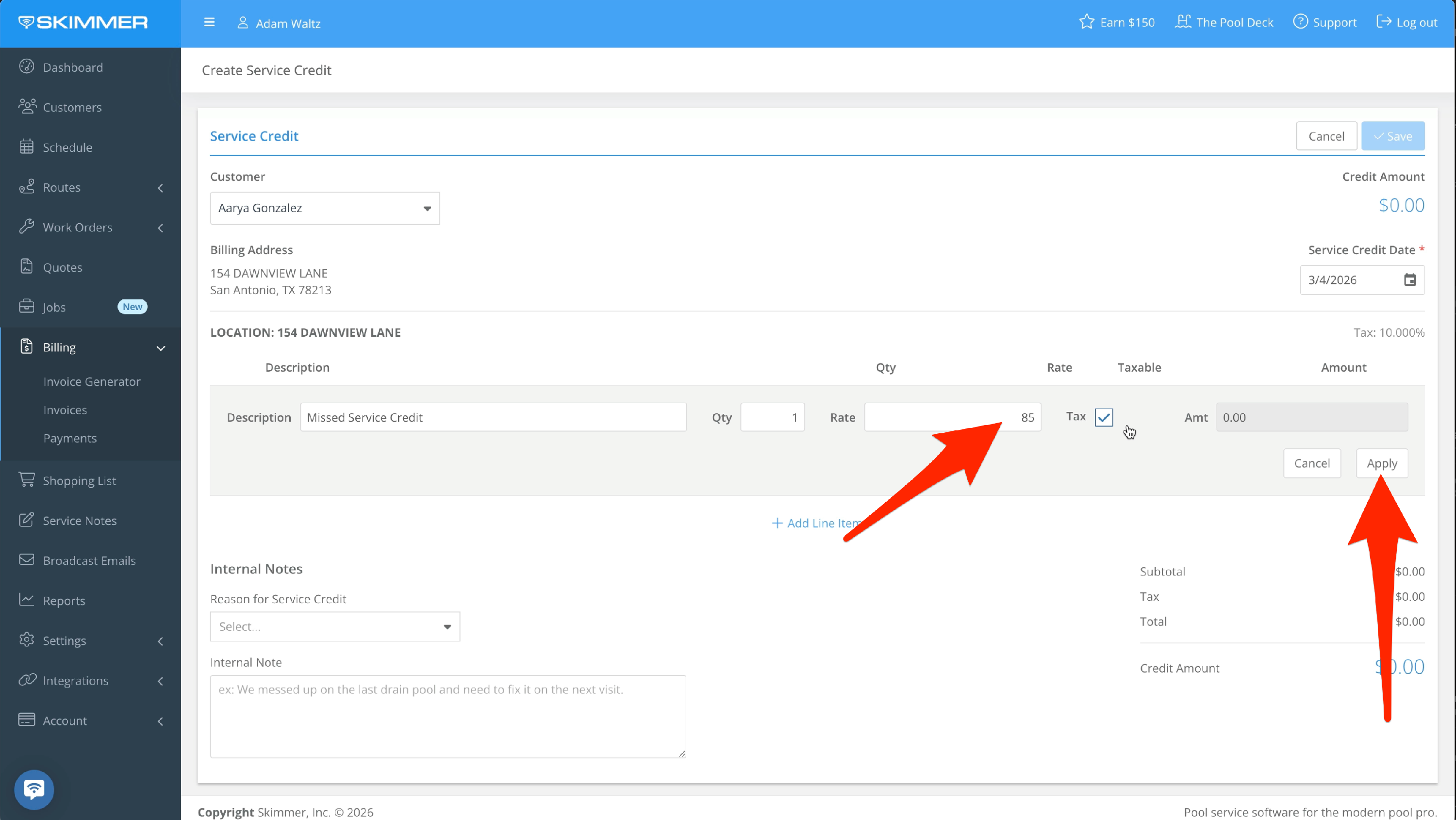
2. Because we created this from a customer’s profile, their information is pre-populated. Click Add Line Item and begin by adding a Description. In the Rate box, indicate the amount of the credit you’re giving and whether it’s subject to tax. Then click Apply.
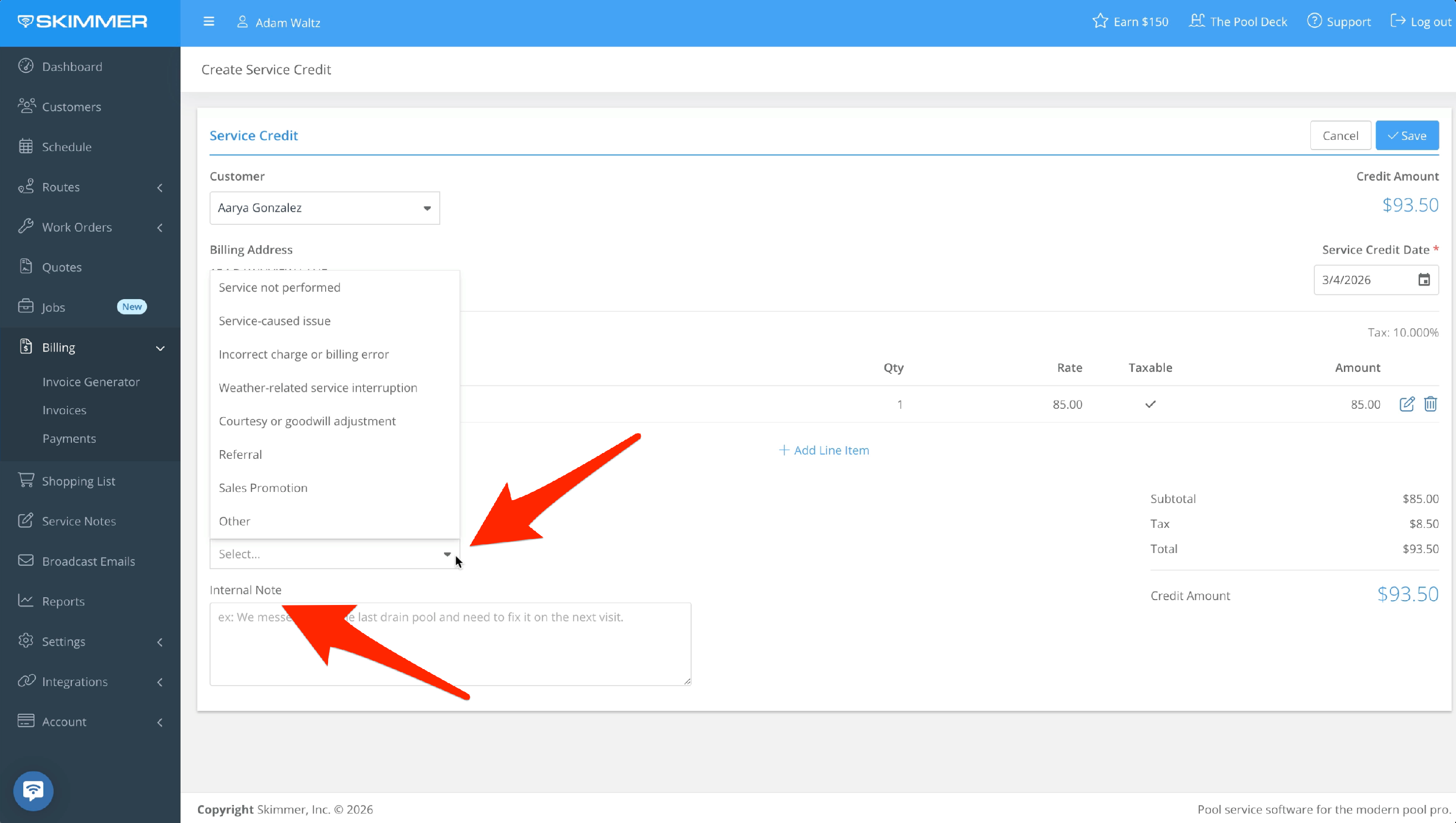
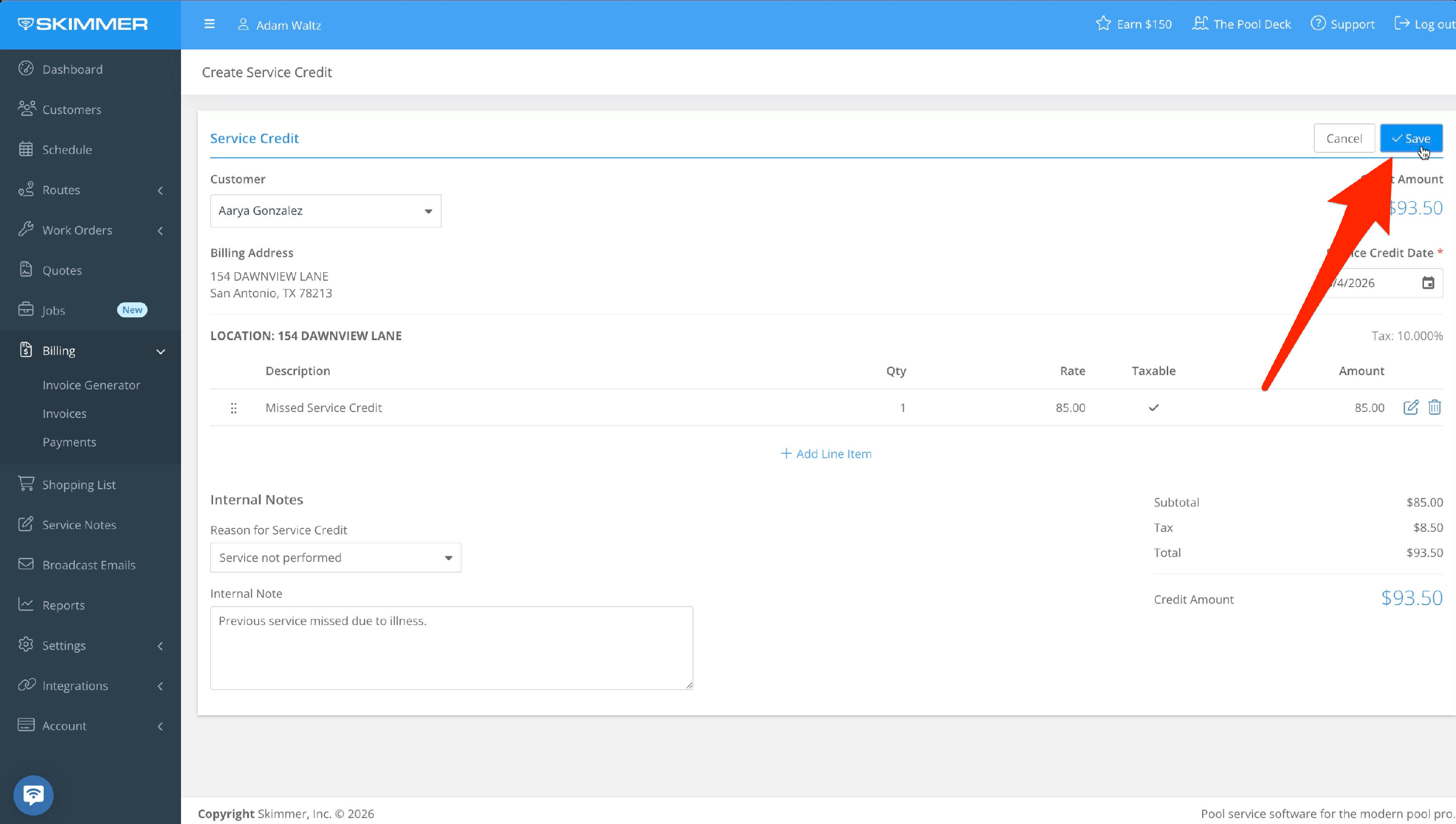
3. You can add internal notes to provide context, and choose from a dropdown list of premade reasons. When you’re ready, click Save. Now you’ve created a service credit. If you’ve activated the option to automatically send payment receipts, a receipt for this credit will send automatically. If you don’t, Skimmer will ask if you want to send one now.
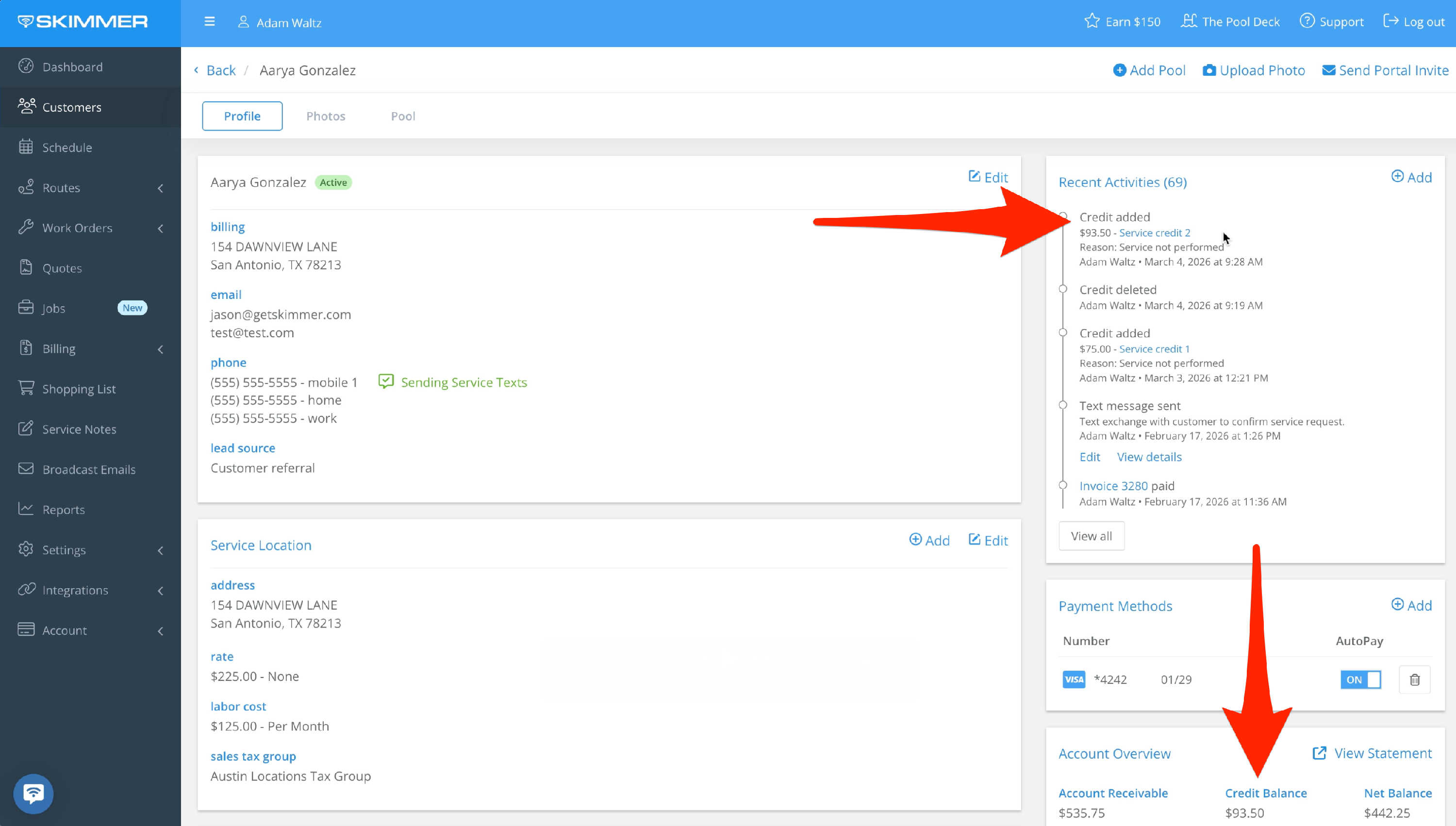
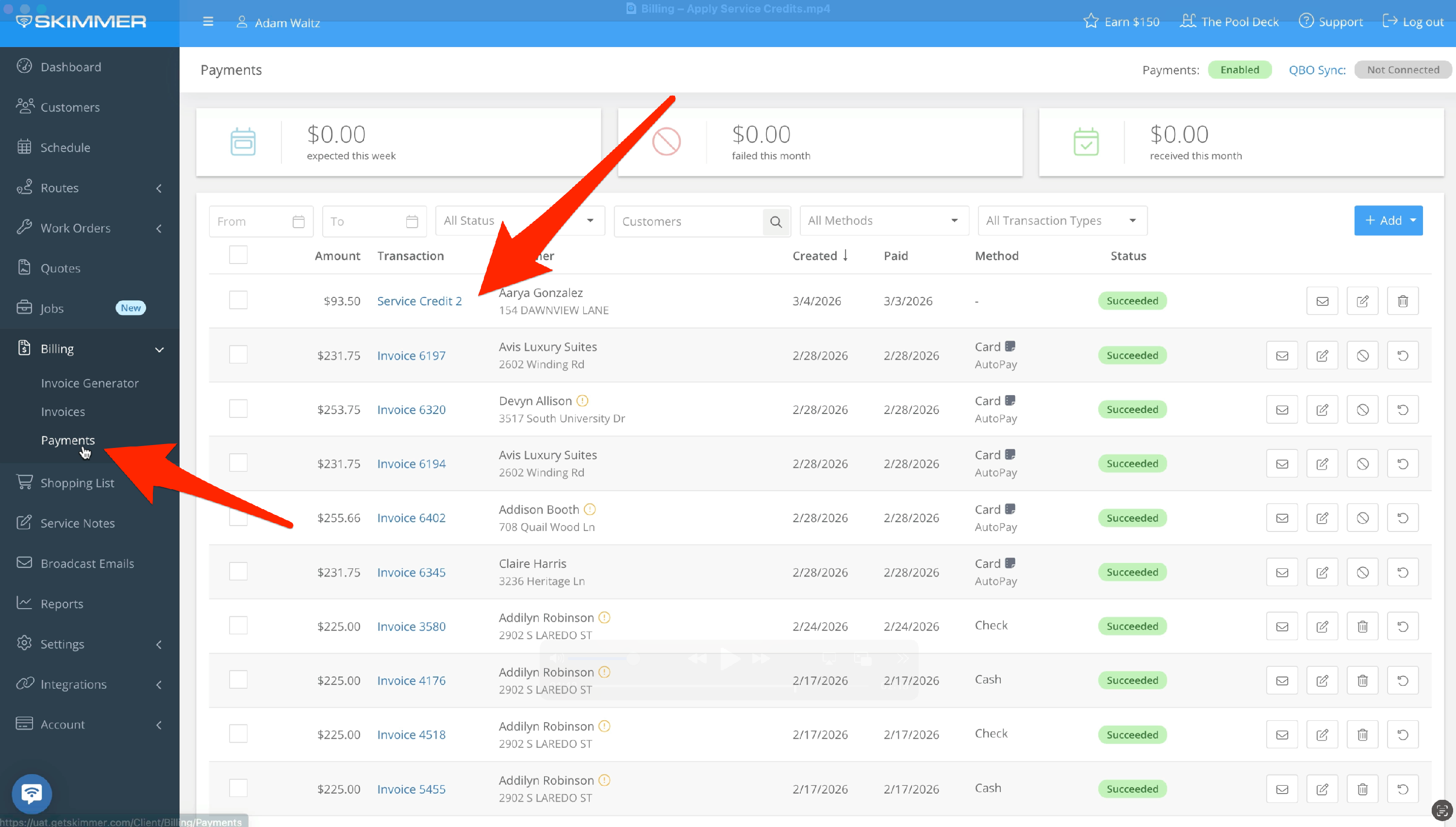
4. Check the activity log and you’ll see the service credit has been added. It’s also added to the Credit Balance in the Account Overview box. Under Billing > Payments, you can also see a record of service credits there. Credits also integrate with QuickBooks Online, interacting with what it calls a Credit Memo and transferring all the corresponding information.
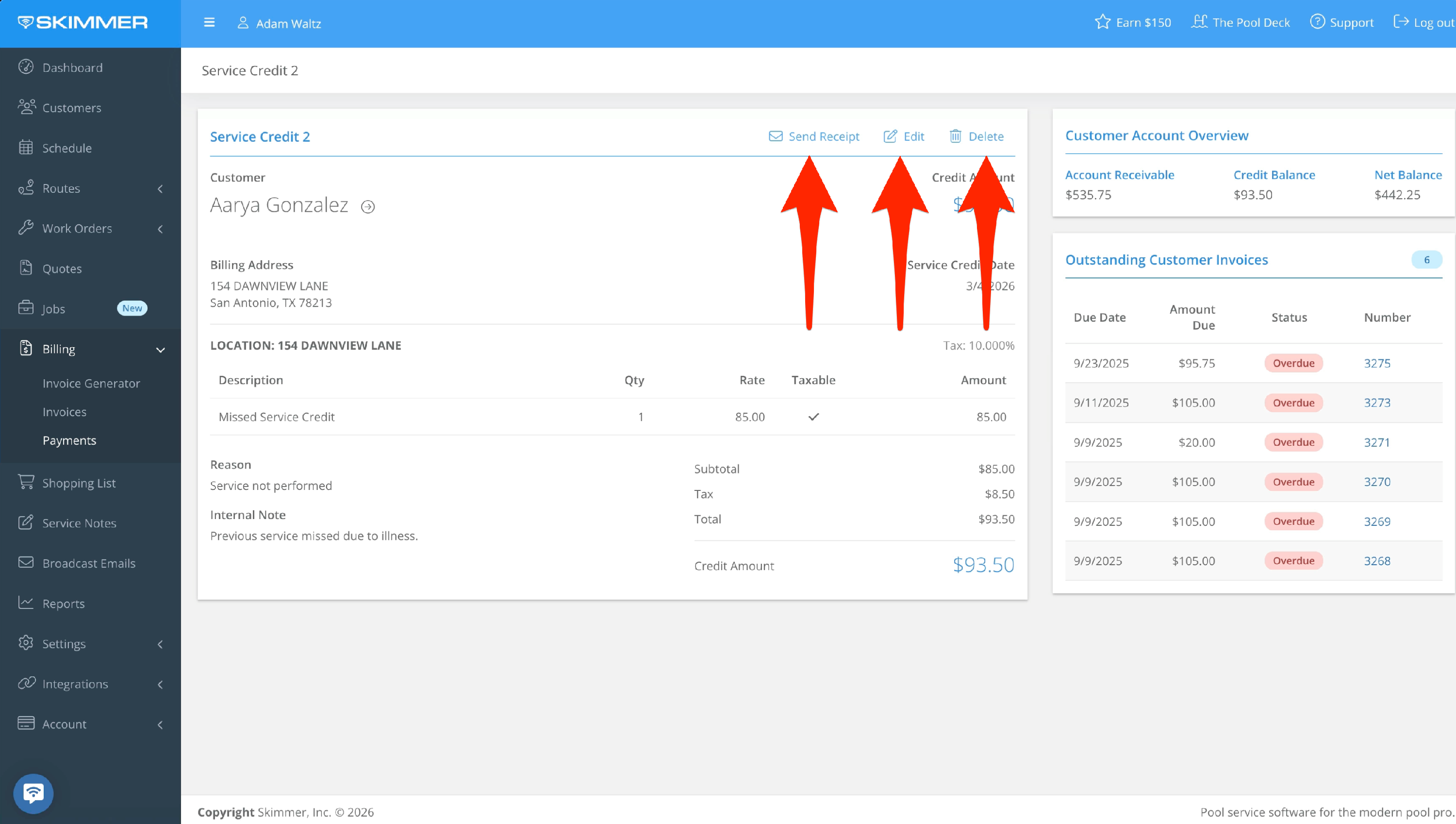
5. If you need to make a change, go to the detail screen for the service credit and you’ll find options. You can send a receipt from here, click Edit to open this credit and change whatever you need, or delete this credit entirely. Note that, if a credit has already been applied to an invoice, it can no longer be edited or deleted.
How are credits applied to invoices? Skimmer takes care of that for you. The next time an invoice is created for this customer, the service credit will automatically be applied.