


Scroll down for step-by-step instructions.
Tiers: All
Step-by-step instructions
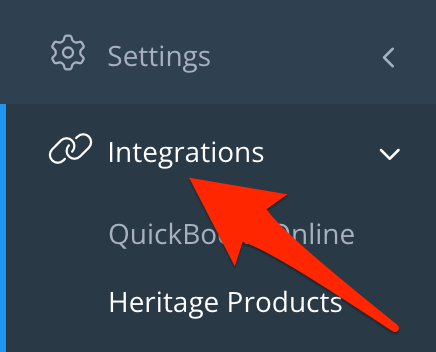
1. You can connect Skimmer to your Heritage account and sync product information automatically. Here’s how to connect and enable the sync, after which Skimmer will pull the 75 most purchased items into your catalog (additional items can be imported separately). From the web application, log into Skimmer and go to Integrations > Heritage Products
Note that you must already be a Heritage customer to use this integration. If you’re not yet a Heritage customer but would like to be, click the Learn About Heritage button.
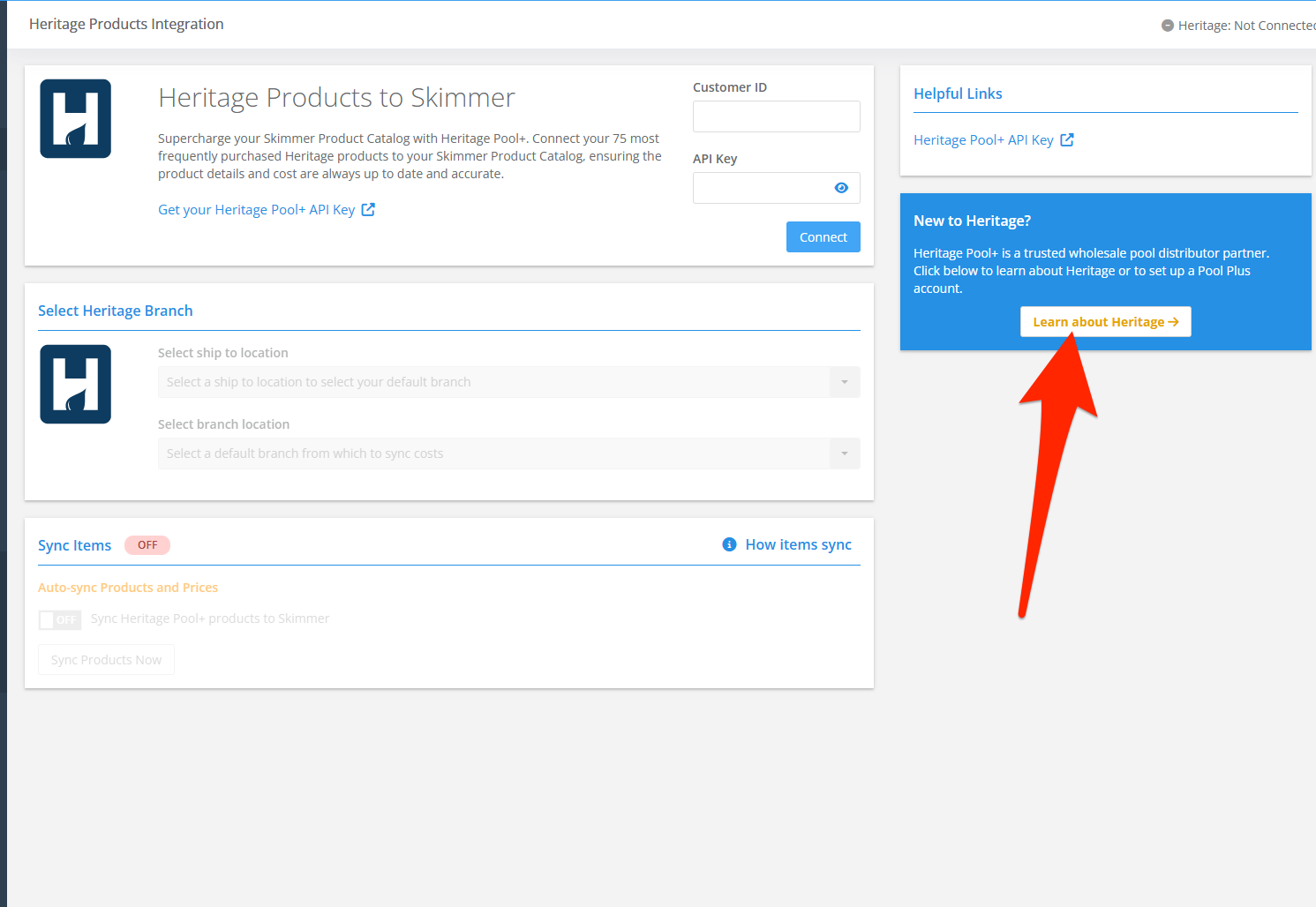
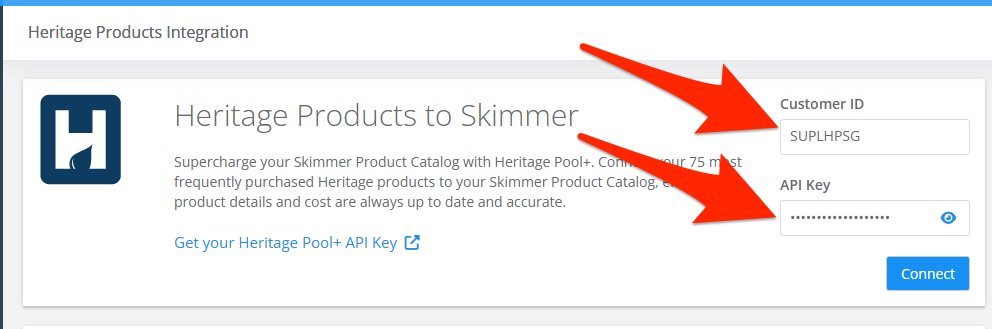
2. Enter your Heritage Customer ID and Heritage API Key. You can find this information in your Heritage Pool Plus account. When you’ve entered the information, click Connect.

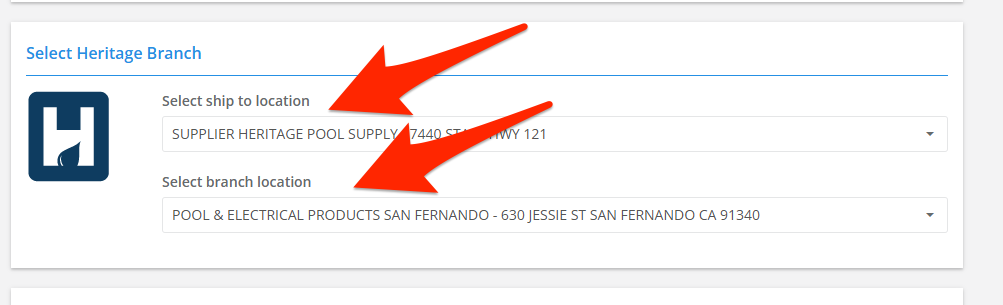
3. Once the connection is active, choose a default Ship To location and Branch Location. These are necessary to sync the appropriate Heritage pricing. Product Cost is pulled directly from Heritage, and you set your own Price. Both can be updated as needed in quotes and invoices.
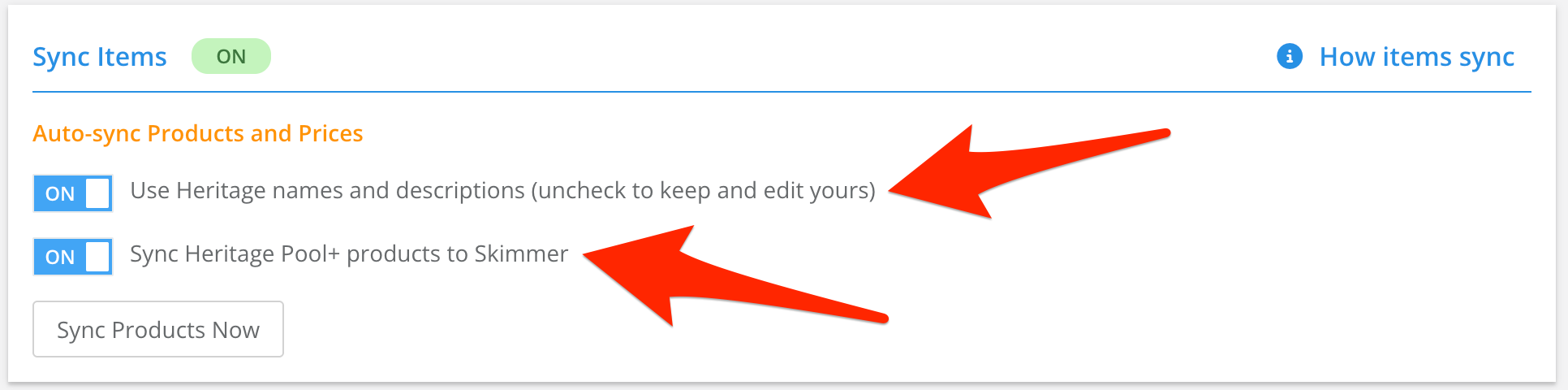
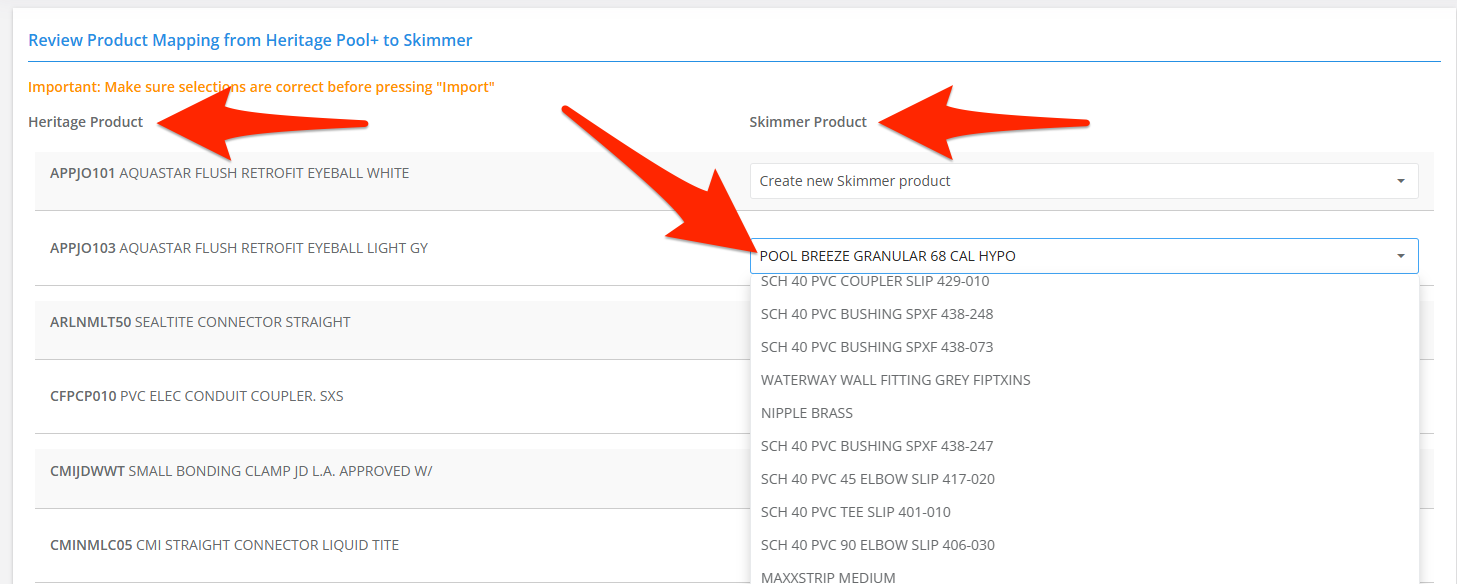
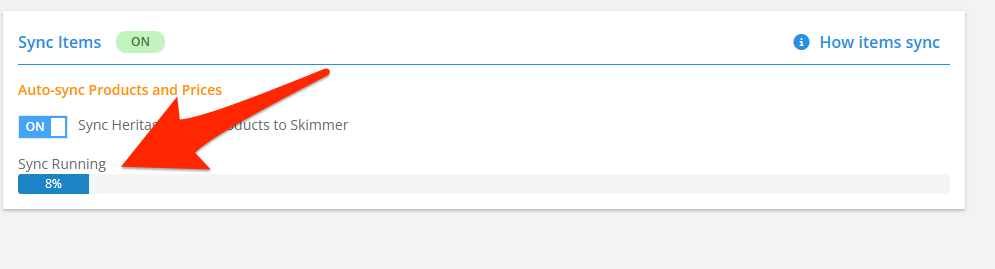
4. Under Sync Items, click the toggle to switch auto-sync ON. Then the Product Mapping screen will open automatically. There, use the dropdown menus to select which Skimmer Product you want to connect to a Heritage Product. If you want to sync an item that’s not currently in your Products list, select “Create New Skimmer Product.” You can also choose whether to overwrite your own product names and descriptions with Heritage data, or keep your own.
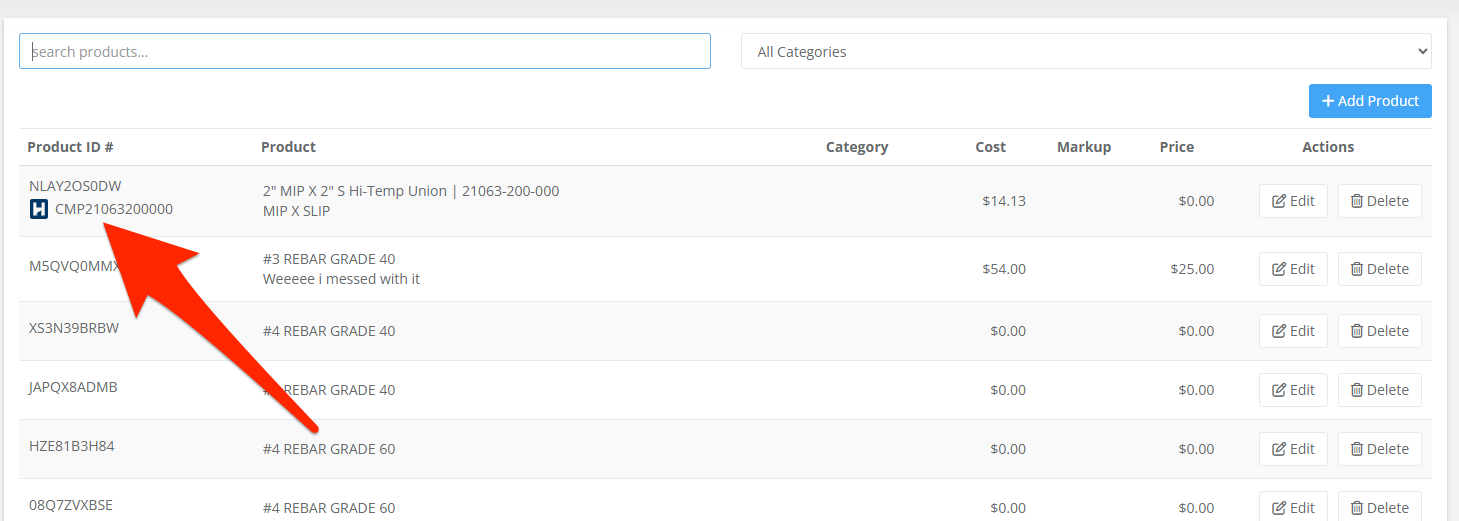
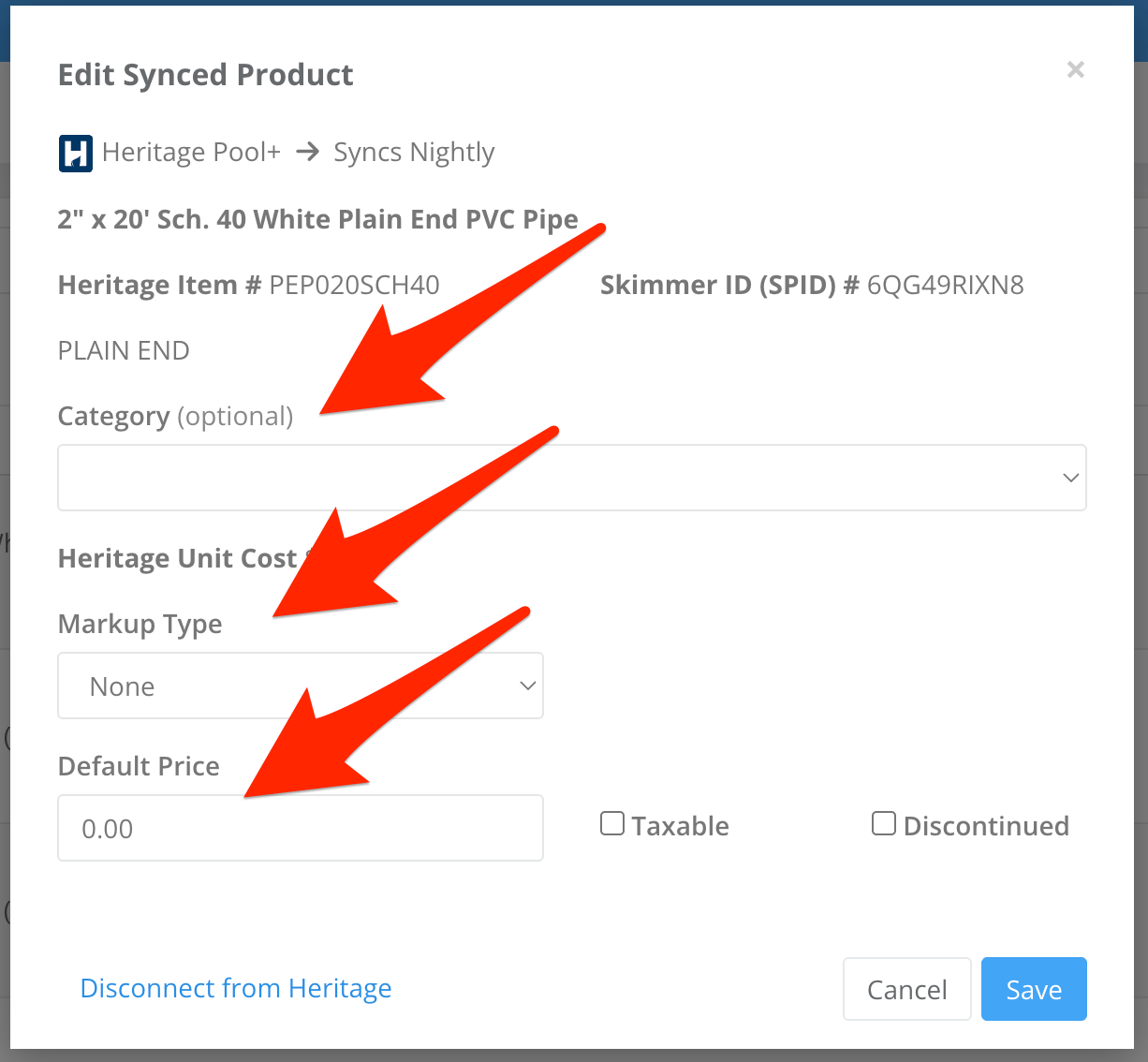
When you’ve made your selections, click Import and a sync will occur immediately. When it completes, go to Settings > Products to see the linked items. Some information is filled in automatically via the connection to Heritage, but you can still edit other information such as Category, Markup, and Price.
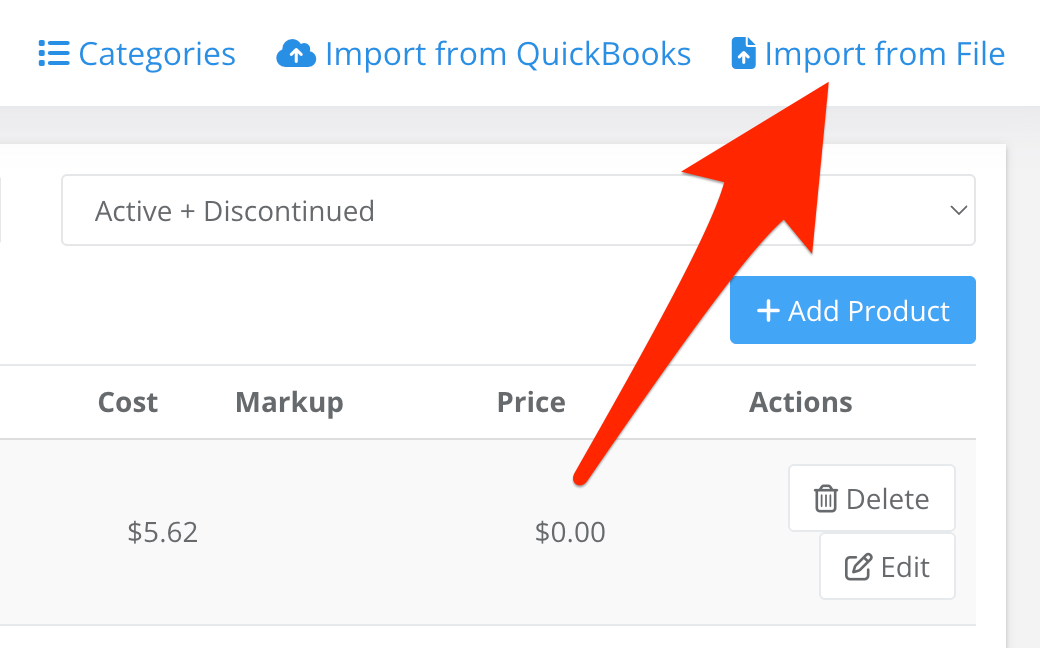
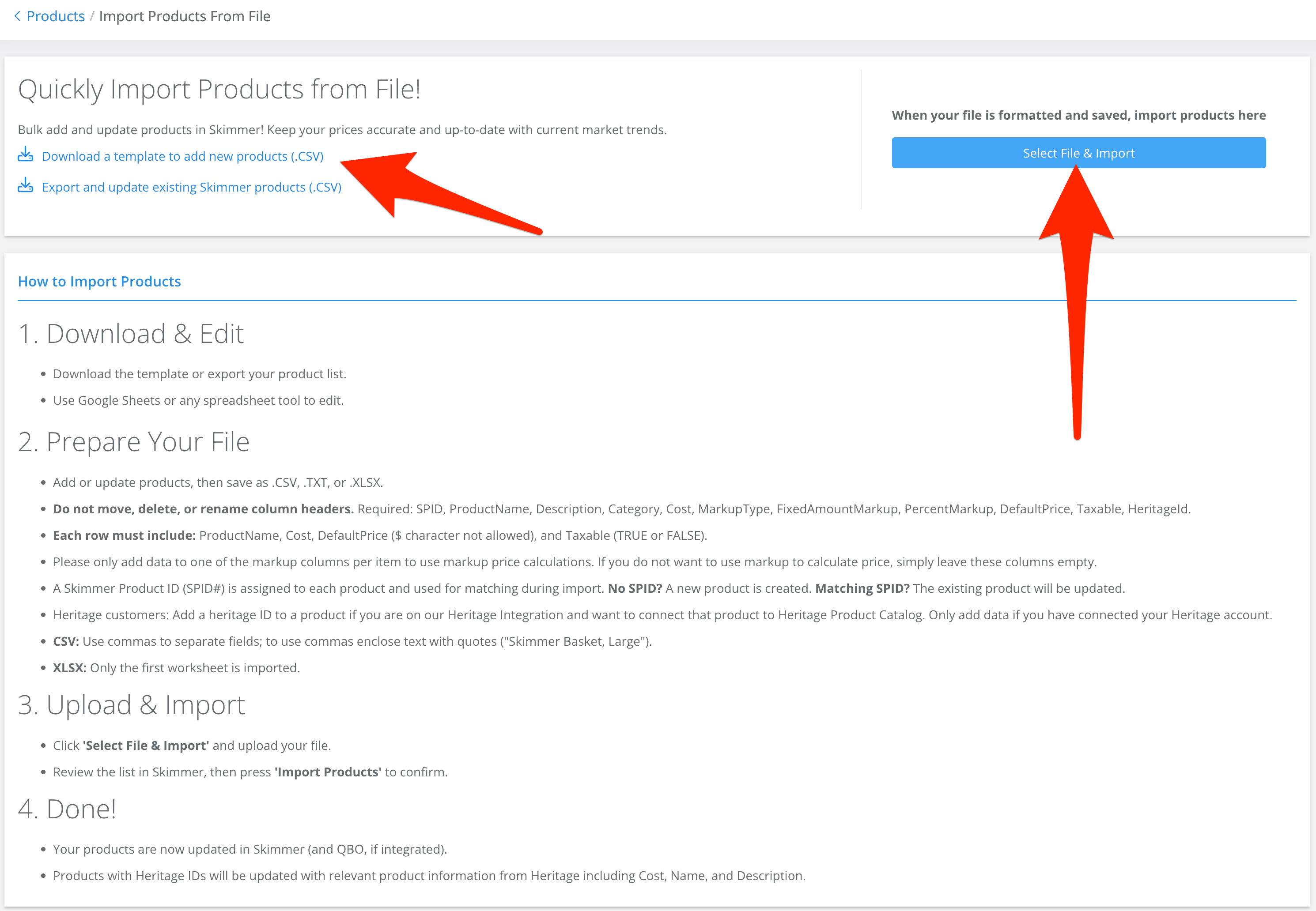
5. As noted at the beginning, Skimmer will pull the 75 most purchased items into your catalog. To import additional items, on the Products screen click “Import From File” in the top right. From there, download a template or your existing Products list, make any changes you need (including IDs for any Heritage items), then upload the newly updated file.