


Scroll down for step-by-step instructions and a detailed guide on how to use this report.
Tiers: All
The Payments Collected Report displays total amounts received, refunded, and the resulting net funds during a select date range.
Step-by-step instructions
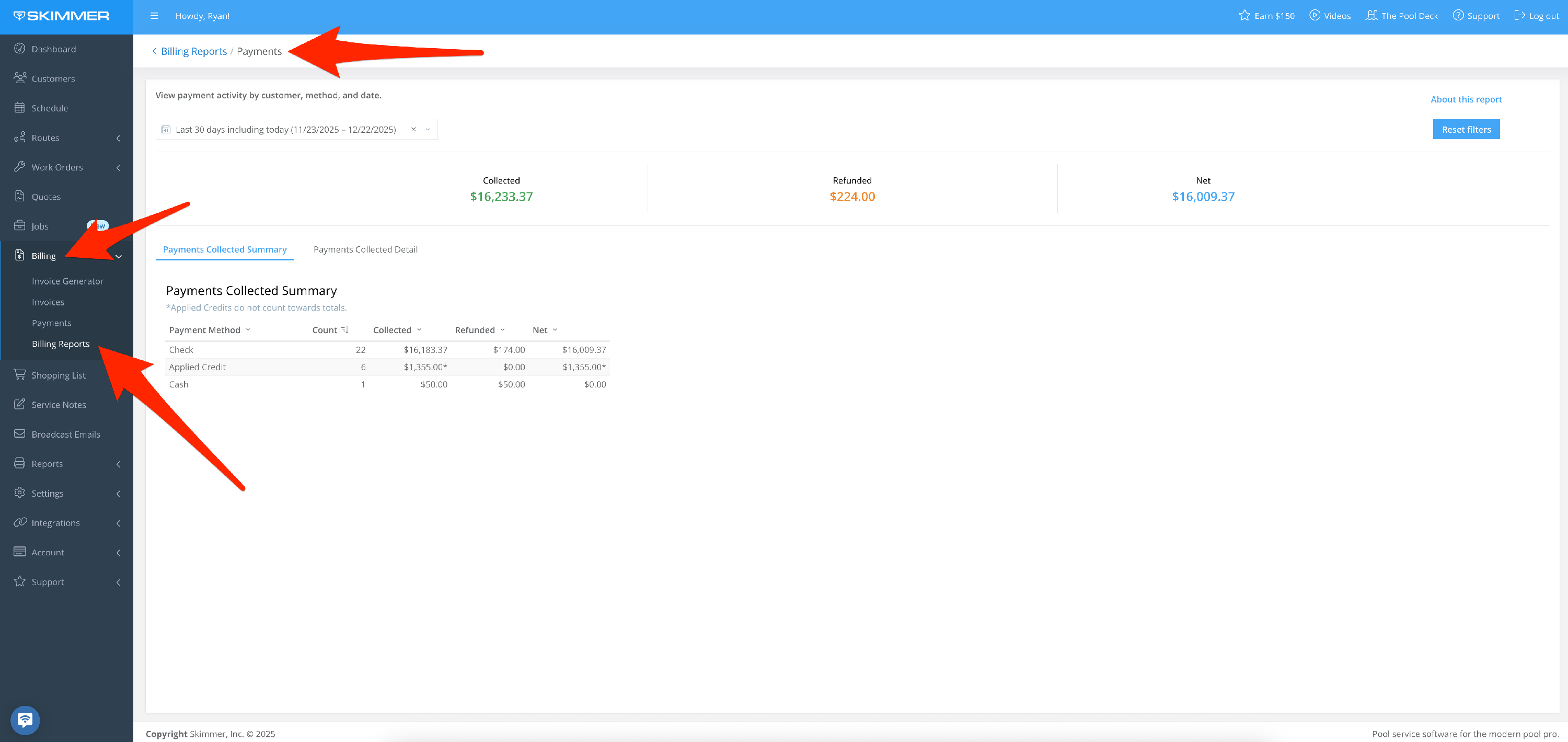
1. Select Billing > Billing Reports > Payments.
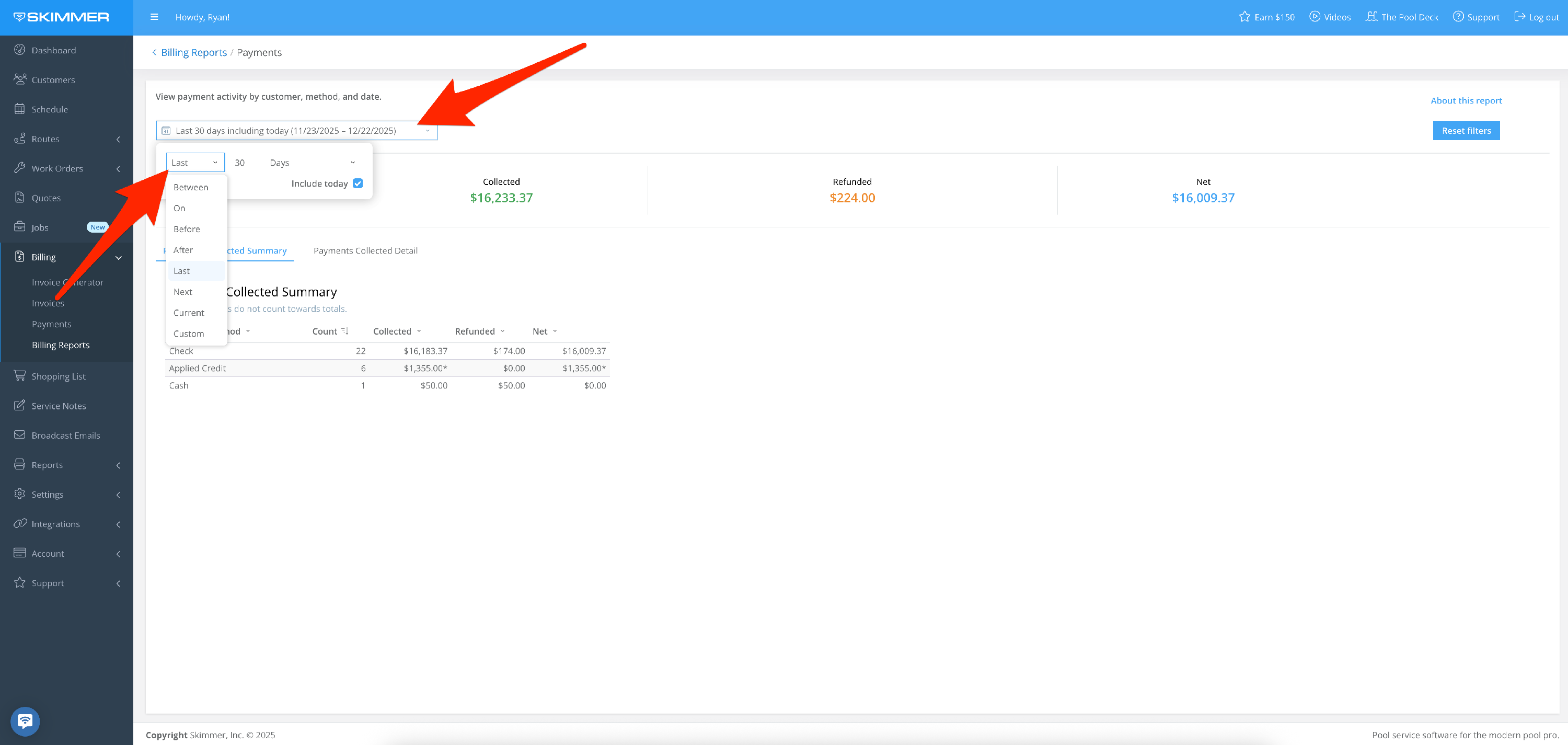
2. Filter by Date Range:
- Between two dates, creating a date range
- On, before, or after a specific date
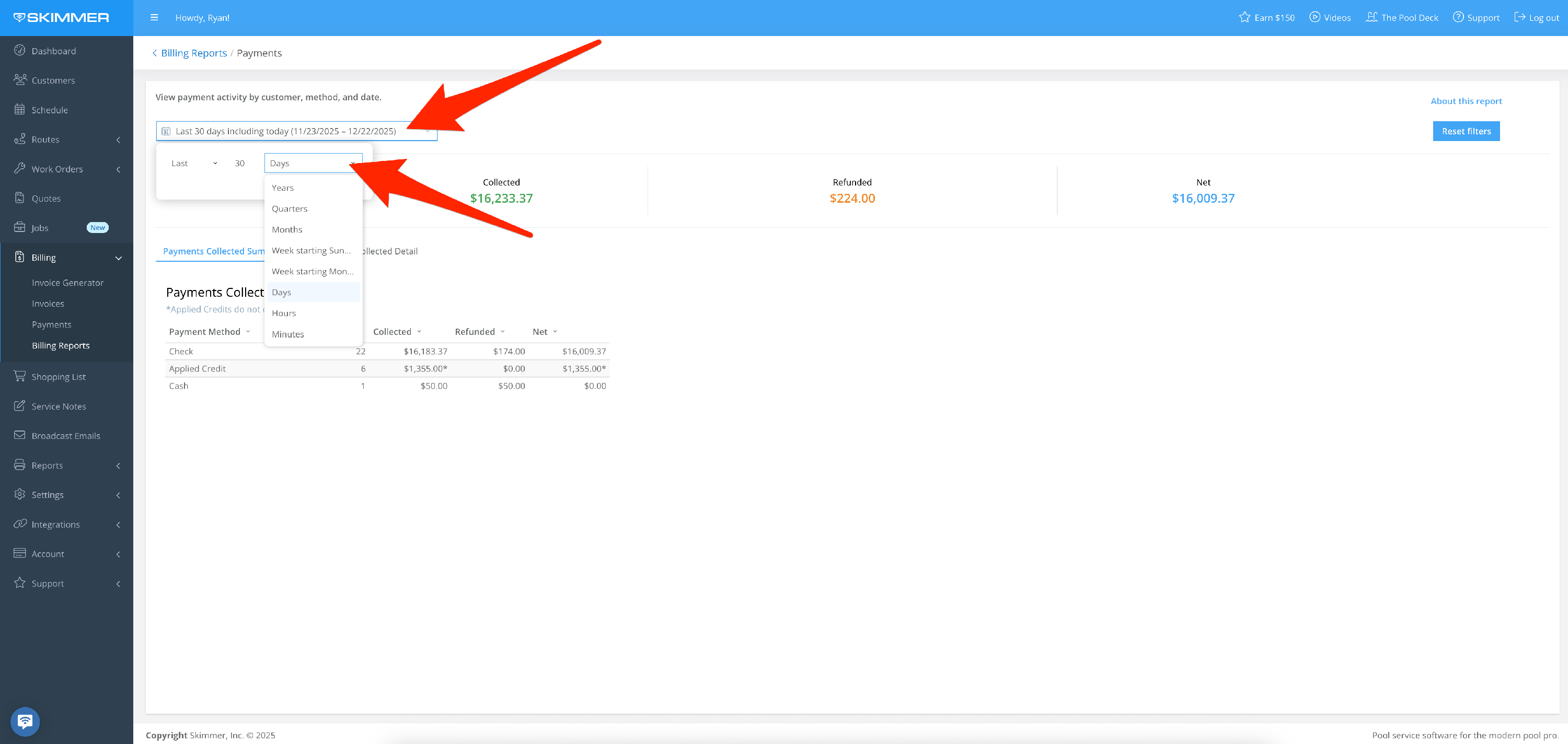
- Last sets a time frame going into the past–last day/week/six months/two years, etc. even last hours or minutes, fully customizable
- Current lets you center on now and view by current hour/day/month/quarter, and more
- The Next option does not currently have information associated with it, so you won’t need to select it.
3. Filter by Customer:
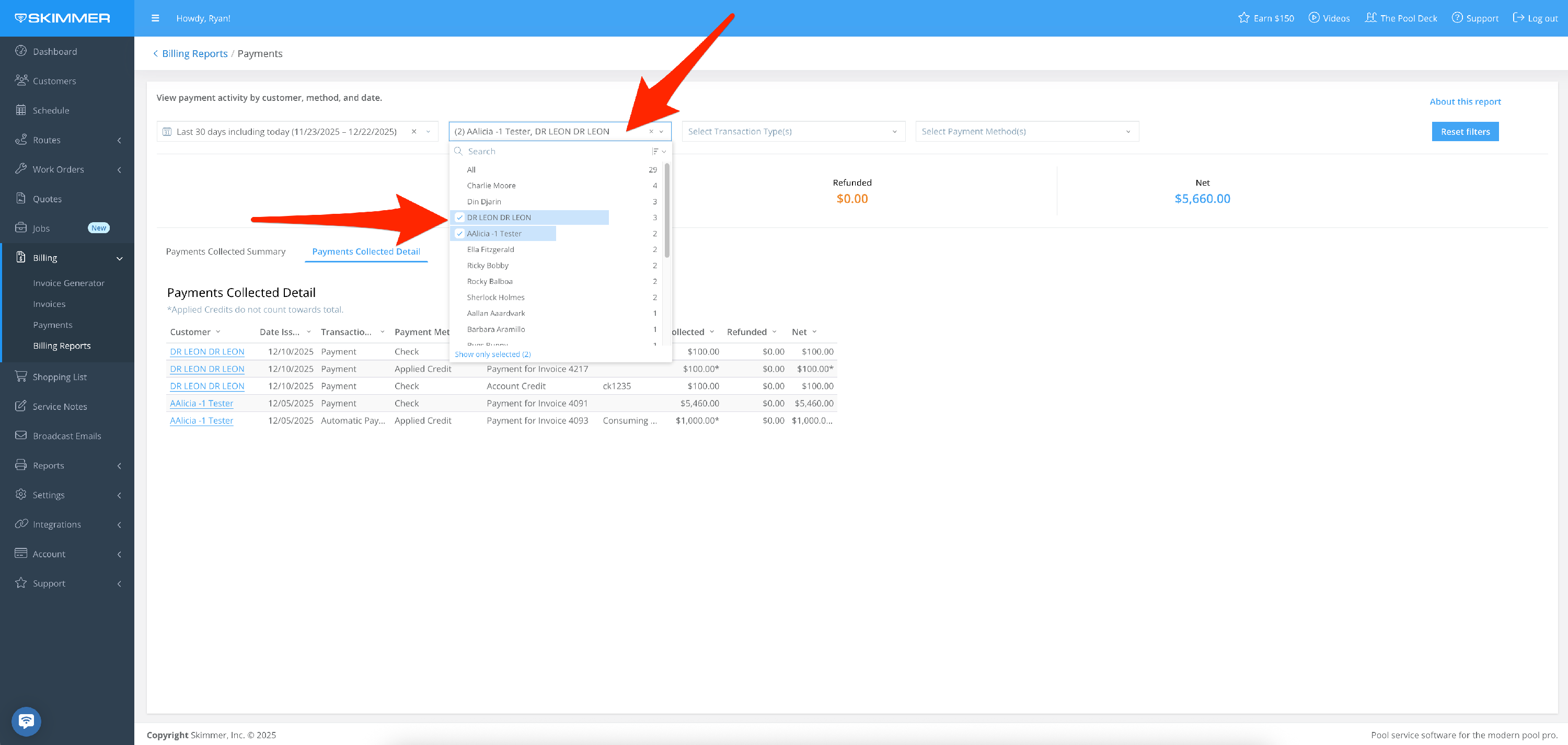
- By customer name
- By multiple customers based on check boxes
- Make your choices and the list filters down, showing the same information as full list for the selected customers
- When you filter by customer, the only customer names that show up in the dropdown are the ones who have received service within the selected time frame
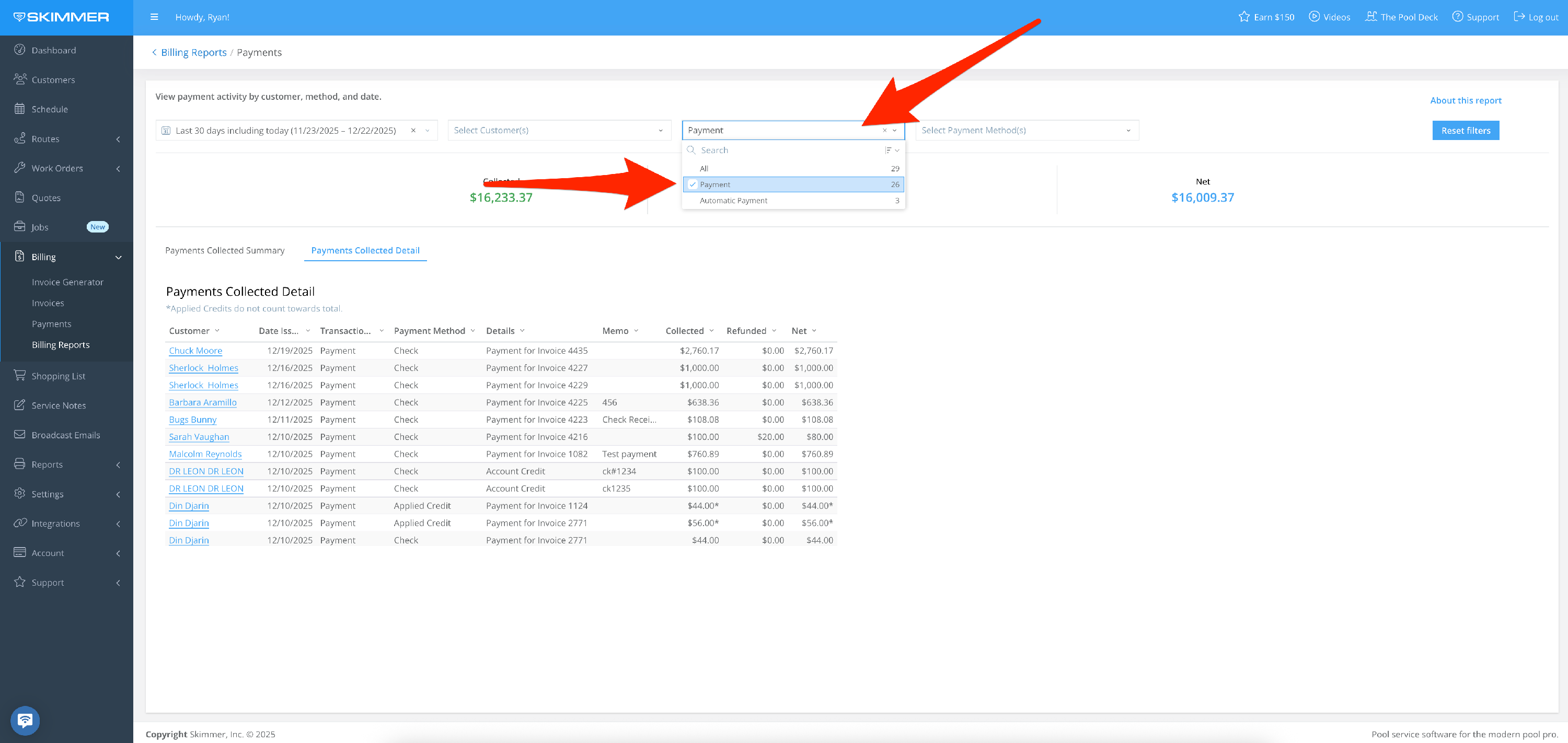
4. Filter by Transaction Type:
- Specify whether you do or do not want to include automatic payments in the report.
5. Filter by Payment Method:
- View all payments or filter by cash, check, and more.
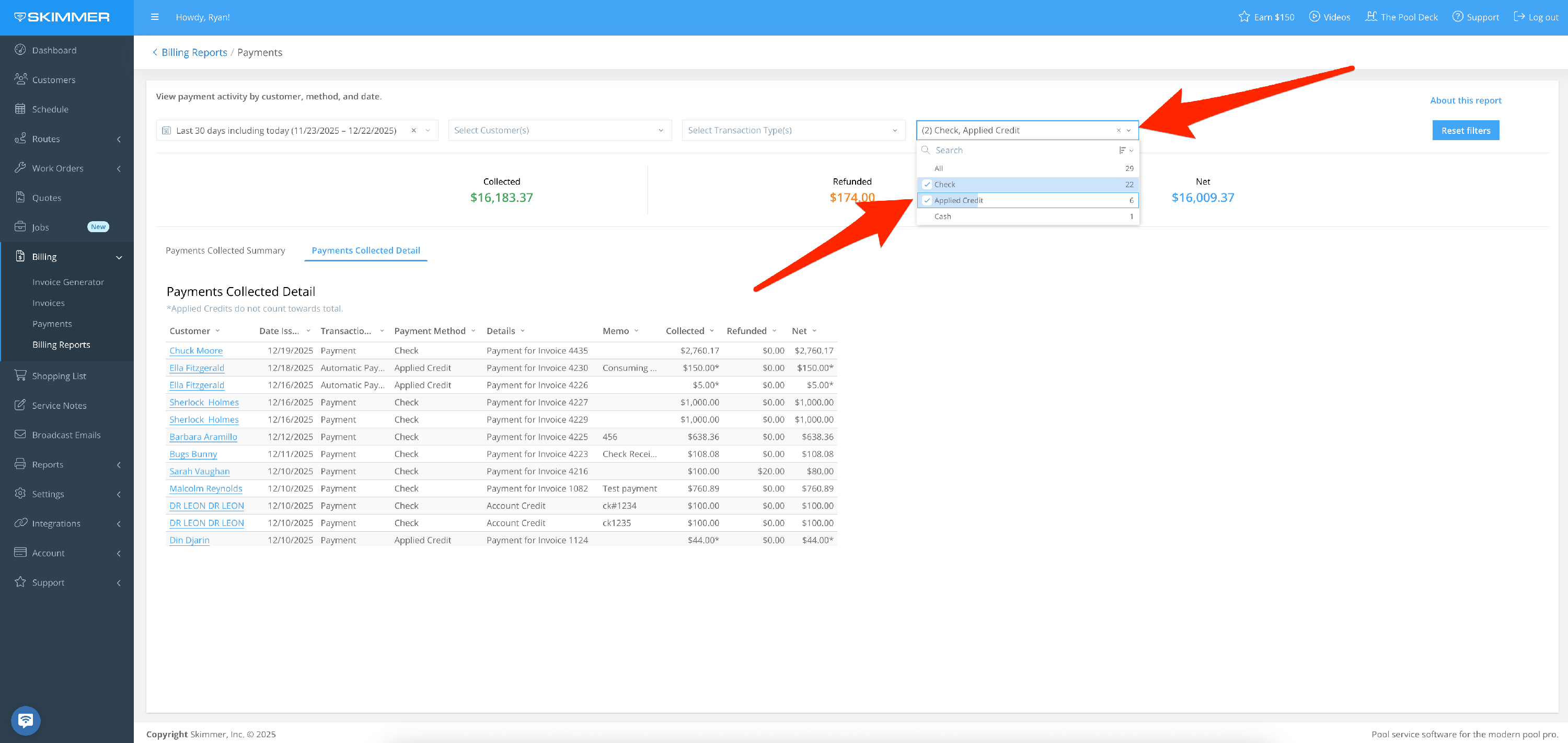
6. What you choose for filters will reflect in the following areas:
- First area gives you headline metrics, including total payments collected, all payments refunded, and net funds remaining.
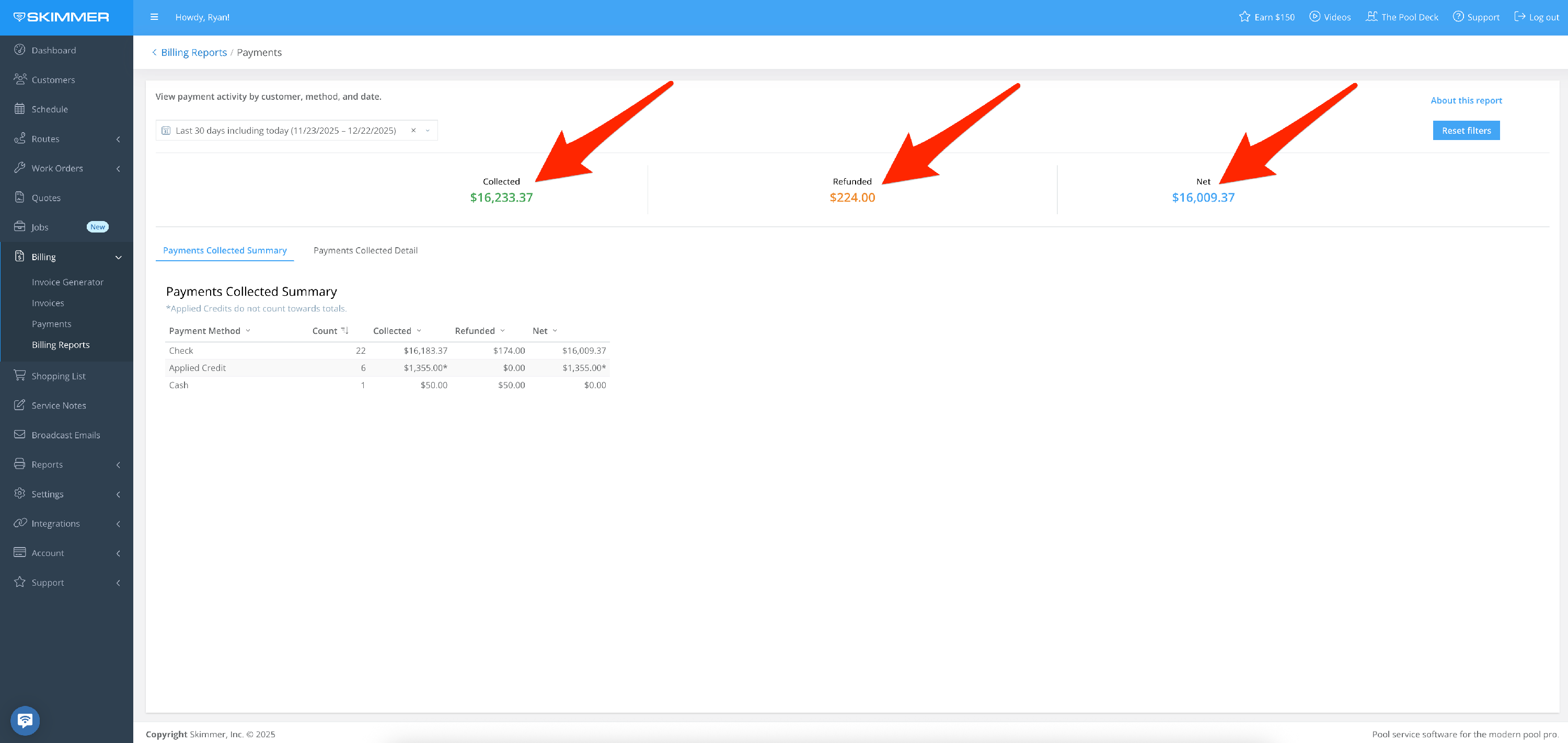
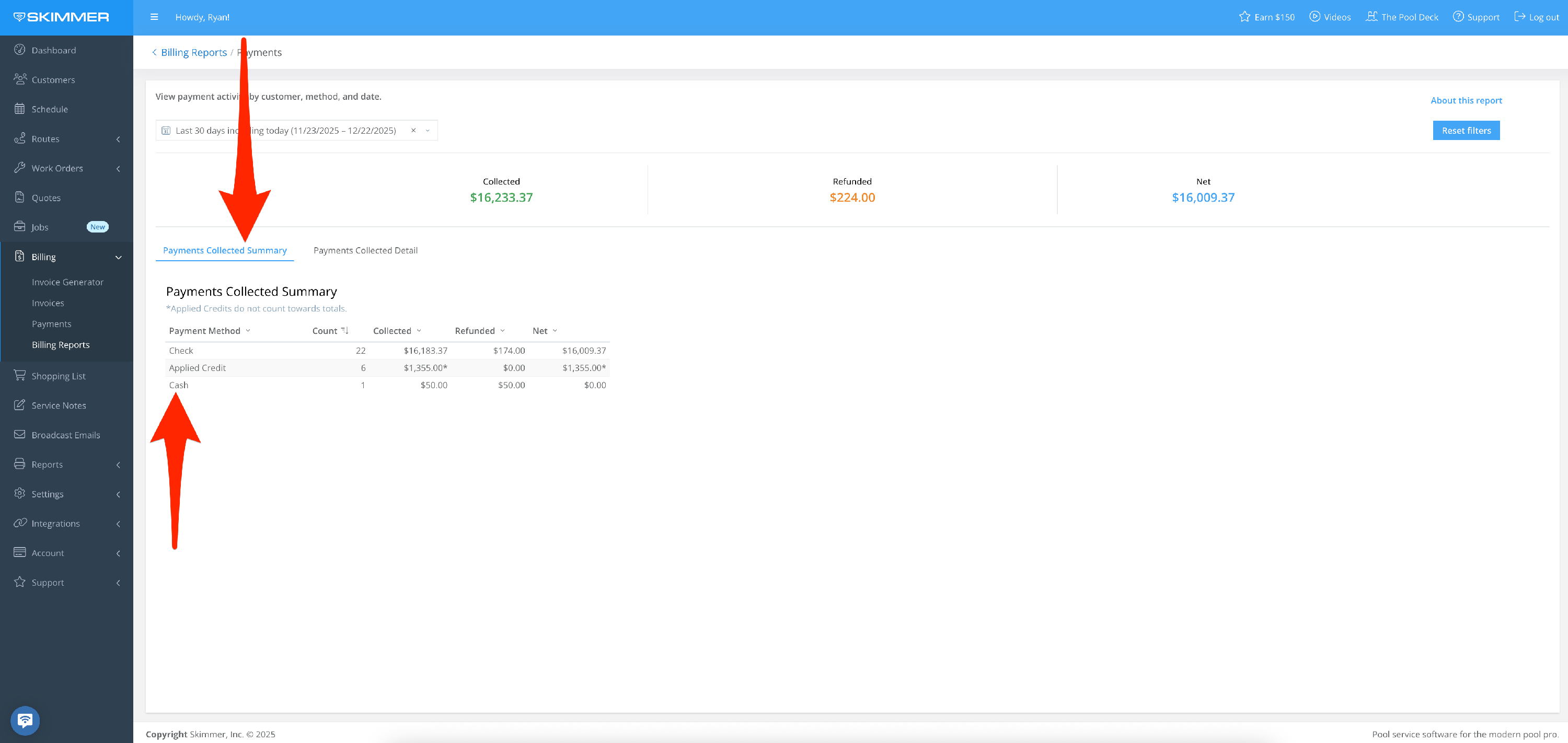
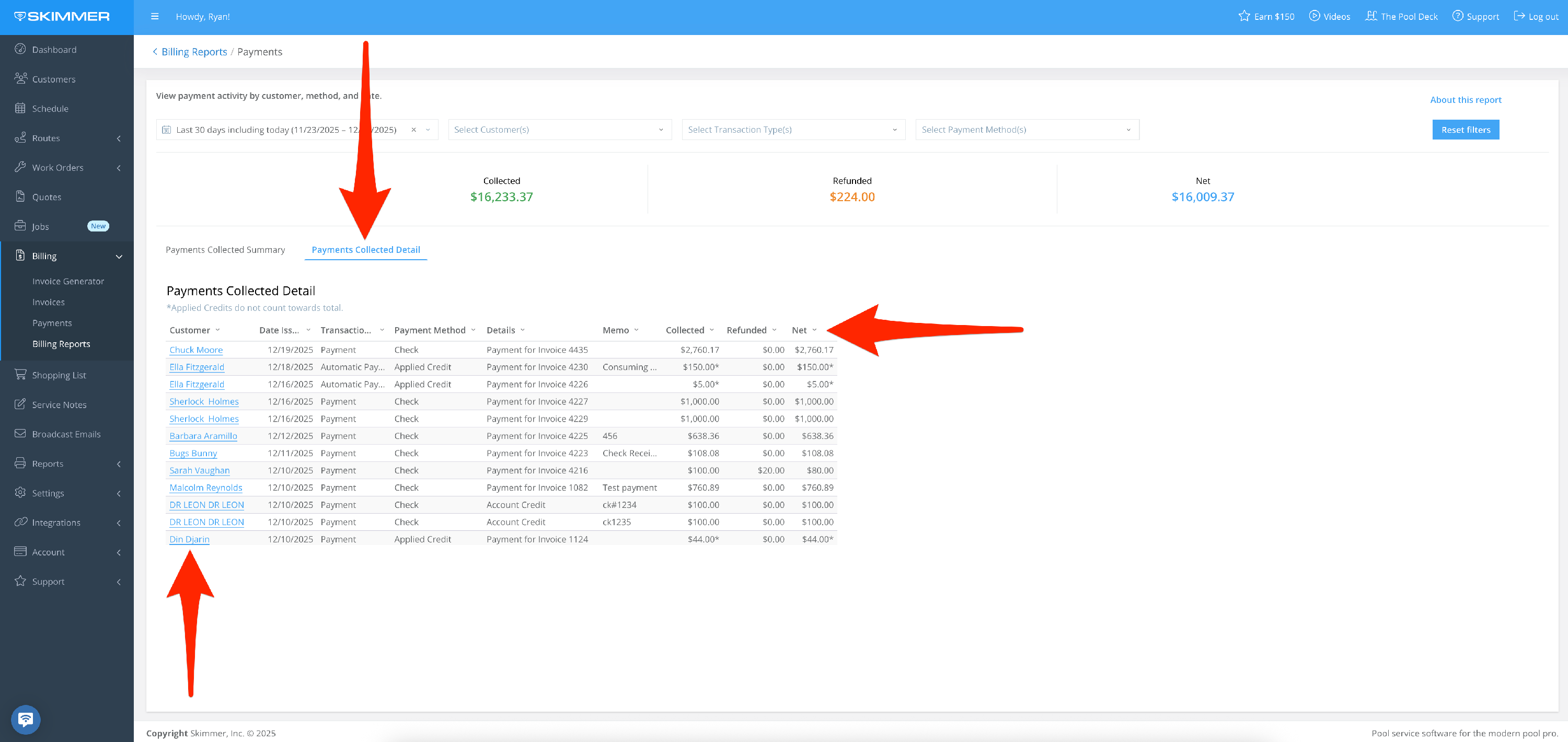
7. The second area gives you charts to help visualize the information.
- Payments Collected Summary shows total payments broken down by payment methods used within your specified time frame.
- Payments Collected detail shows the full breakdown of each payment within your specified time frame, including all pertinent information such as the date, method, and related invoice for each payment.
8. To export data:
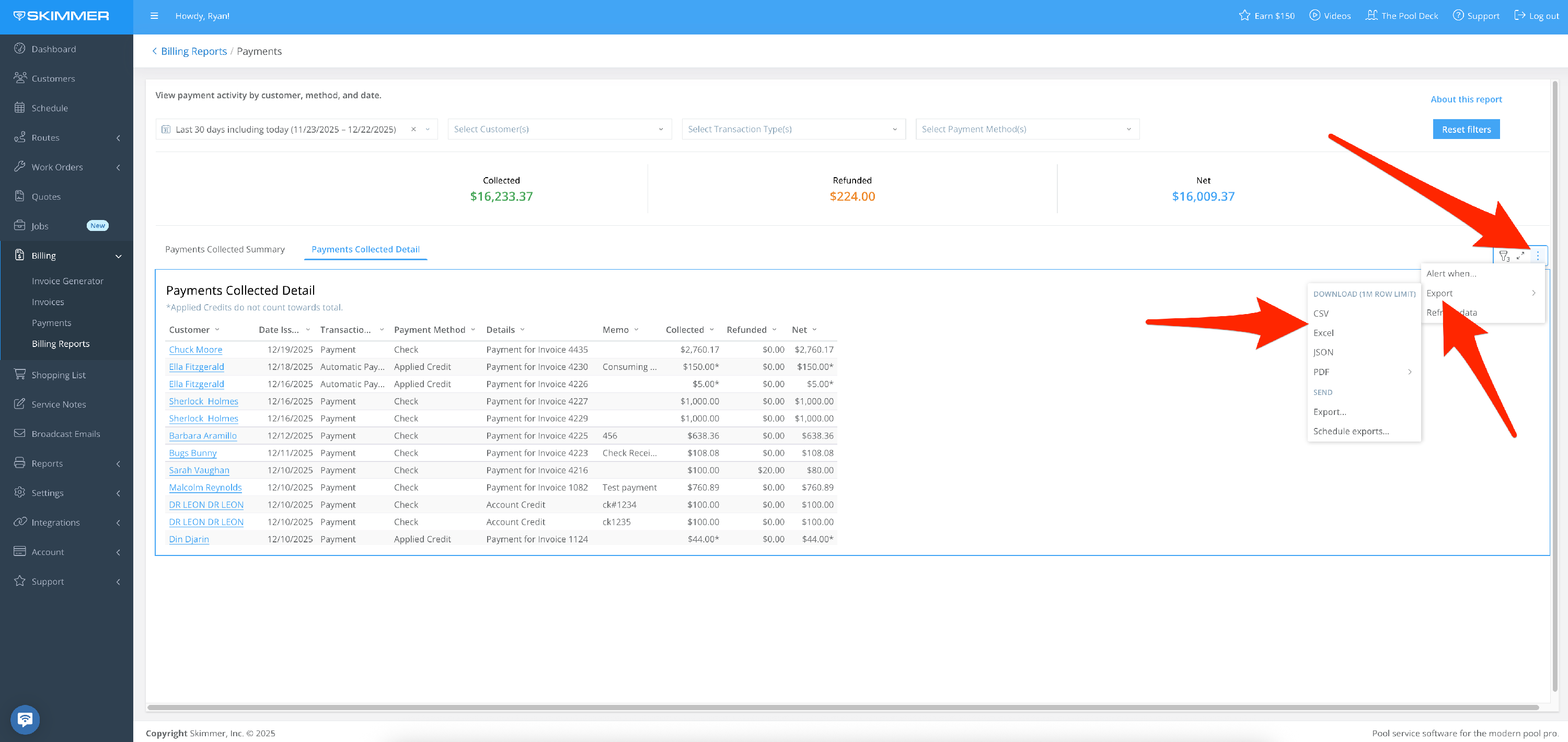
- Hover or click on a chart or table.
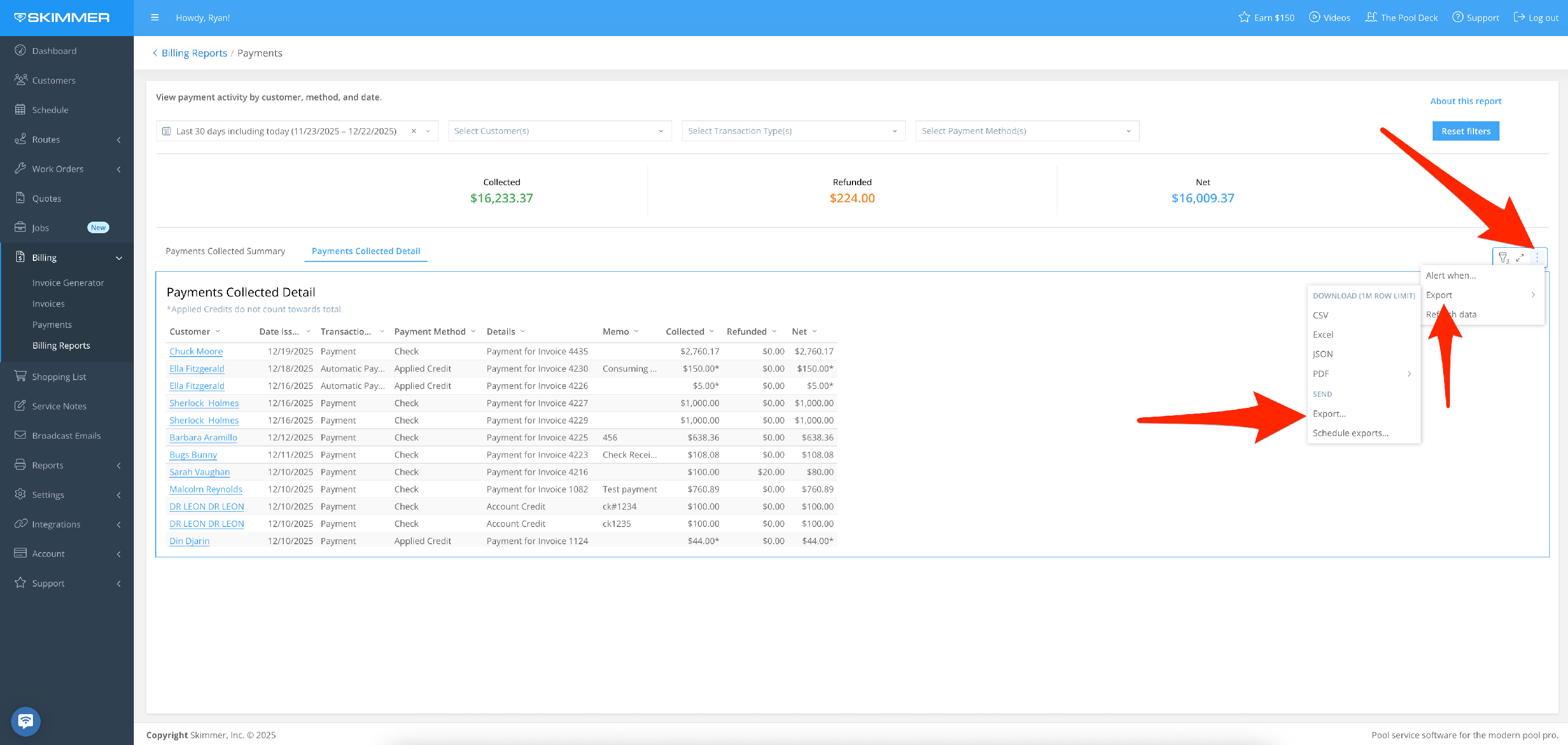
- Find the three dots that appear in the top right of the frame and click. This will give you options for working with the data in the chart you selected, including the ability to export it in various formats to view and analyze the information in your own way.
- Exporting as a PDF or PNG will download an image of what you selected.
- Exporting to Excel or CSV will download a table with the underlying data directly to your computer.
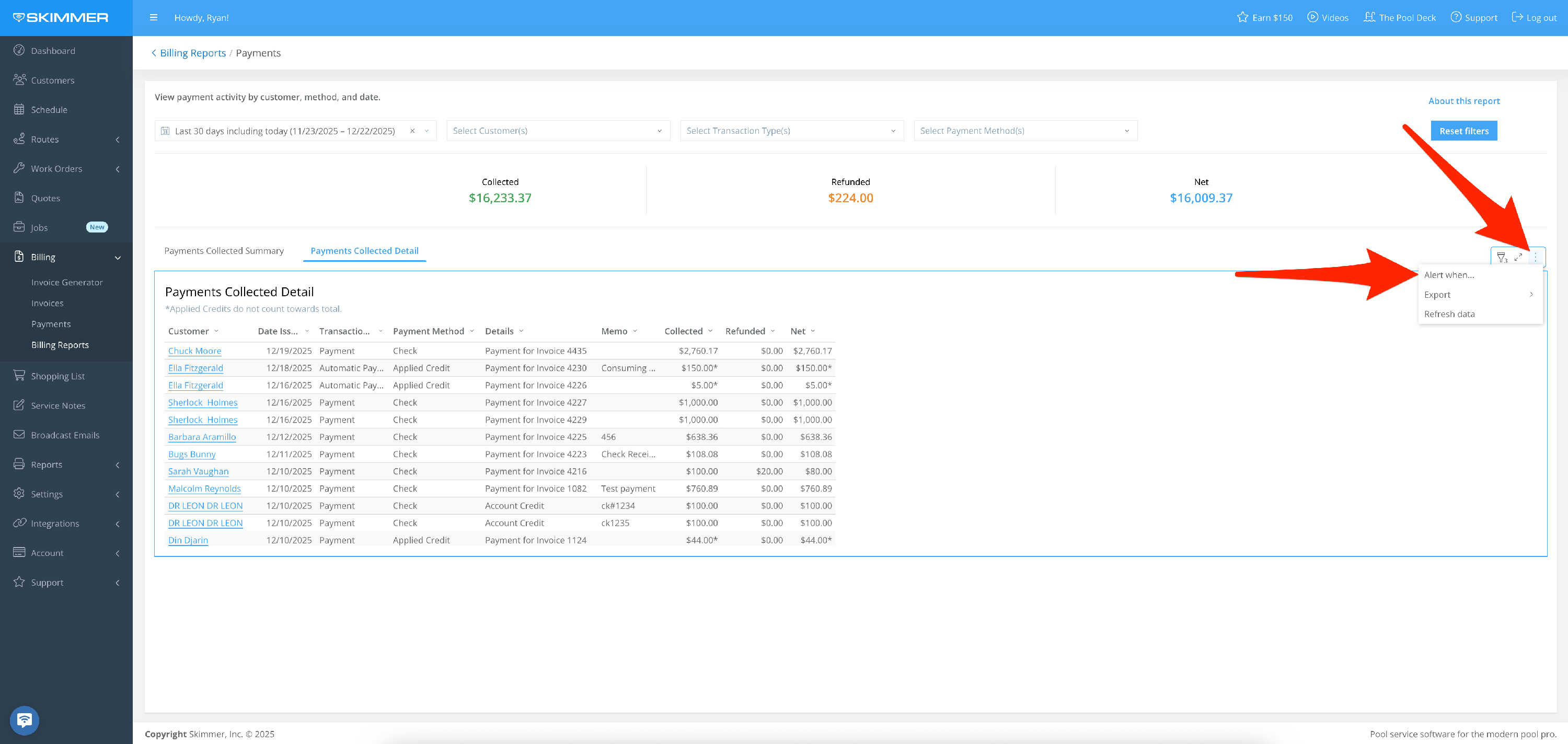
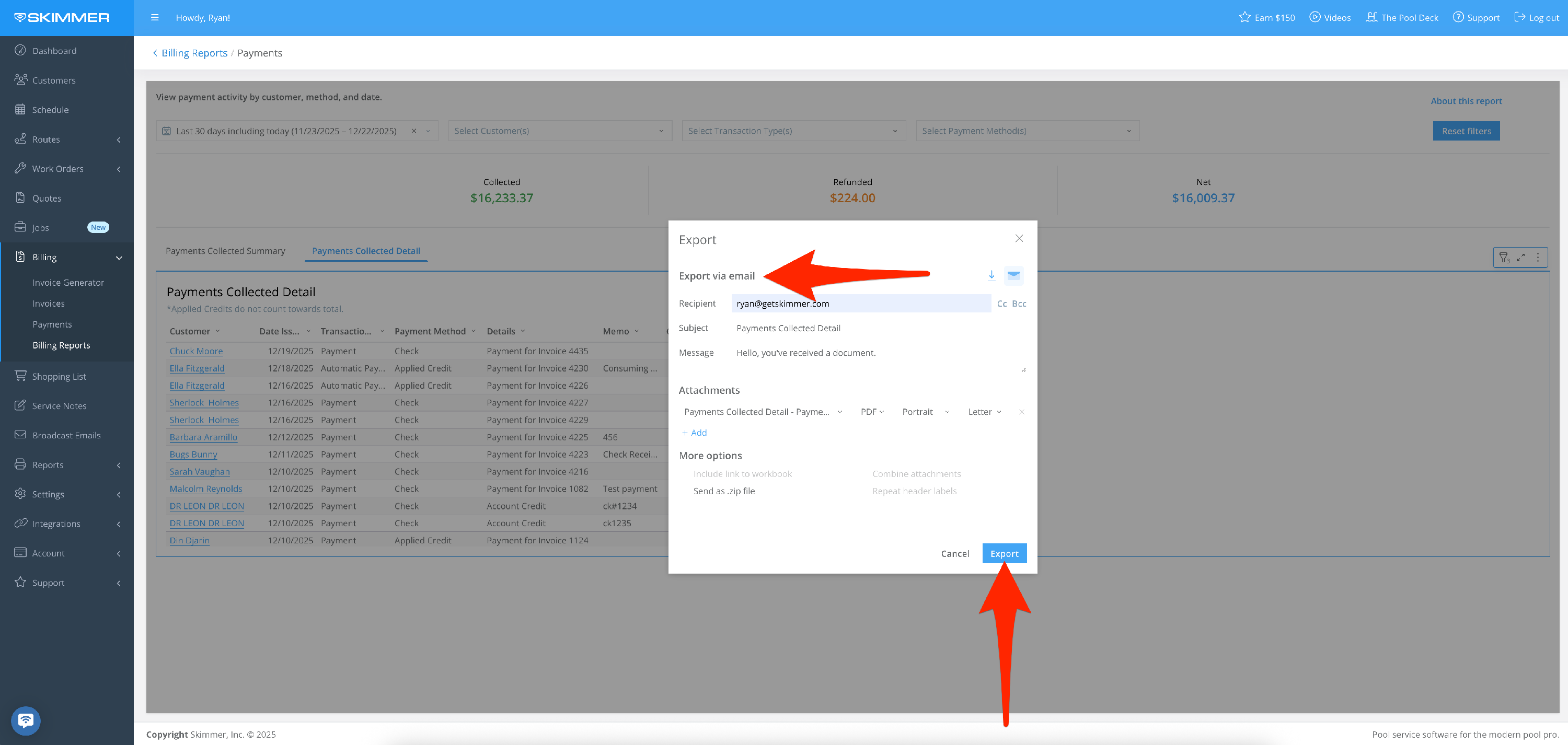
- You can also Send > Export, which also allows you email it. With the email option, you can also choose format and recipients, schedule a day and time for that email to send, and customize a schedule for a recurring email export going forward.
-
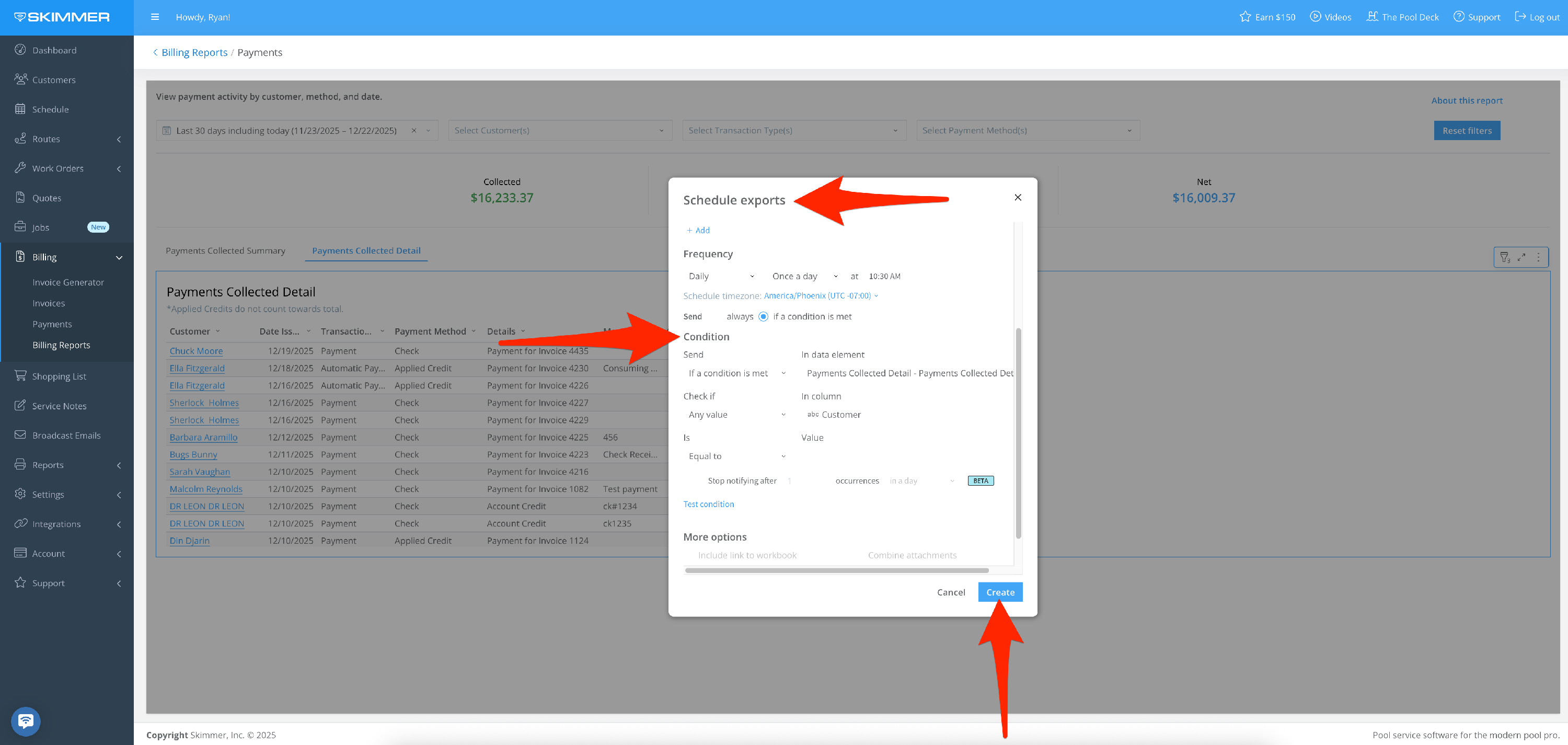
9. The “Alert When” option sets up an automatic export if the conditions you set are met.
- Choose for the export to trigger if your cost exceeds a certain amount. The system does the monitoring of this condition for you and then triggers the export automatically.
- You can also select what supporting data you want to be included in the export, from a high-level summation to the whole text messages table.
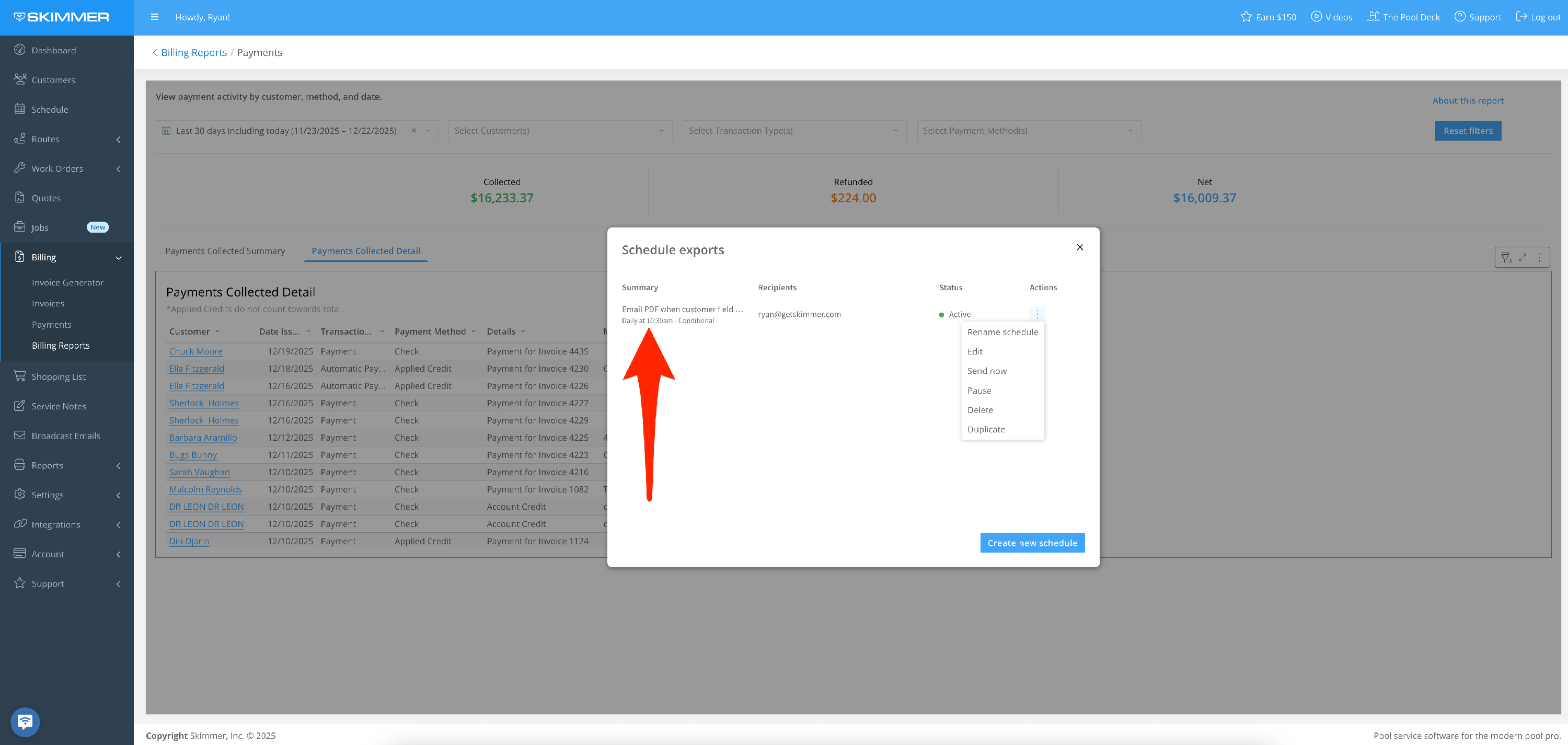
- Once you create a scheduled export, you’ll have access to a table from which you can manage all of your scheduled exports, allowing you to edit/delete/duplicate/pause/manually send report at any time.