
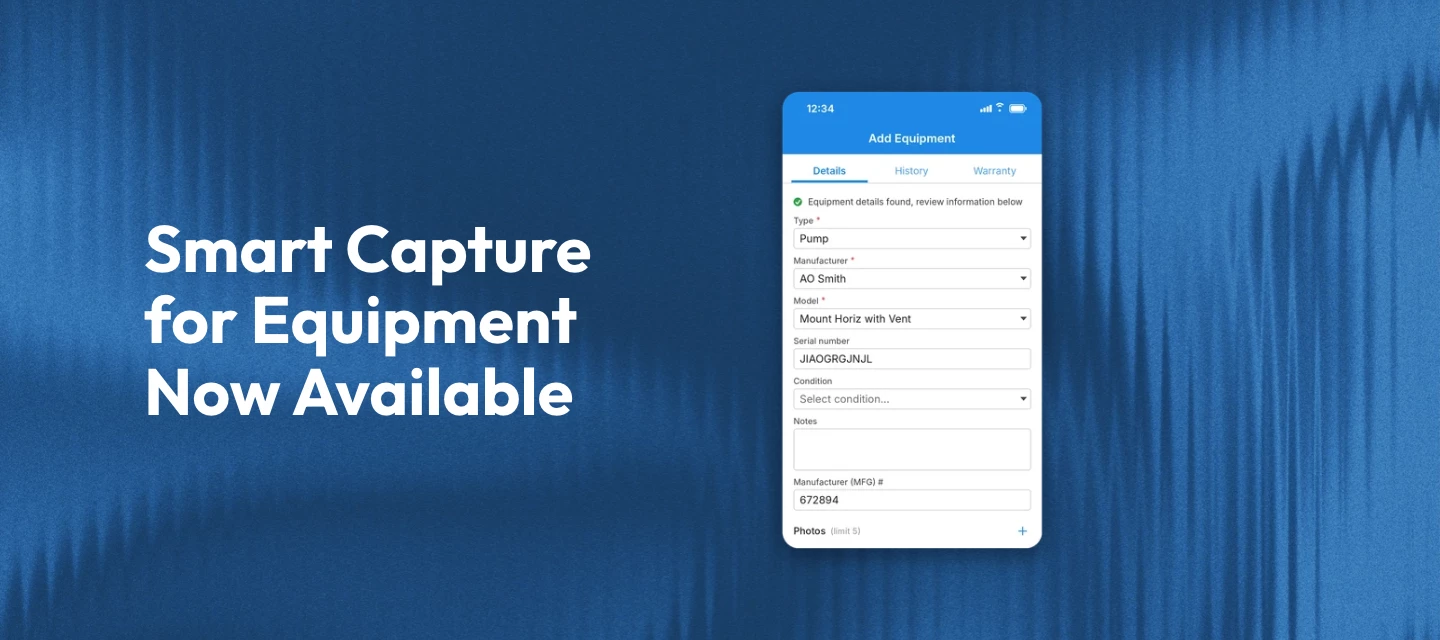



This month’s mobile update is about less typing in the field. Techs can snap a photo of an equipment dataplate and let Skimmer fill in the details. There are also sync improvements and a round of bug fixes.
Smart capture for equipment
No more squinting at a faded dataplate and typing serial numbers by hand. When you add equipment from a route stop, work order, or customer page, tap scan to add equipment. Take a photo of the dataplate or pick one from your photo library, and Skimmer fills in the “Add Equipment form” for you.
That includes:
- Type
- Manufacturer
- Model
- Serial number]
- Manufacture date
- and specs like horsepower, voltage, and BTU.
WATCH THE VIDEO BELOW TO SEE IT IN ACTION
The scan works without a signal, but it’s more accurate when you’re online. It only fills empty fields, so it won’t replace anything you’ve already entered, and every field stays editable. Skimmer also saves the dataplate photo to the equipment record so anyone can double-check a value later. We recommend giving every field a quick look before you tap Save.
Note: The scan is only available when adding new equipment. It isn’t available when editing existing equipment or in the web app. If a manufacturer or model is missing from Skimmer’s equipment catalog, you’ll need to select it yourself, and you can contact support@getskimmer.com to get it added.
Also in this release
- Mobile sync is more reliable, including on devices with the wrong date or time set.
- Customer first and last names now accept up to 50 characters and company names up to 100, matching the web app. Extra spaces at the start or end of a name are removed when you save.
- Warranty cards on “Add Equipment” and “Edit Equipment” now show the same parts and labor expiration dates as the web app, and preview the new dates while you edit.
Bug fixes
- Fixed an issue on some Samsung devices where taking a photo from a route stop could crash the app and photos didn’t save.
- Fixed an issue where route stop and work order photos sometimes reached the office late. The app now retries a failed upload during the same sync.
- Fixed an issue where service texts, like on the way or service complete, could fail to send for customers or service locations created in the app before the next sync.
That’s it for this month’s mobile update. More to come next release.
Heads up for iPhone users: Mobile 26.0 is larger than 200 MB, so your iPhone may ask whether to download now or wait for Wi-Fi. If you have unlimited data and want to skip that prompt, open Settings, tap App Store, tap App Downloads under Cellular Data, and select Always Allow. Keep in mind this changes the setting for all app downloads, not just Skimmer.
Make sure your team is on the latest version to get all of this: