



Watch the video or scroll down for step-by-step instructions.
Tiers: All
Step-by-step instructions
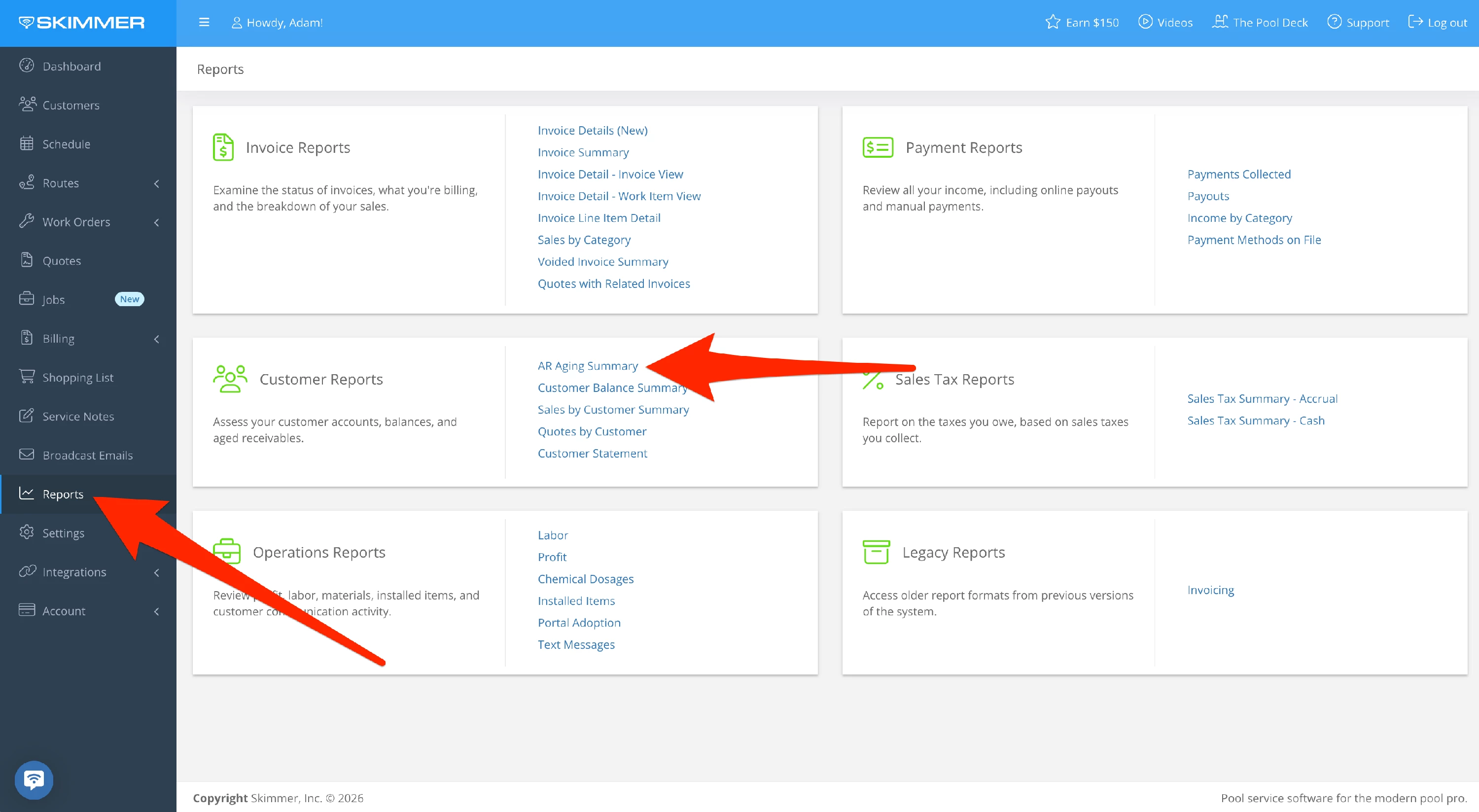
1. Select Reports > Customer Reports > AR Aging Summary.
NOTE: This report is now in a new location, as indicated by the screenshot below. Disregard the previous location under Billing, as reflected in subsequent screenshots. Going forward, the AR AGing Summary Report can be found under Reports in the main menu.
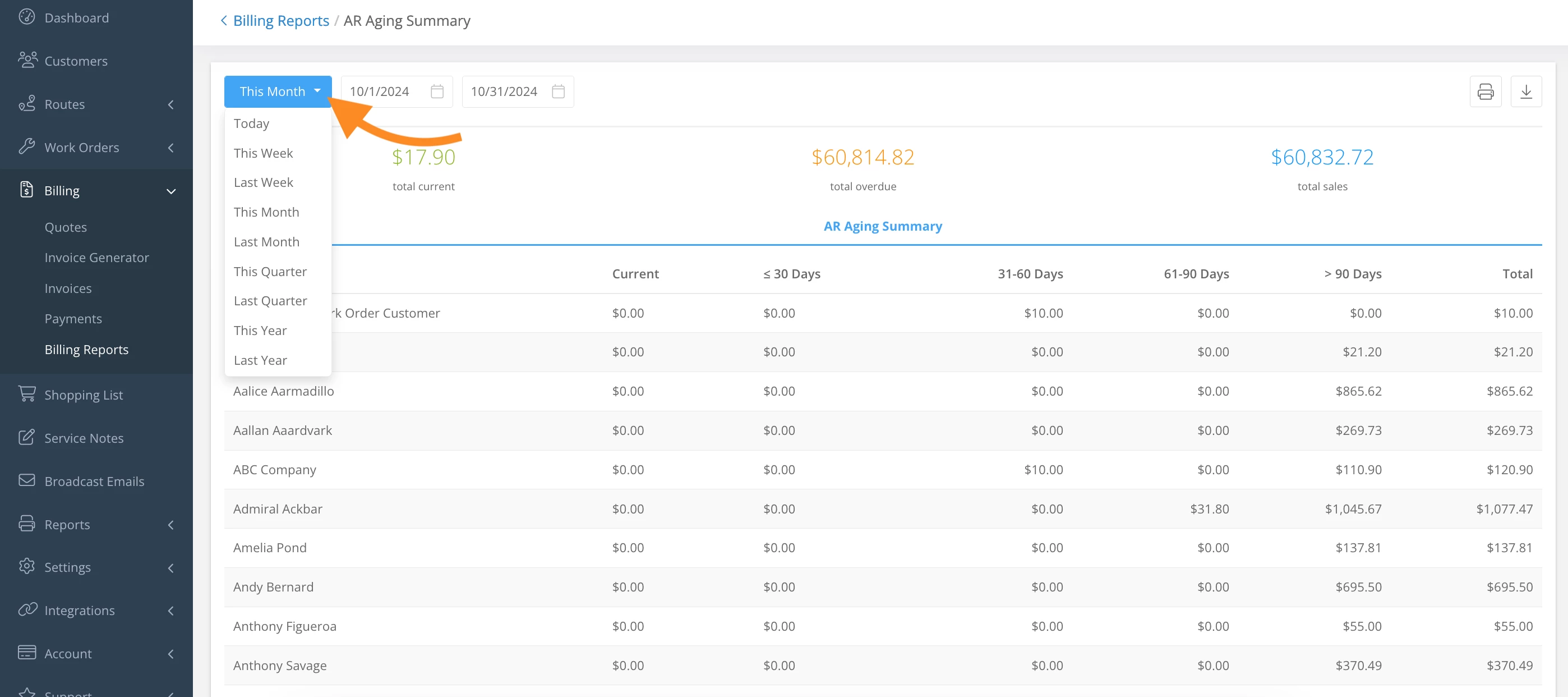
2. Select any of the filter options to view a specific date range.
- Click and select from the dropdown to view by month, year, quarter, etc.
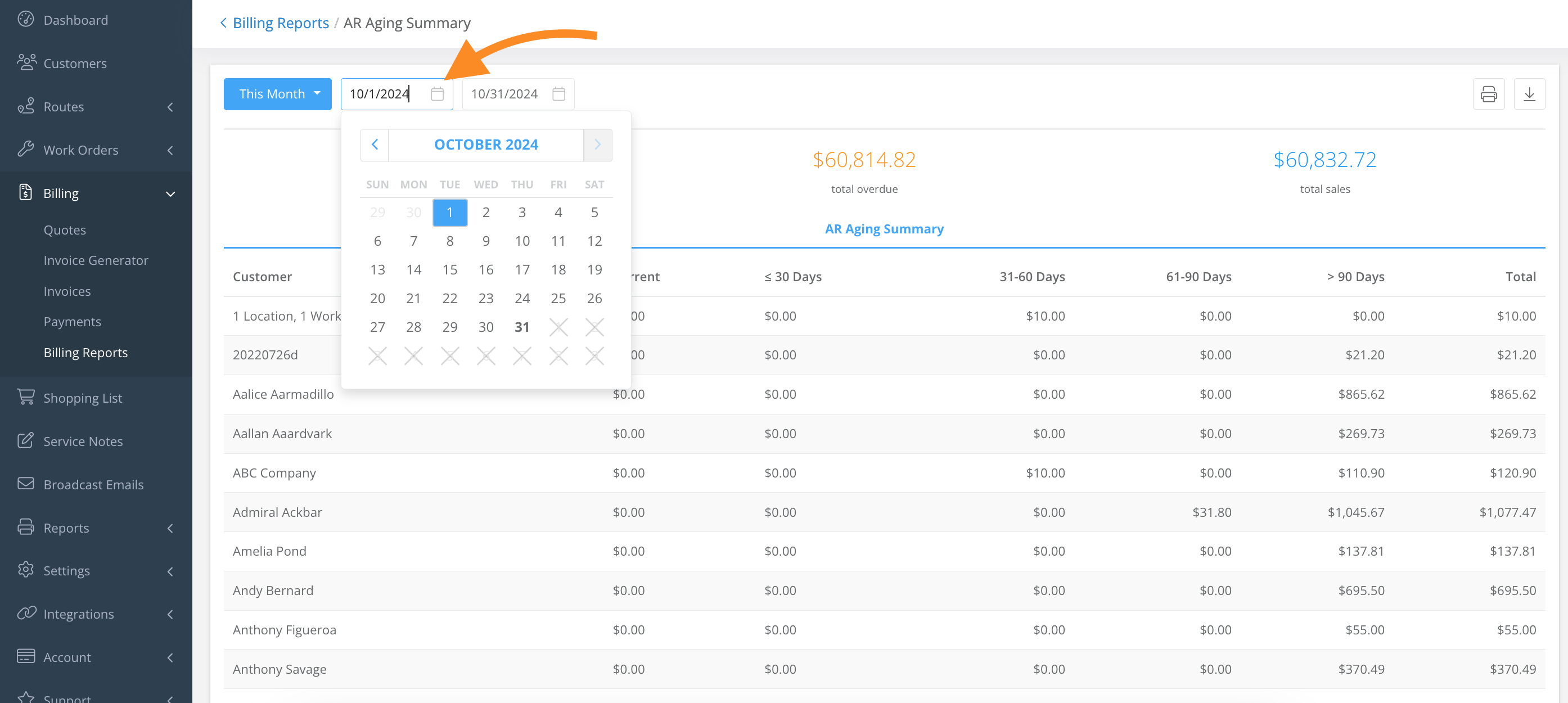
- Click and select from the calendar to customize the date range.
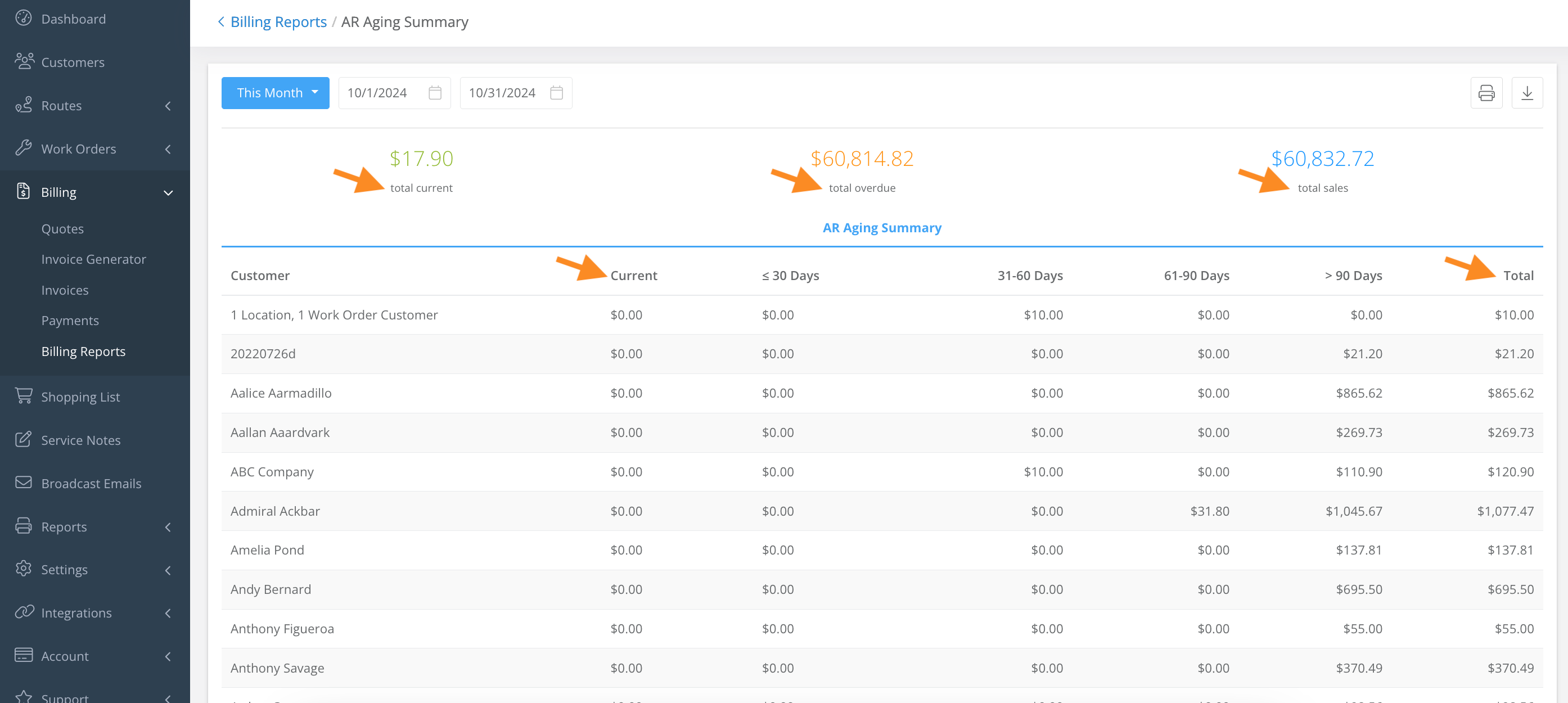
3. This report allows you to view current and overdue payments for all your clients
- The Current column shows the amount that’s owed but not yet overdue.
- The sliding scales show how far out payments are overdue.
- The Total column on the far right gives you the combined amount of currently owed and overdue payments for each customer.
Last updated on January 28, 2026