


Tiers: All
Step-by-step instructions
1. Skimmer empowers you to fully customize permissions for every employee, so you can tailor their feature access to exactly what they need for their job.
On the website, go to Settings > Roles & Permissions. There, you’ll see two boxes.
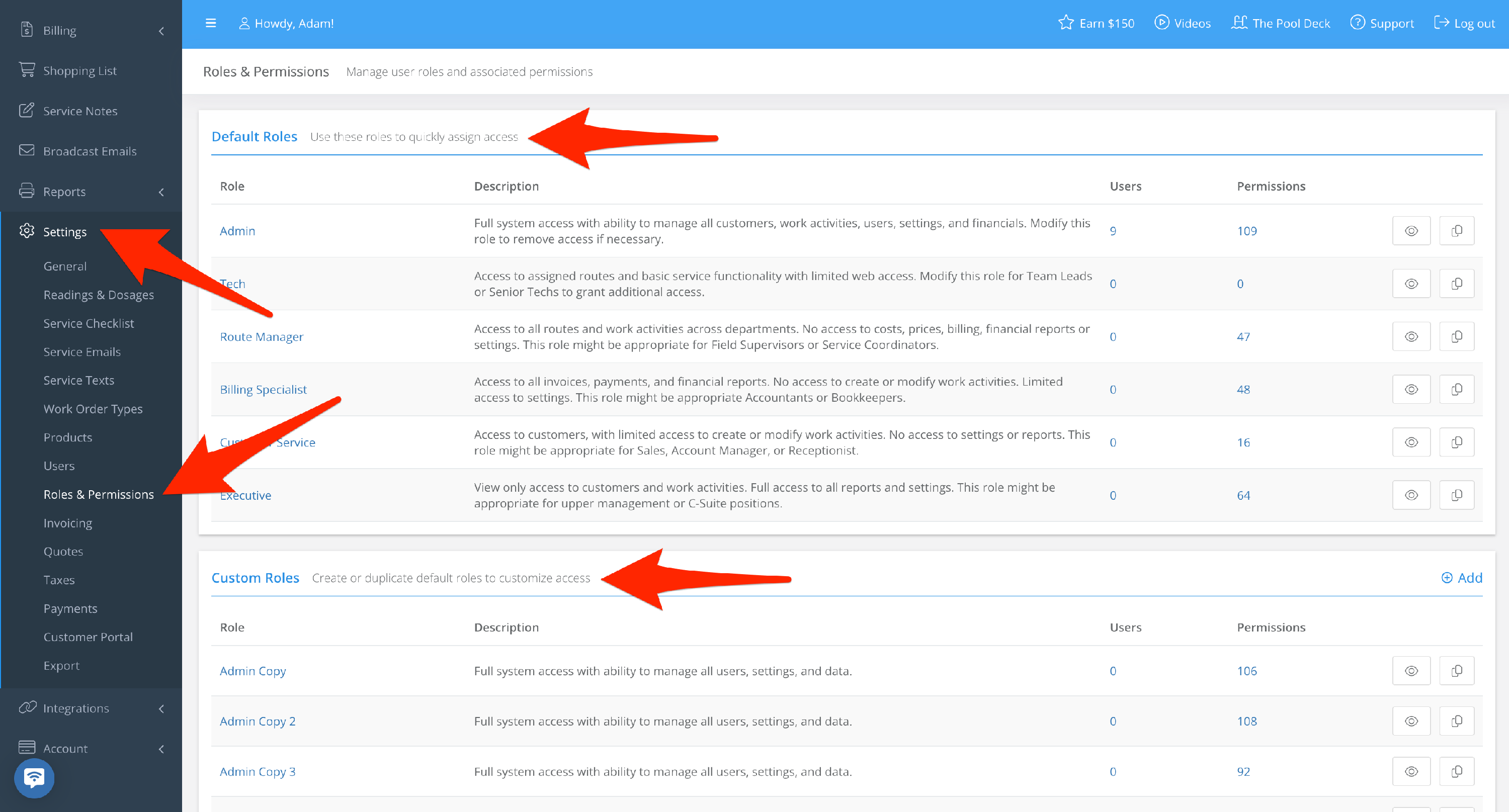
2. The first is for Default Roles, which have predefined rights and permission that Skimmer has already set up, and you can apply these to any users you like.
The Description field gives a basic overview of the access types granted to that role.
Default Roles cannot be edited, but if you’d like to use them as a basis for a Custom Role, you can click the Duplicate button, then rename and adjust access rights for that new Custom Role.
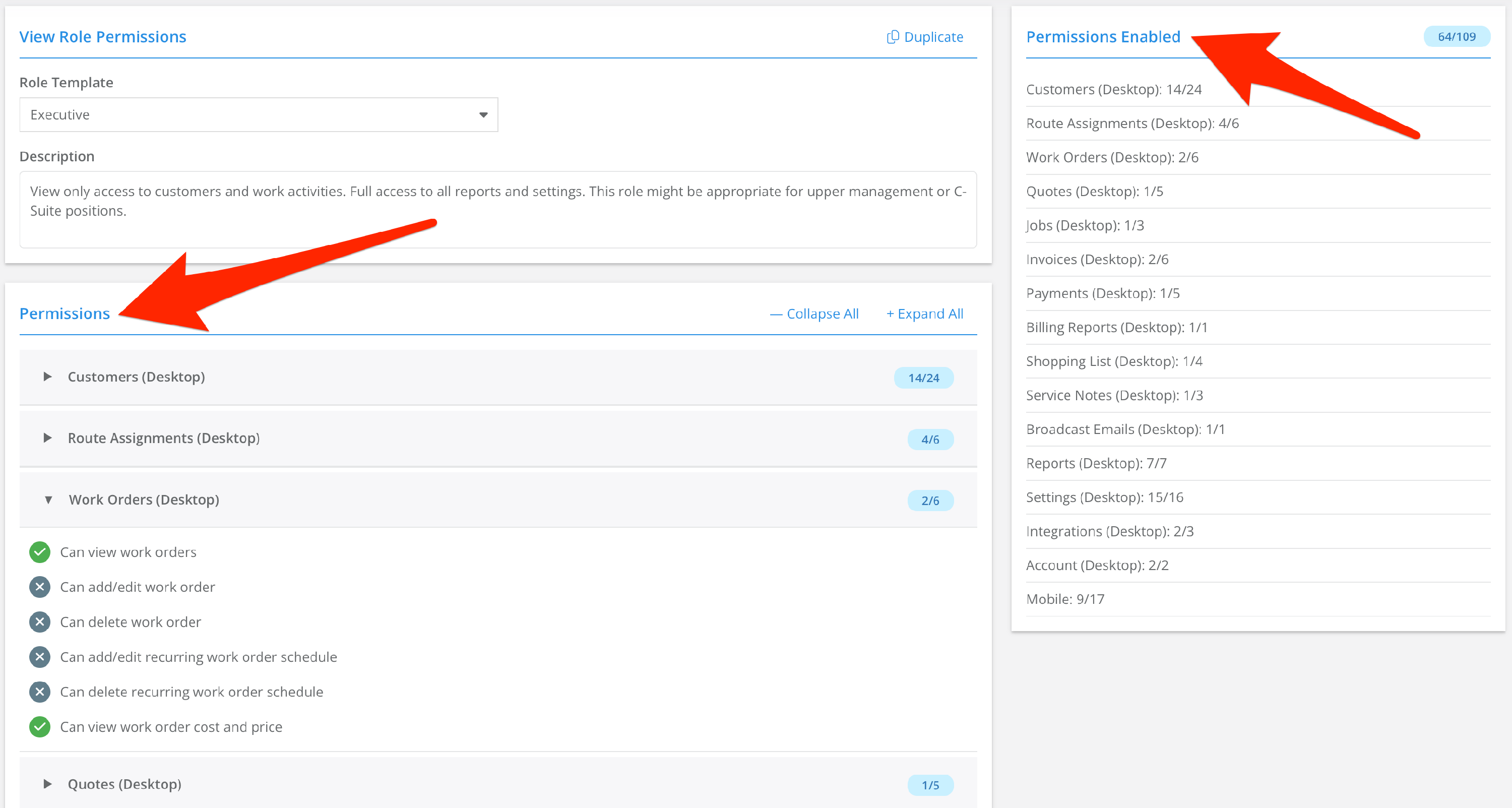
No two roles can have the same name, so you’ll need to call it something new. Click the View Role Details button to see every permission granted to a role.
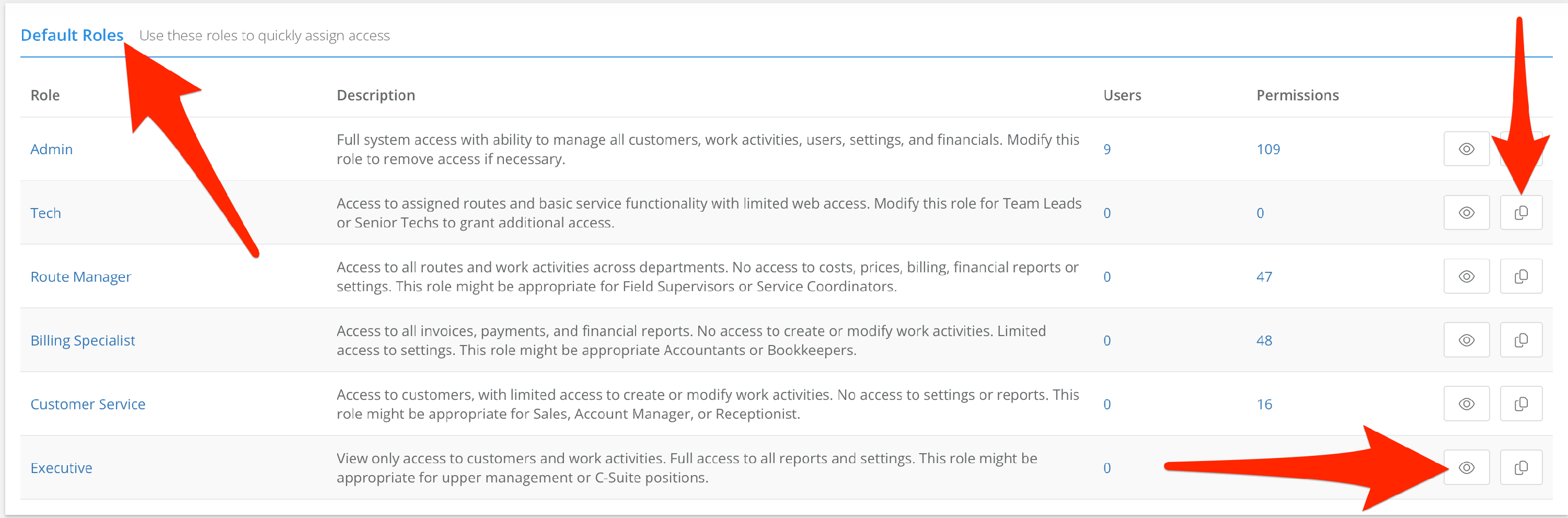
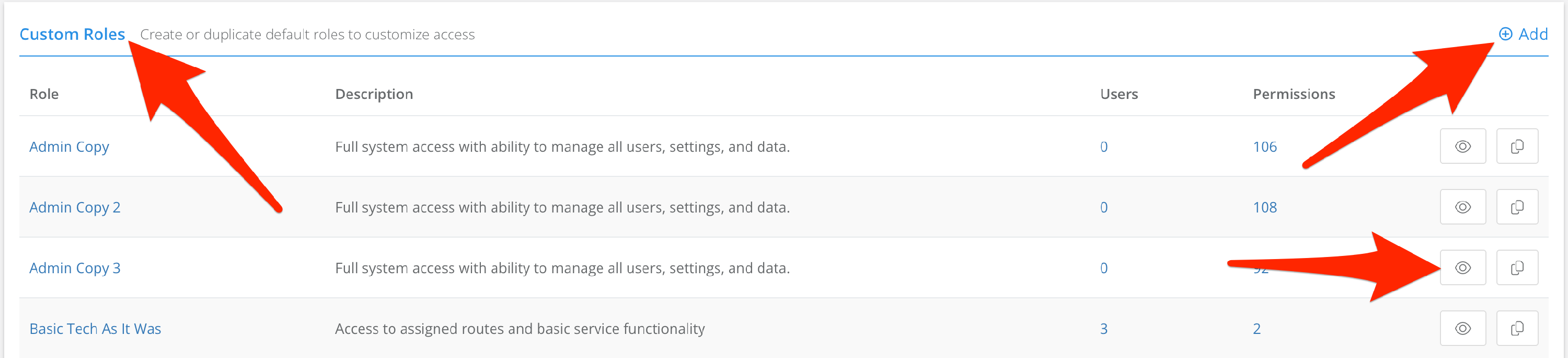
3. The second box is for Custom Roles that you create, name, describe, and define access for. You have the same view and duplicate buttons on the right, or you can click Add to create a new role from the ground up.
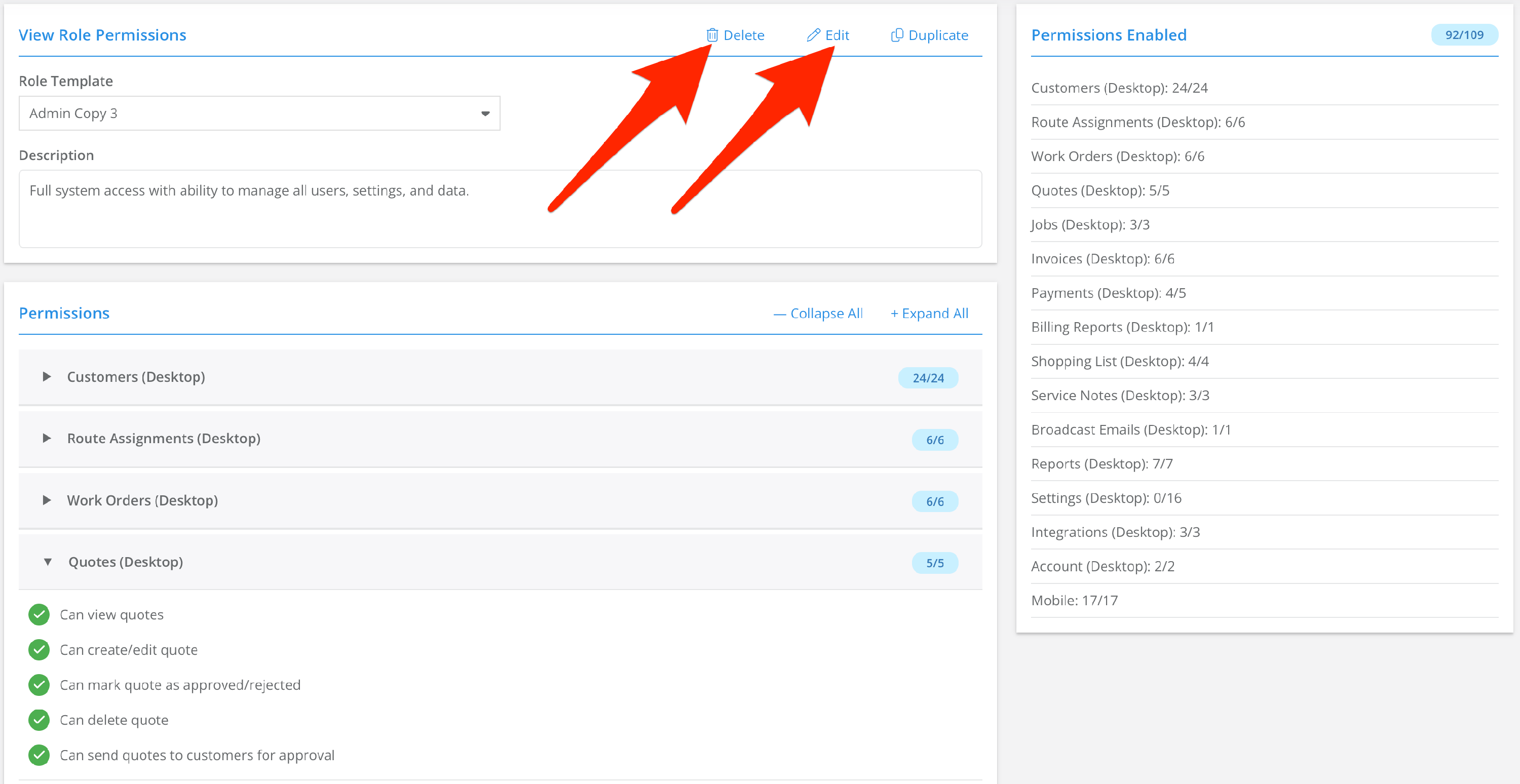
Clicking the view button will give you additional options to delete or edit this role. Note that you cannot delete a role that a user is currently assigned to.
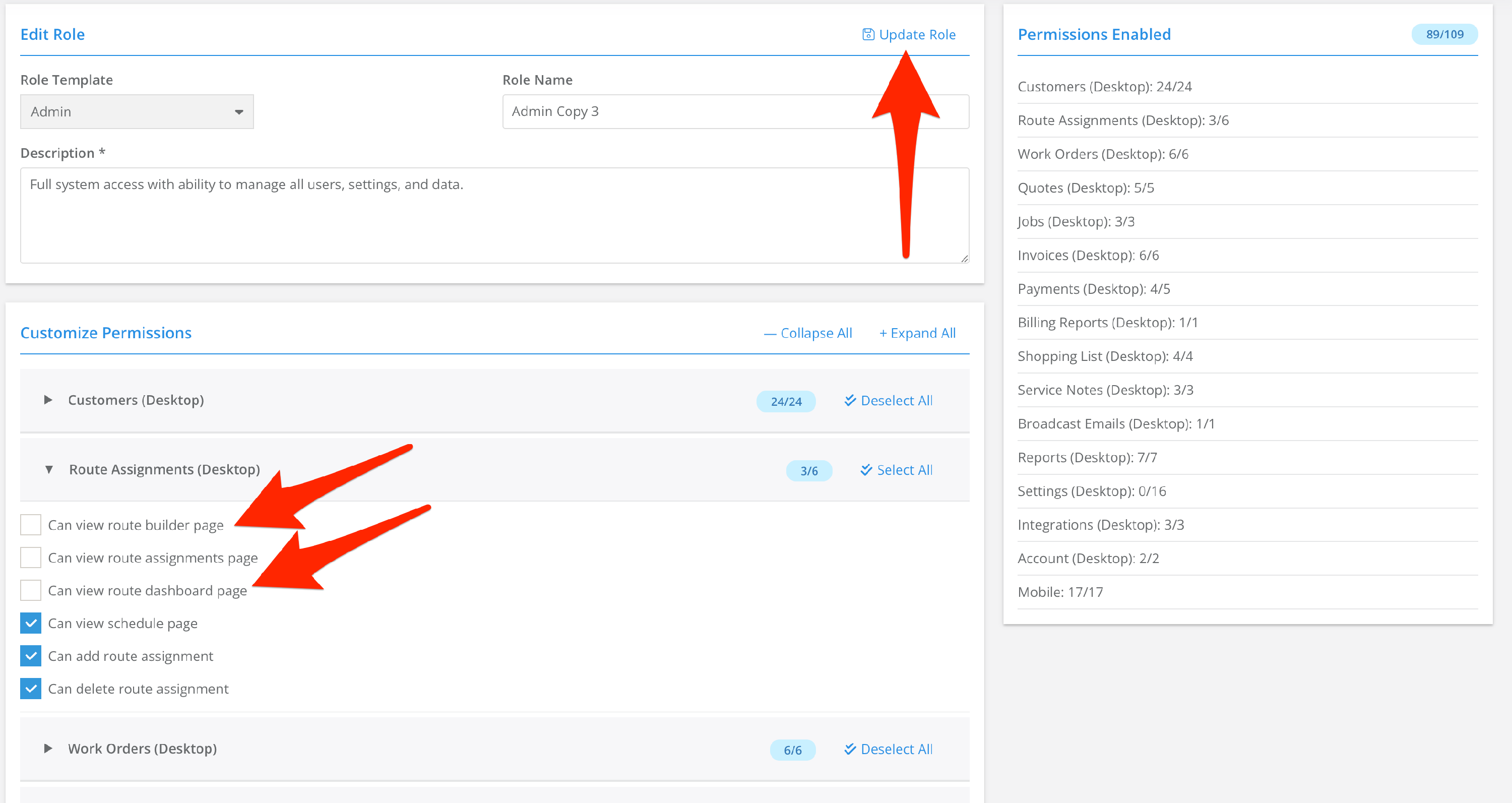
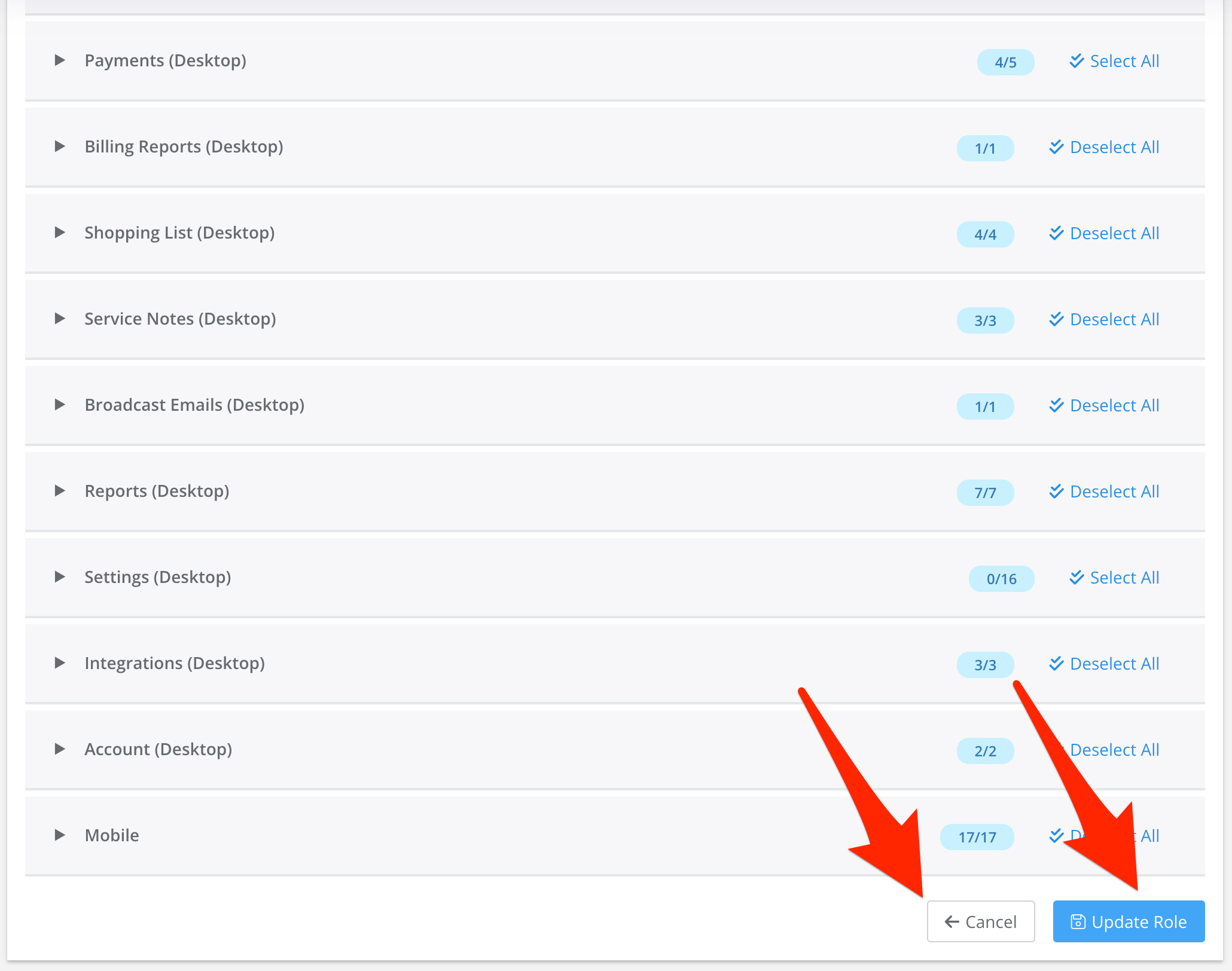
Click Edit and the role will unlock, giving you the ability to check or uncheck any permission option, change the name and description, and finally click Update Role to save changes. You can also cancel if you change your mind.
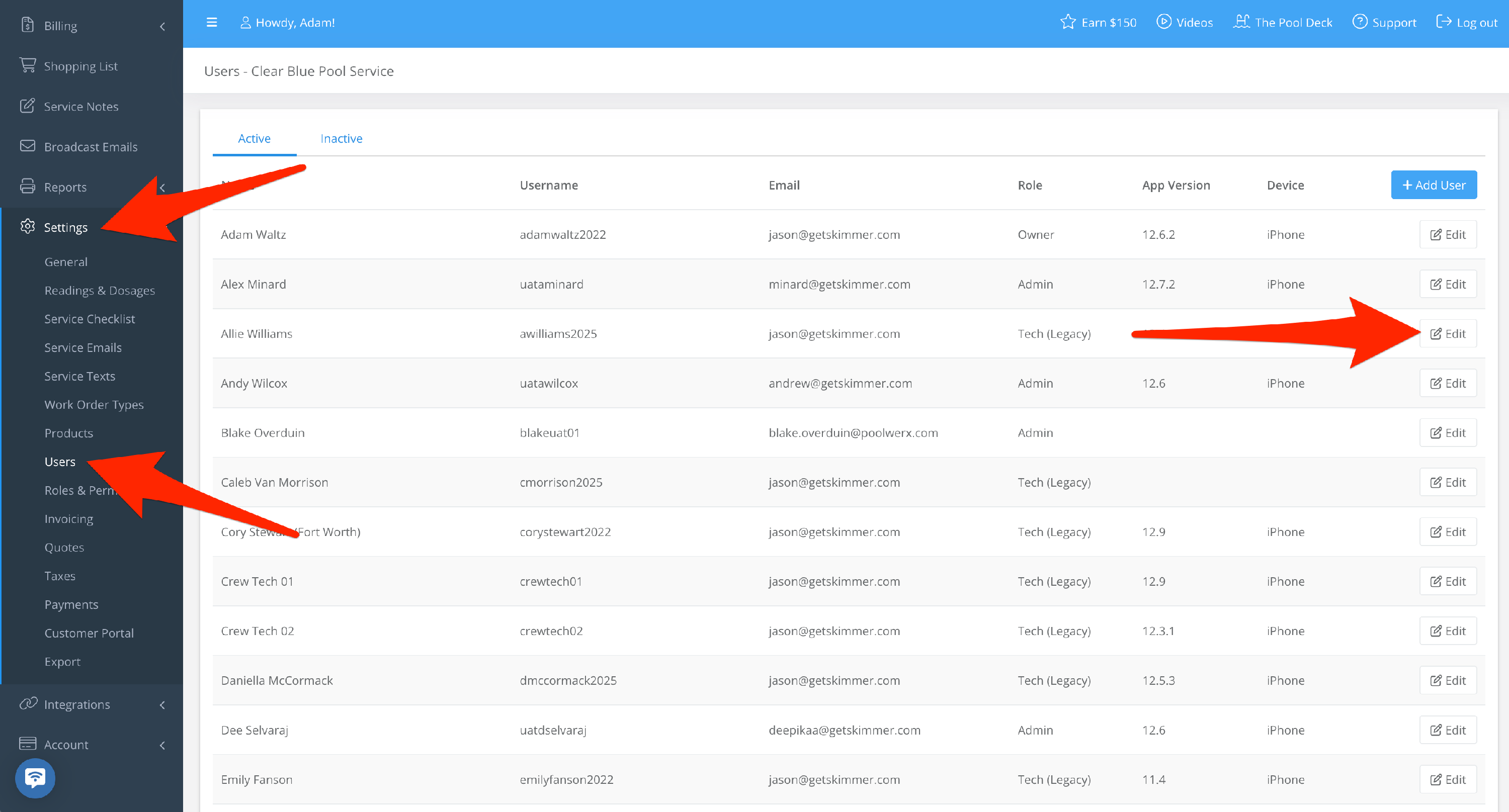
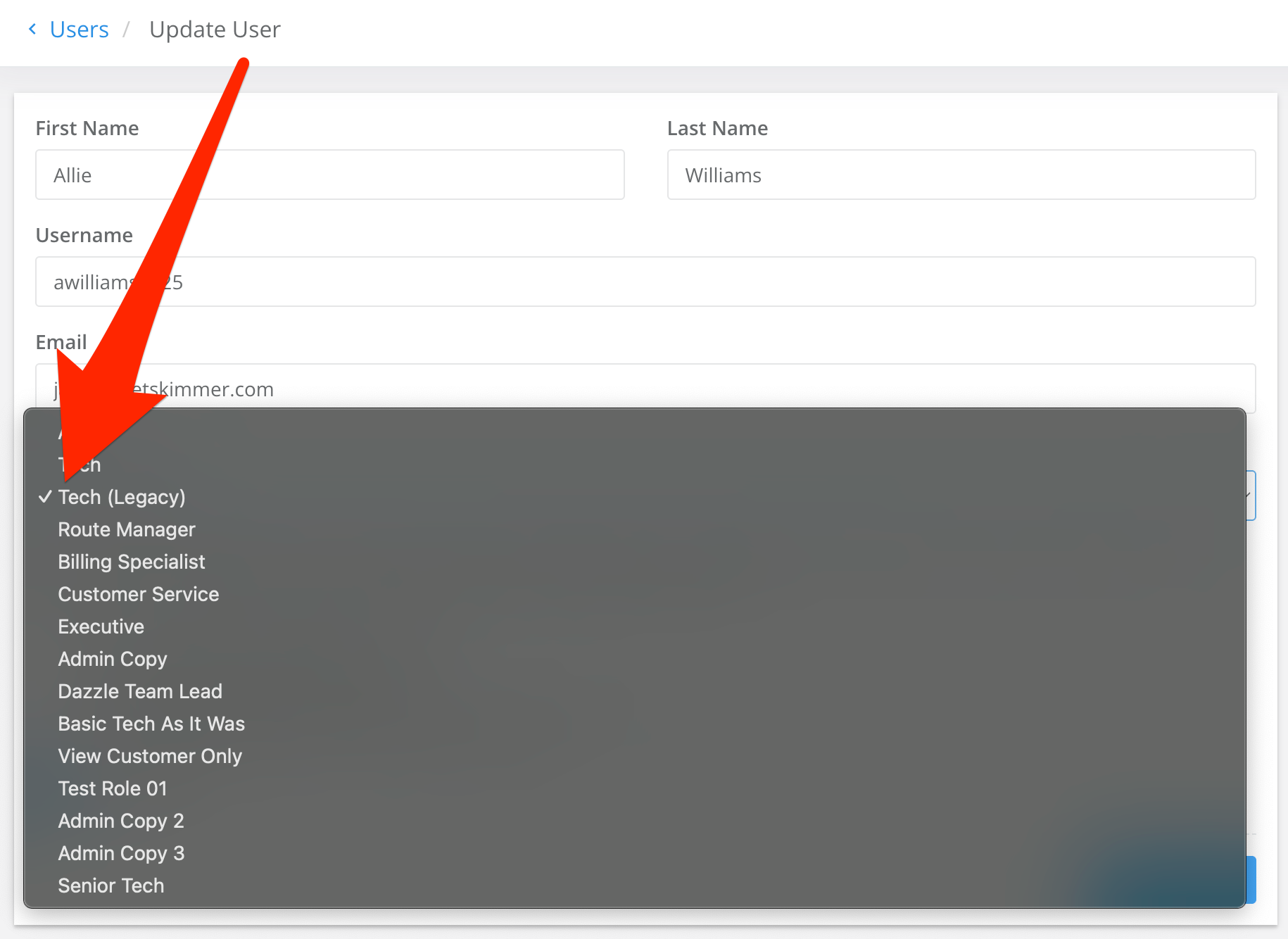
4. To assign a role to a user, go to Settings > Users. Whether adding a new user or editing a current user, click the Role dropdown box to select from a full list of default and custom roles. Then click Save. Note that every role, whether default or custom, has basic app rights that allow the user to complete route stops.
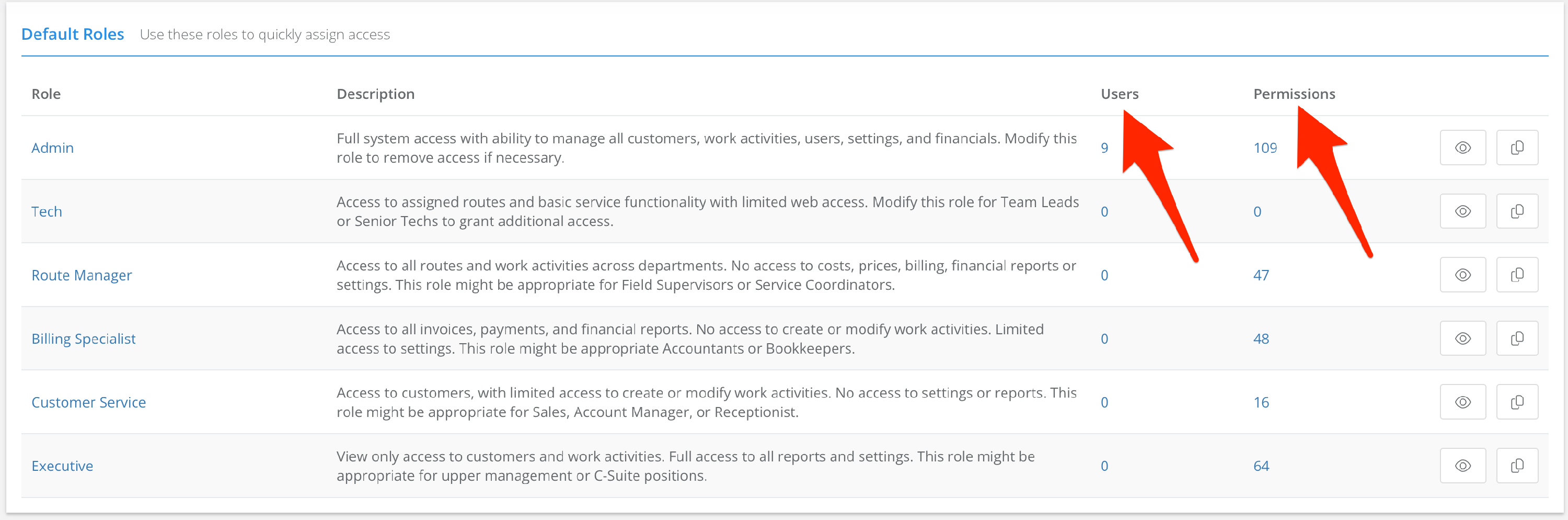
5. You also have columns indicating how many users are assigned each role, and how many individual access rights each role grants. Note that the ability to access this Permissions page is itself an access option that can be granted to or rescinded from any Custom Role. Currently, the Admin and Executive default roles grant this right.
With these access control options, you can easily restrict access to sensitive information, and ensure sensitive actions can only be performed by approved personnel. You can also redefine roles over time as your team structure grows, and as Skimmer introduces more features in the future, your access options will grow.