



Watch the video or scroll down for step-by-step instructions.
Tiers: All
Before You Start:
- Default settings for Work Order Types are created individually.
- Edits can still be applied to a work order with default settings in place.
Step-by-step instructions
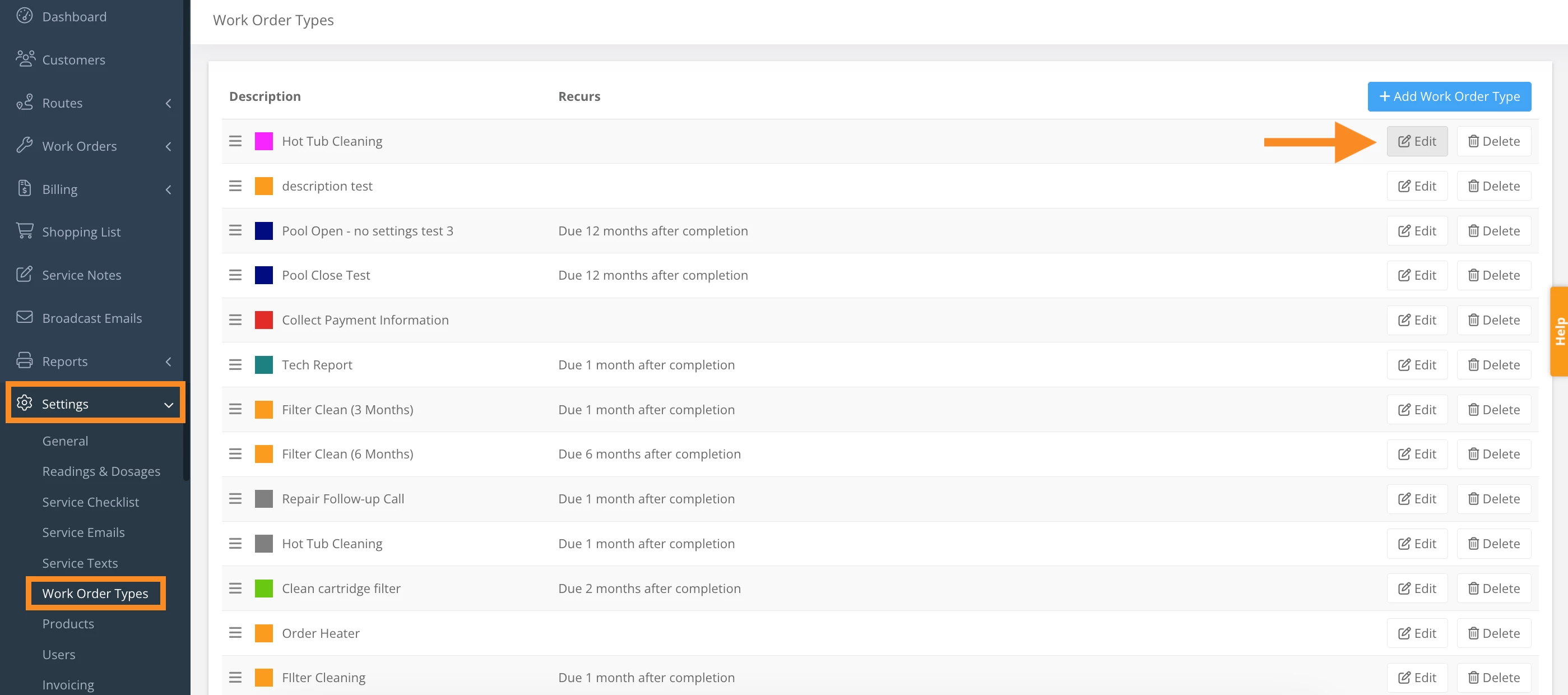
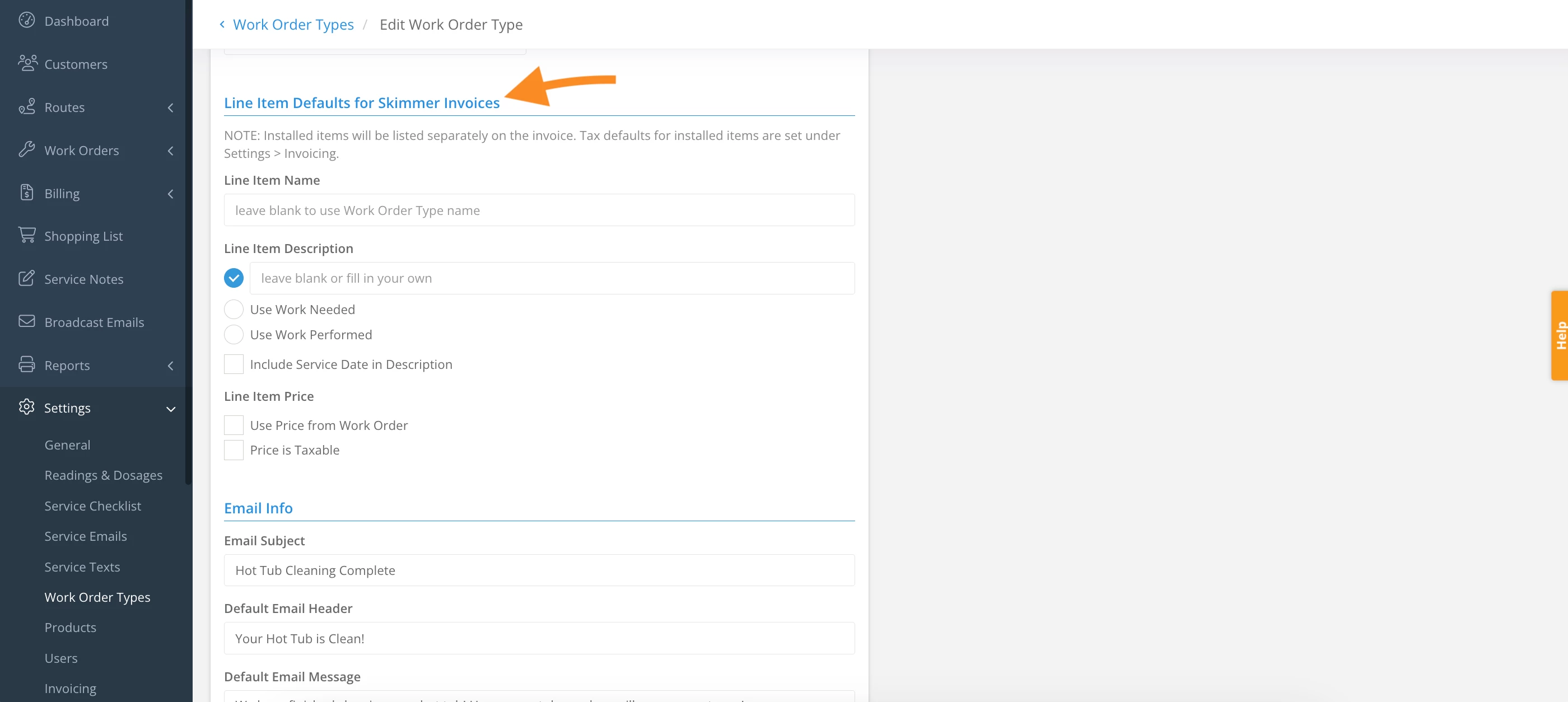
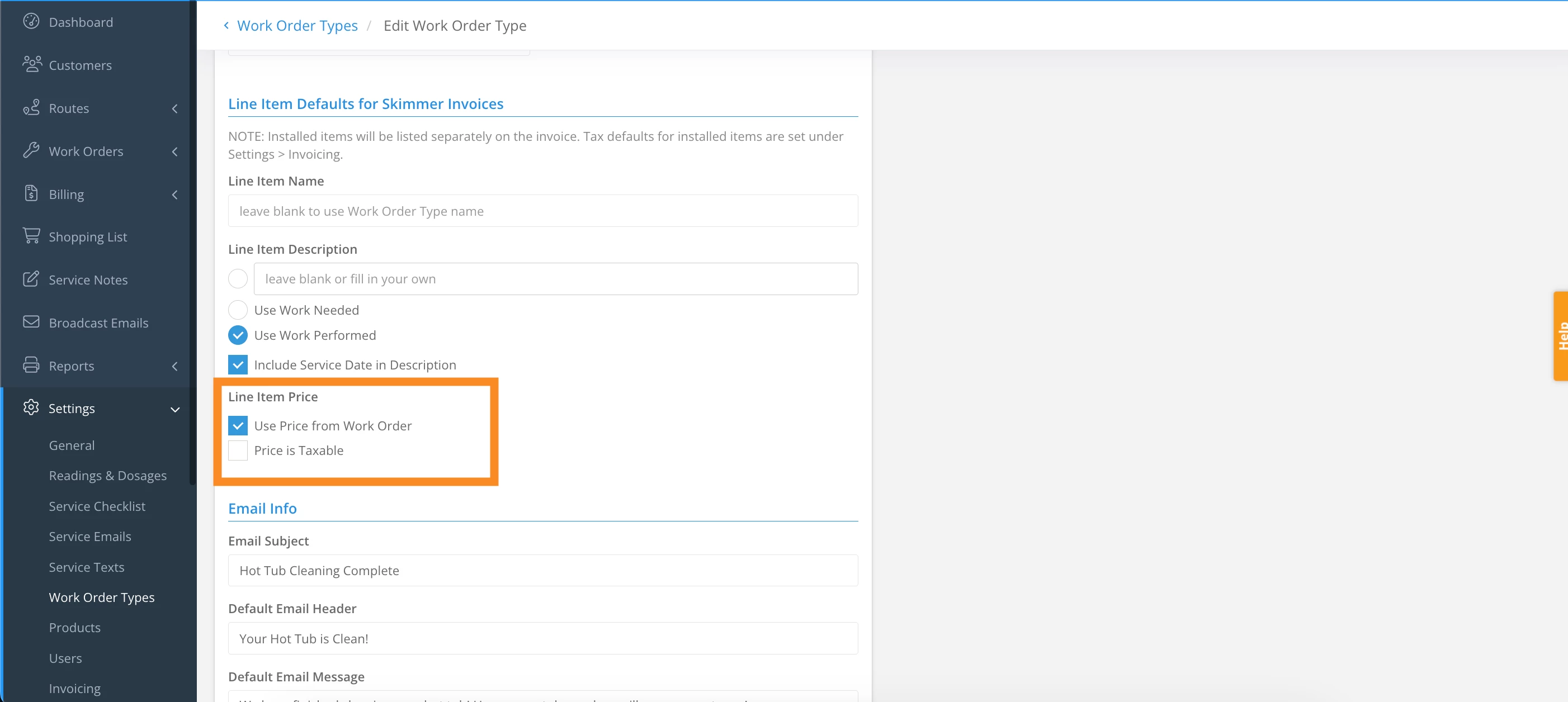
1. Select Settings > Work Order Types > click the Edit icon, and scroll down to Line Item Defaults for Skimmer Invoices.
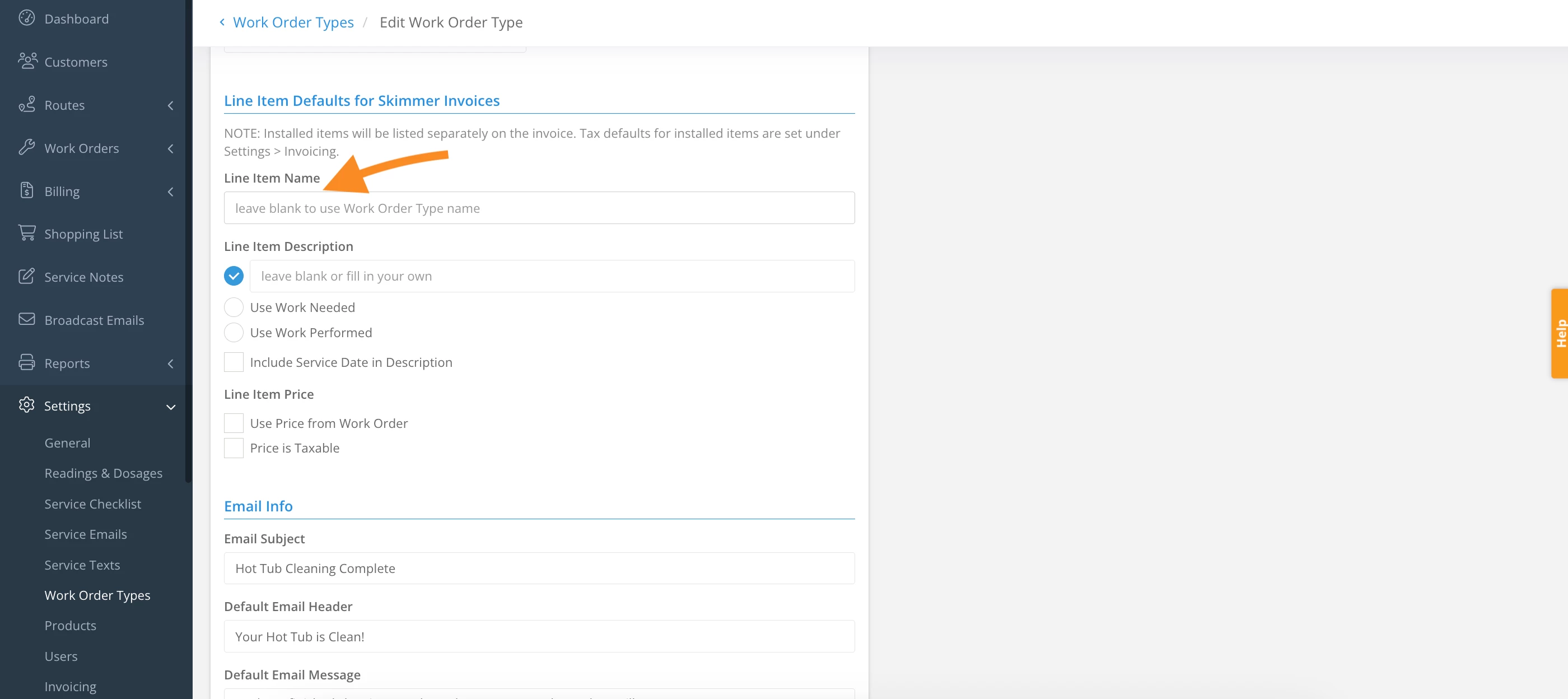
2. Create a Line Item Name.
- If left blank, the line item name will read as the work order type.
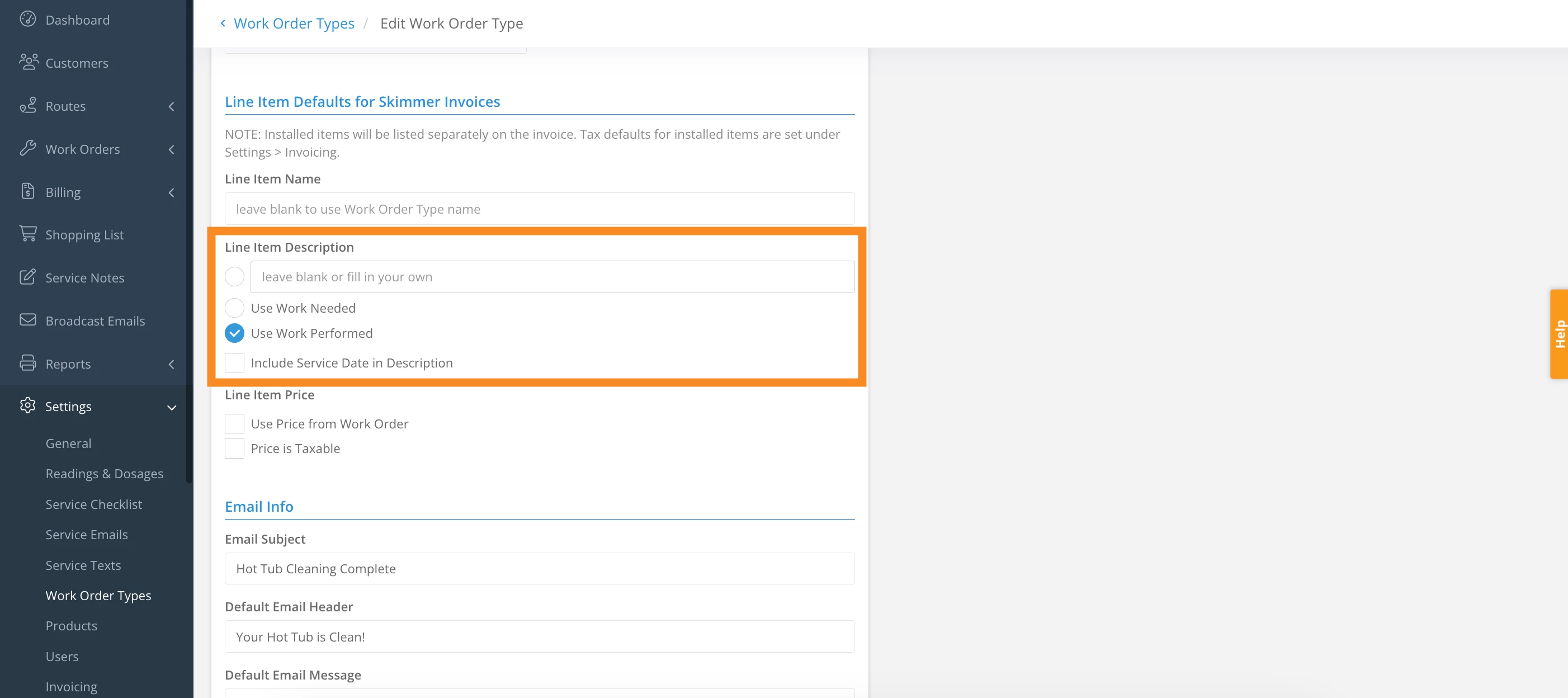
3. Select a Line Item Description.
- If left blank, a description will not populate upon generating the invoice.
- Work Needed will populate the default, or manually entered, work needed field from the work order.
- Work Performed will populate the default, or manually entered, work performed field from the work order.
- Select Include Service Date in Description (optional)
4. Select Line Item Price.
- If left blank, a price will not populate upon generating the invoice.
- Use price from work order will populate the price of the work order.
- Price is taxable will apply to the work order service.
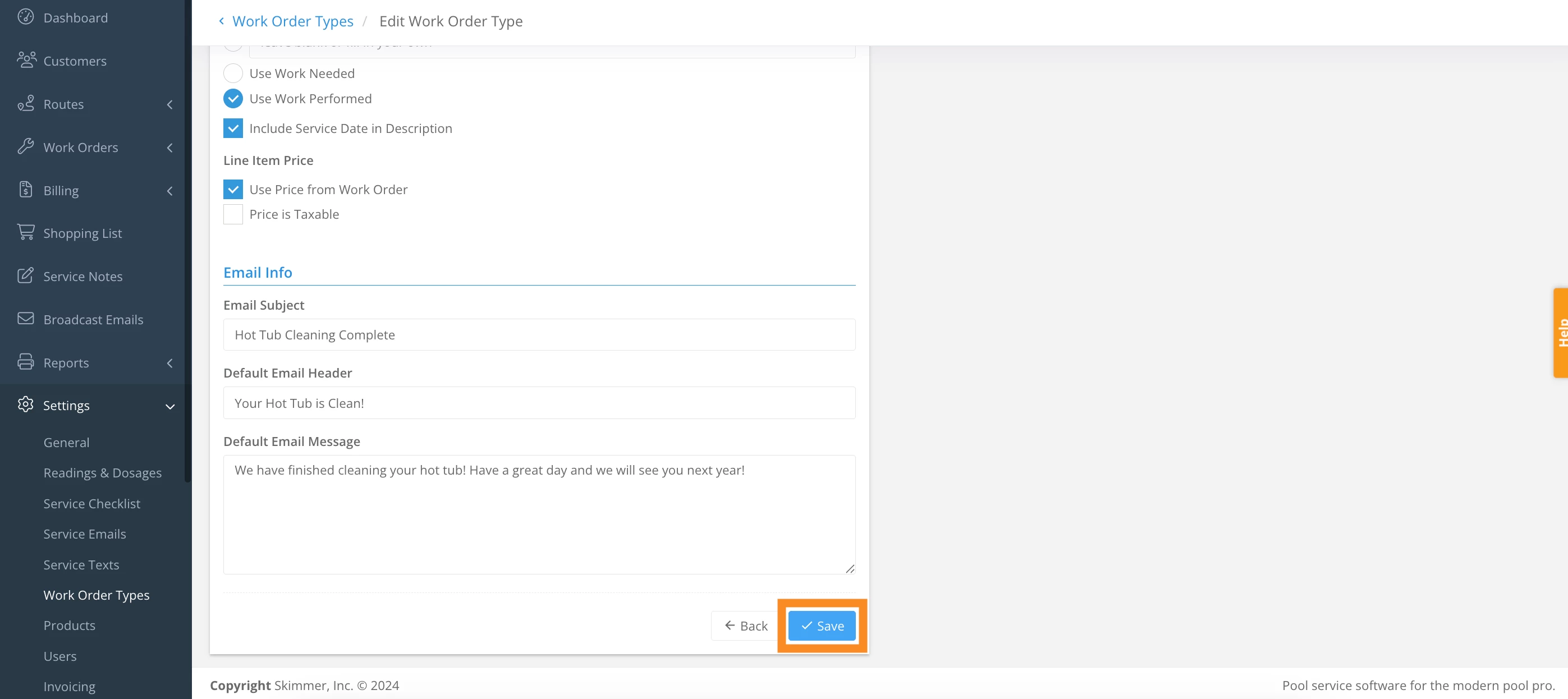
5. Click Save.
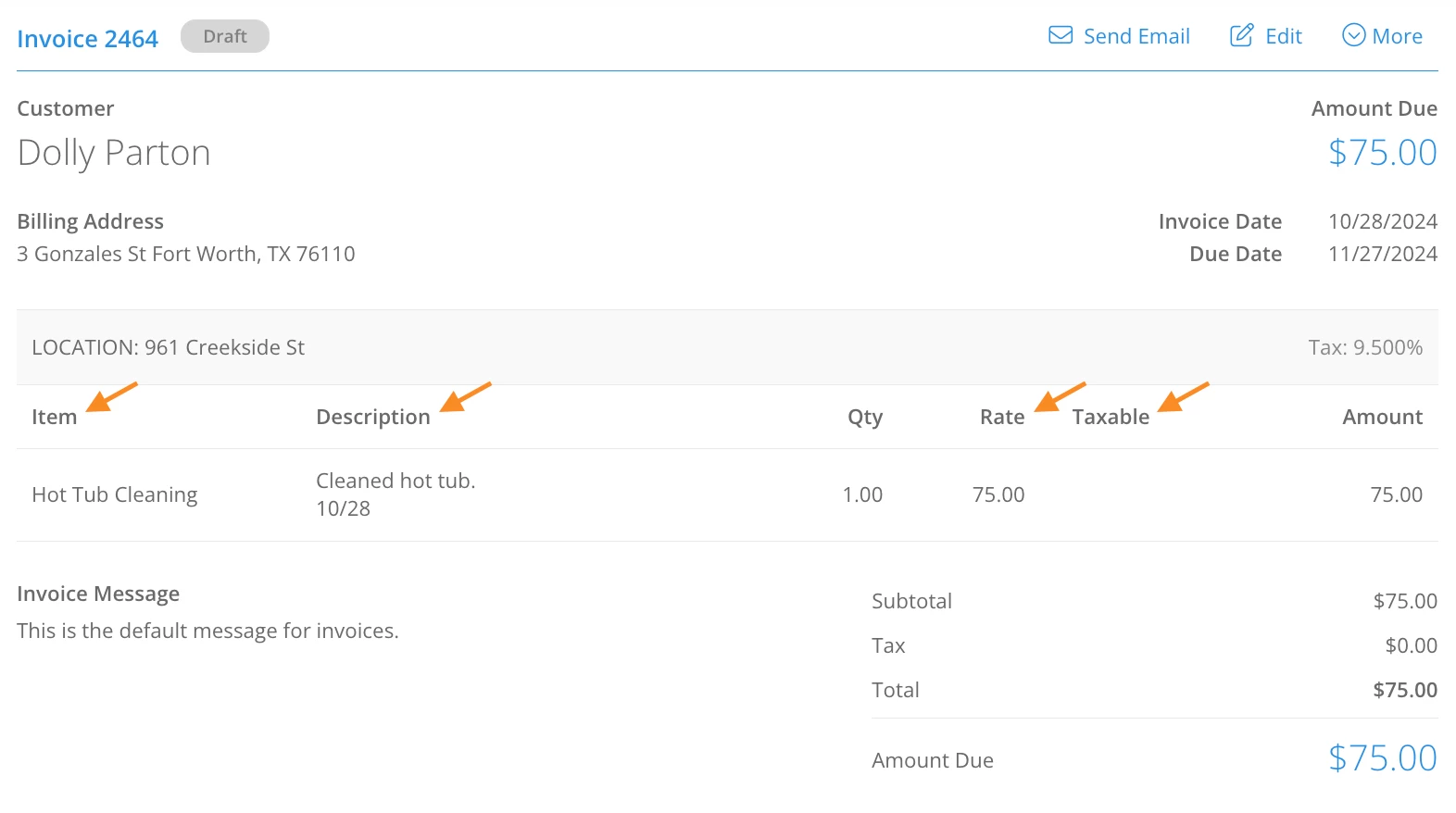
6. Example of how default work order type line items are applied to an invoice:
Last updated on October 28, 2024