



Watch the video or scroll down for step-by-step instructions.
Step-by-step instructions
- Skimmer offers multiple ways to manage routes. You can build entire routes, manage tech schedules, or monitor live routes. For specific customer changes, find the customer on the Customers tab, click their name or Edit to access their profile, and find the Route Assignments box.

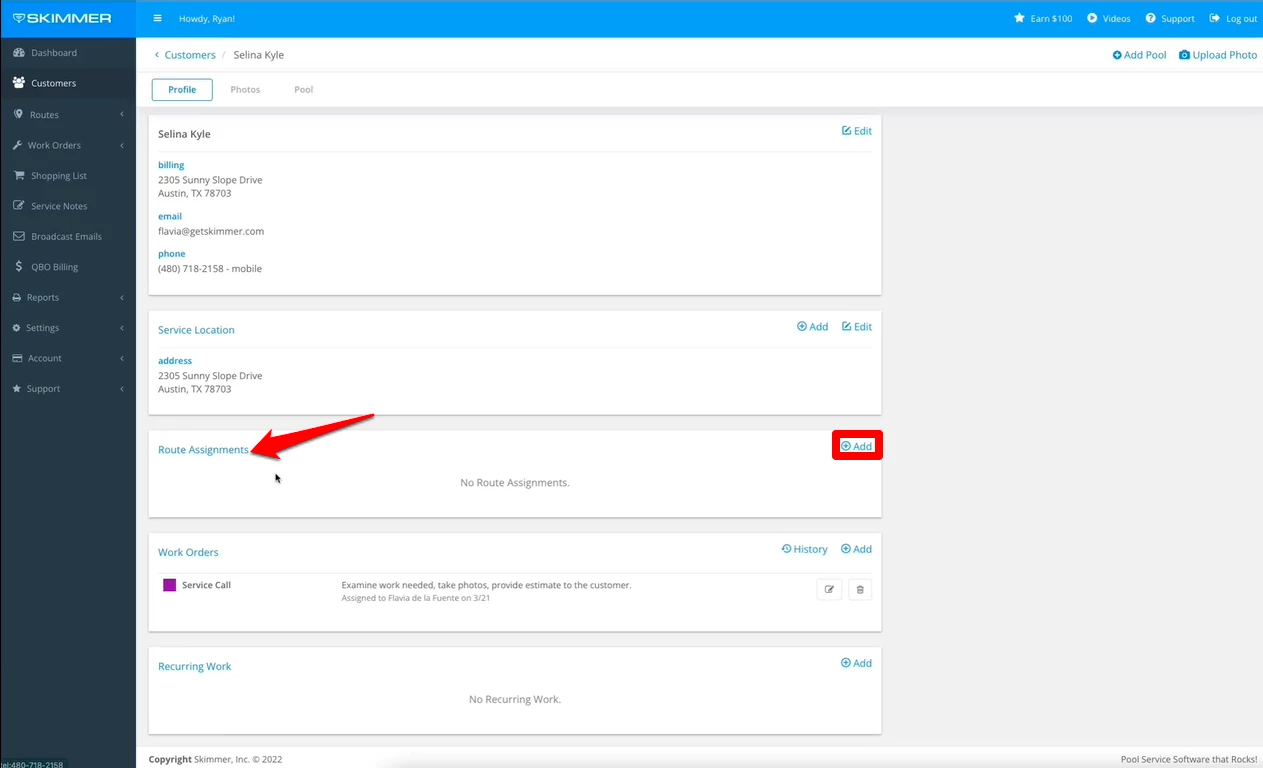
- First, click on Add to assign a new route. Select the technician, service day, frequency (which defaults to weekly), and start date. If the assignment is temporary, input a Stop After date. If a customer does not require service during a particular week, use the Skip Weeks box. Click on Save to finalize the assignment. The technician will see this assignment upon their next device sync.
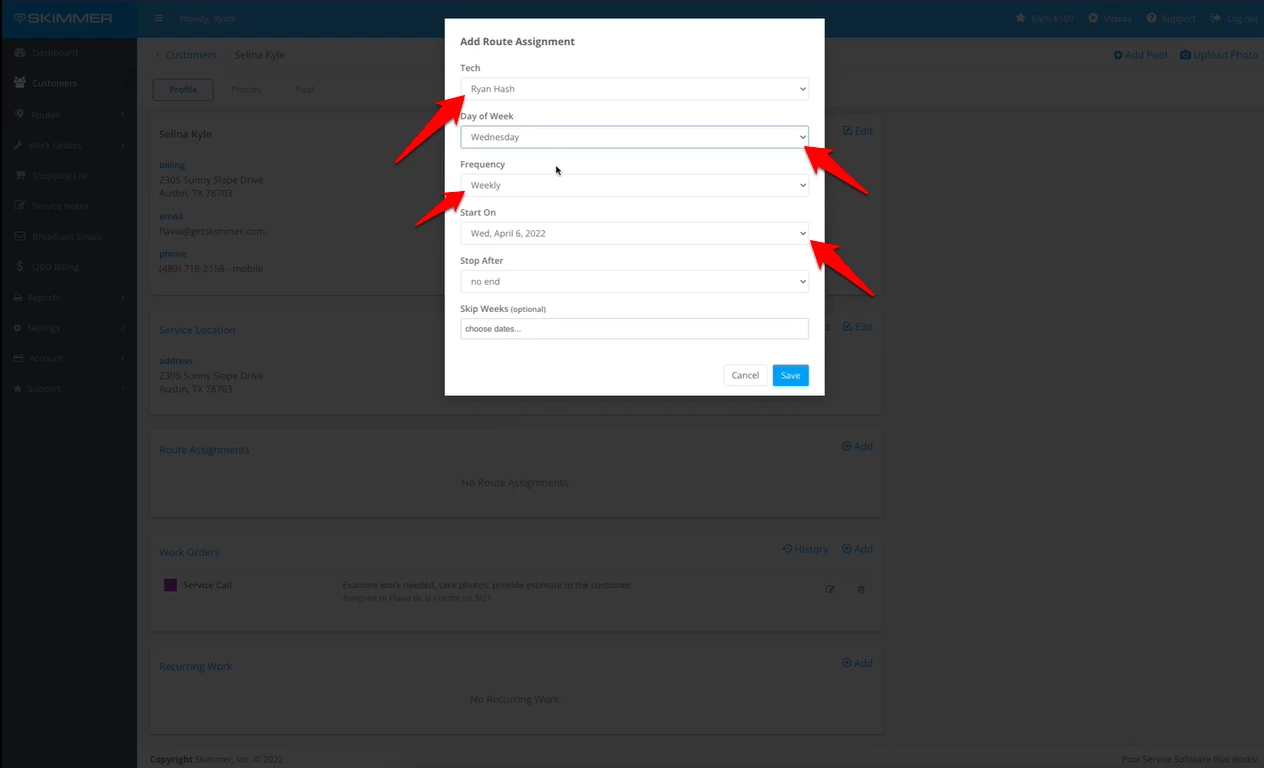
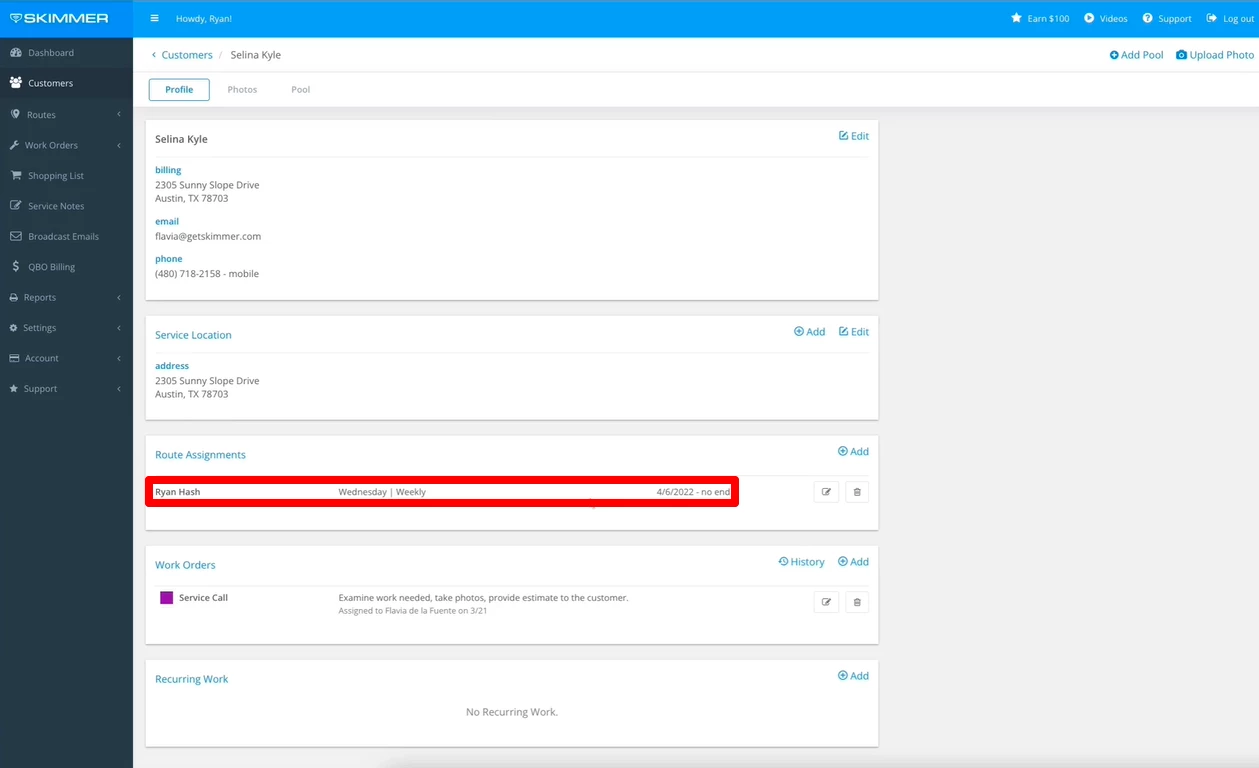
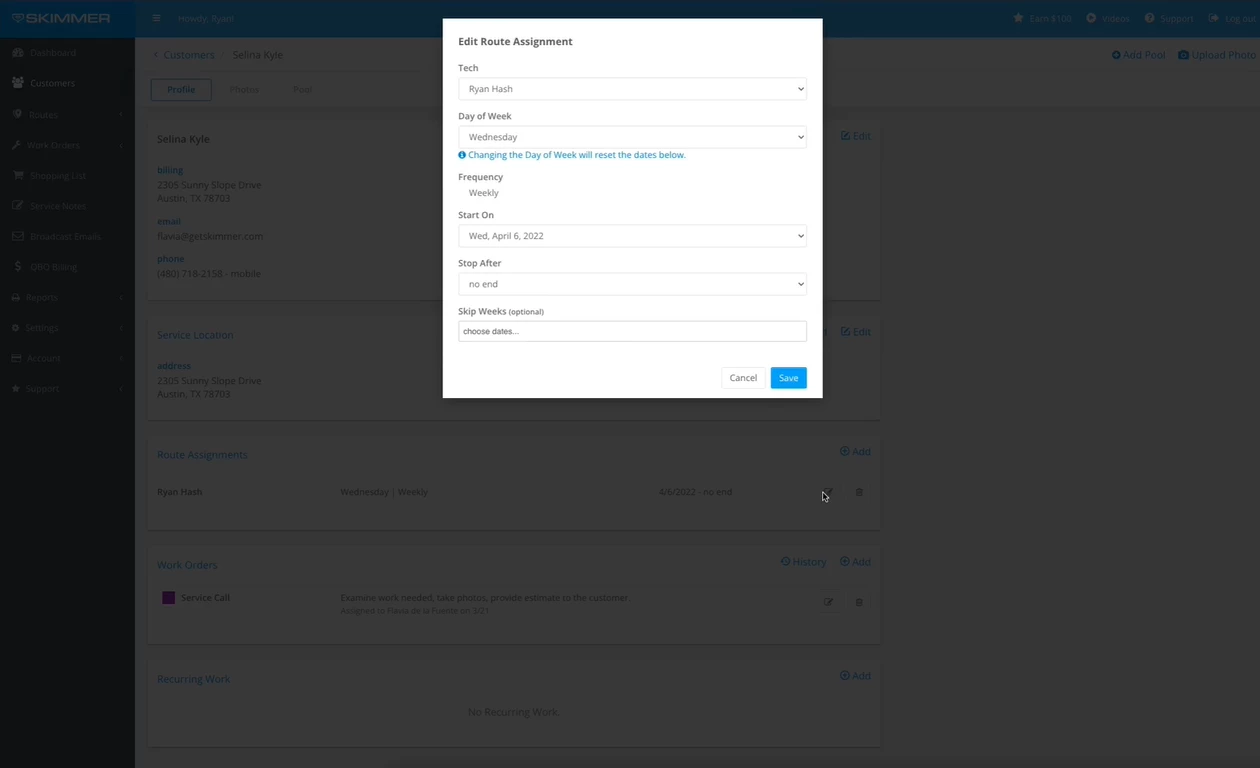
- To edit a route assignment, click Edit on the right. This action will open the Edit Route Assignment box where you can add dates for the Stop After or Skip Weeks boxes. Don't forget to click Save after making changes. Please note, you can't modify the frequency here, but you can do so under Routes and Route Assignments. Additionally, it's advisable to use one-time or permanent moves when you need to edit the date and technician for the assignment to maintain an accurate service history.
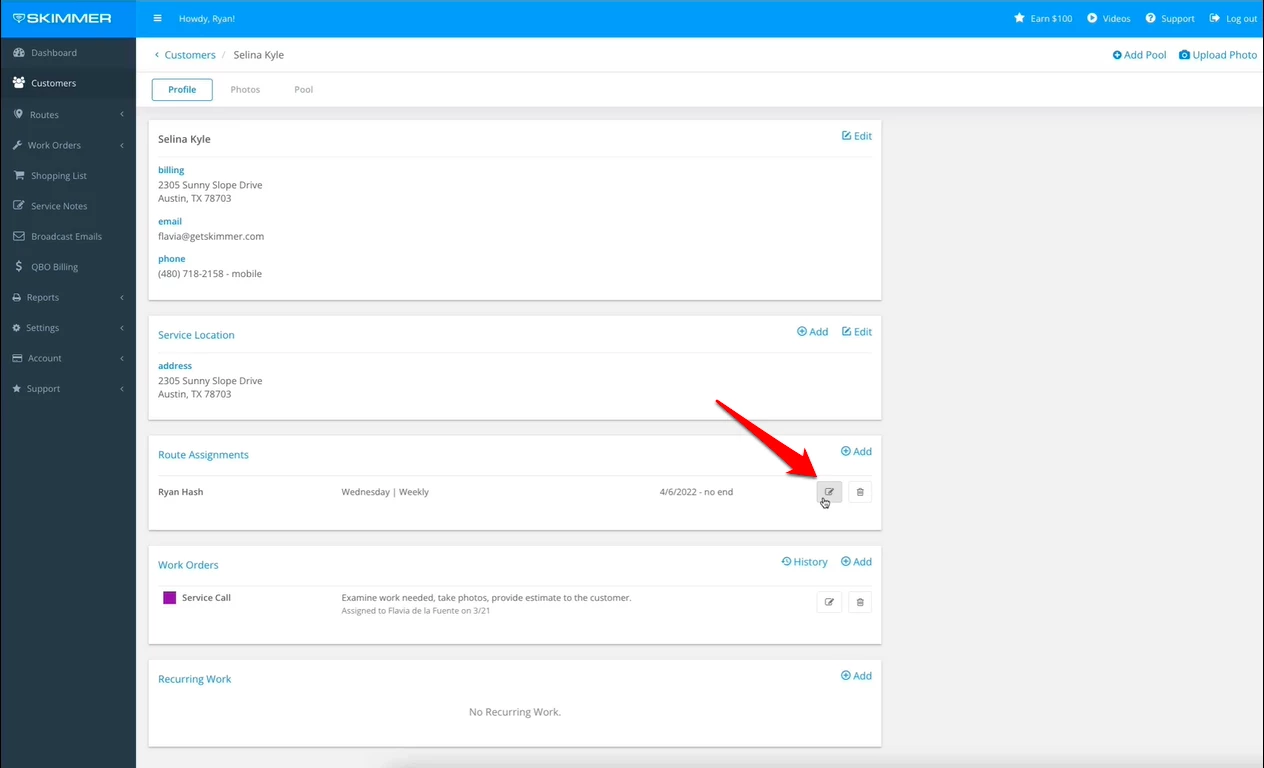
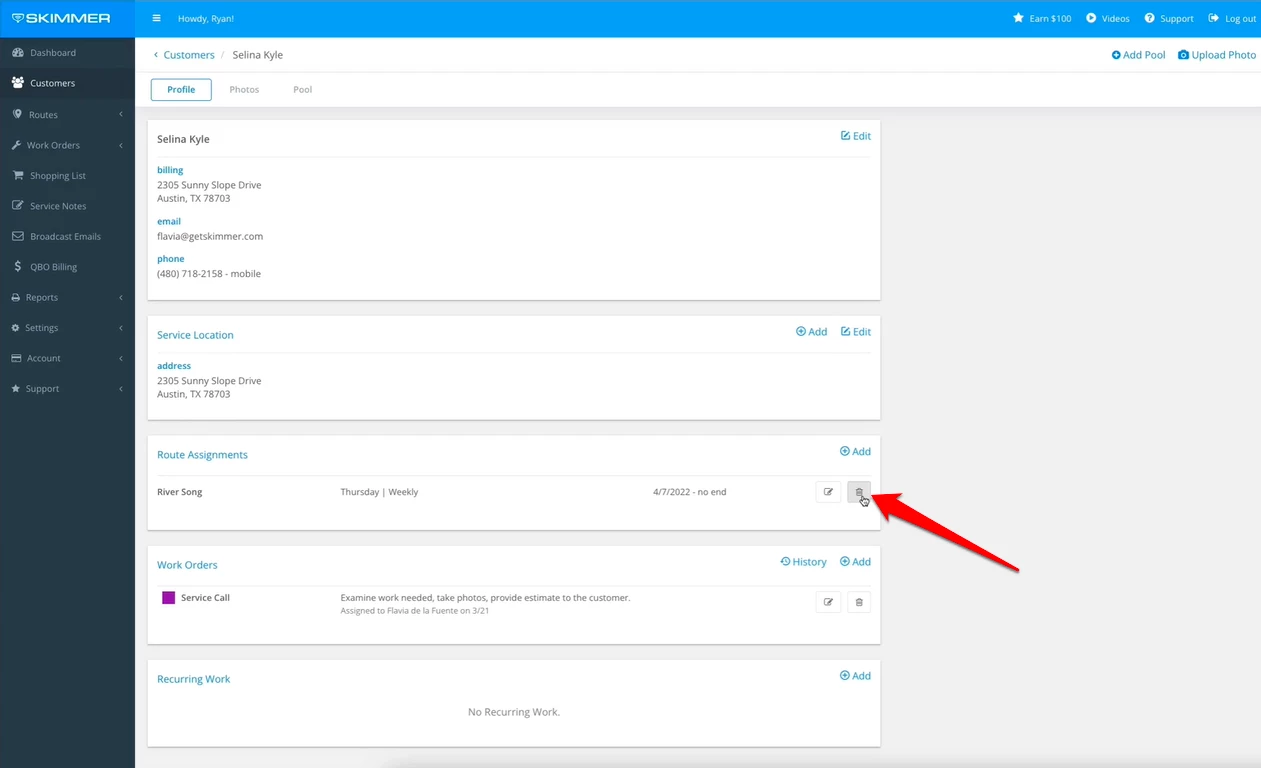
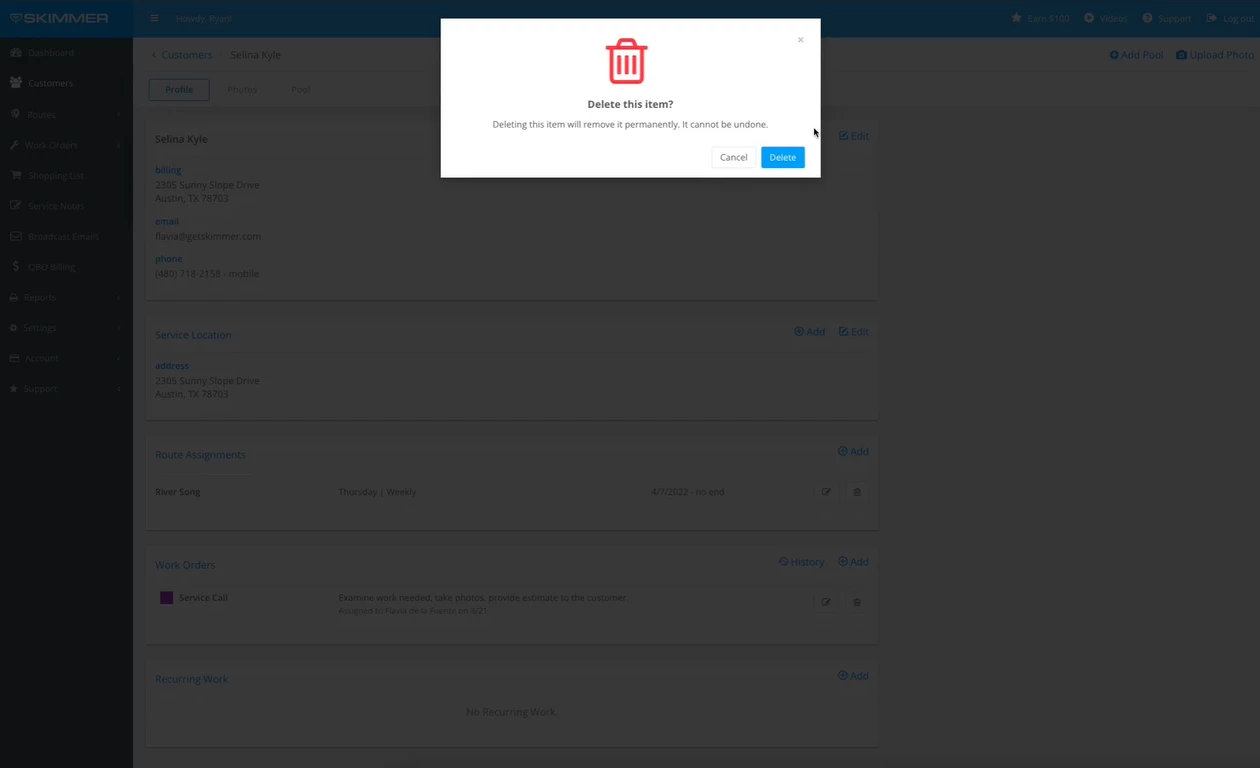
- To remove a route assignment, click the trash can icon and confirm deletion. Be aware, this action is irreversible and a deleted route cannot be retrieved. If required again, a new route assignment must be created. Please note, deleting a route assignment will not delete the service history for that route.
Last updated on October 24, 2023