



Watch the video or scroll down for step-by-step instructions.
Tiers: All
Step-by-step instructions
1. Tap Customers > tap customer name.
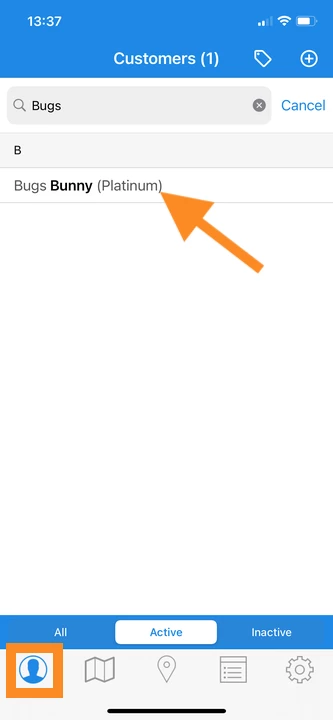
2. Under Service Location, tap Add.
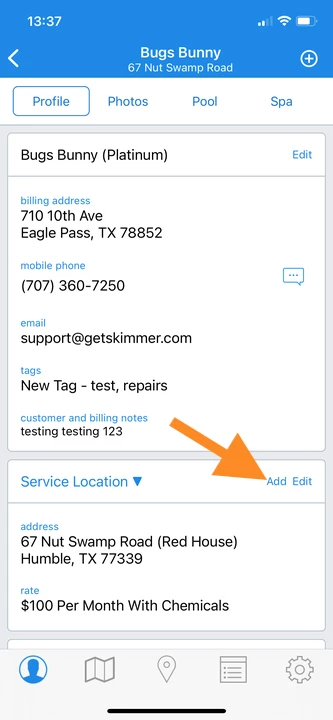
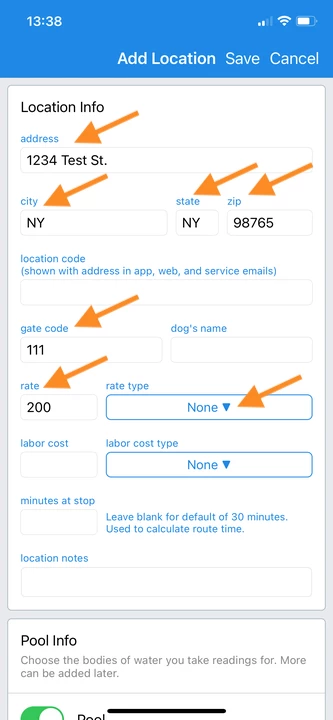
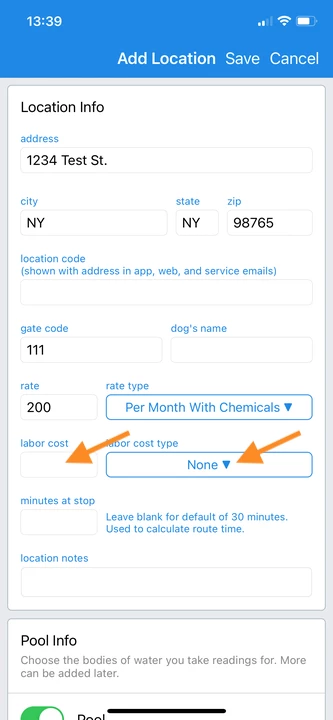
3. Under Service Location, tap Add.Enter Address > City > State > Zip > Gate Code (optional) > Rate, and tap the dropdown bar to select Rate Type.
- Gate code, dog's name, minutes at stop, and location notes are optional.
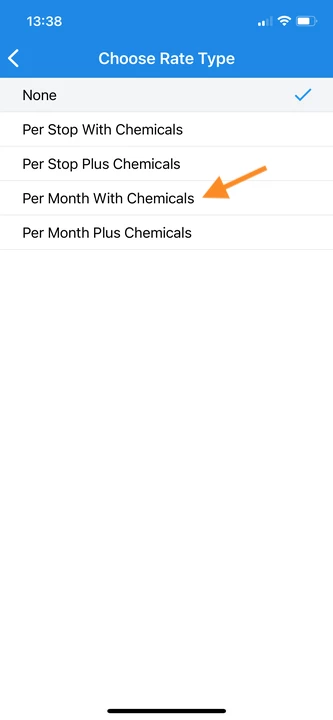
4. Enter the Labor Cost, and tap the dropdown bar to select Labor Cost Type (optional).
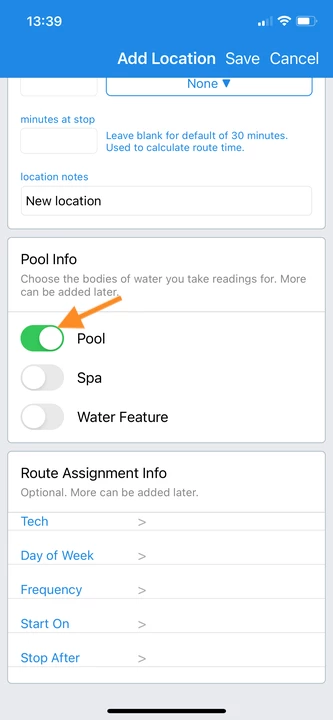
5. Tap to select a Body Of Water.
- At least one body of water must be selected.
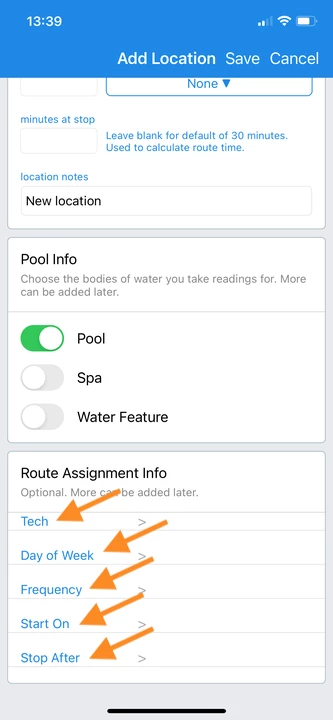
6. To create a Route Assignment, tap to select a Tech > Day of Week > Frequency > Start On > Stop After (optional).
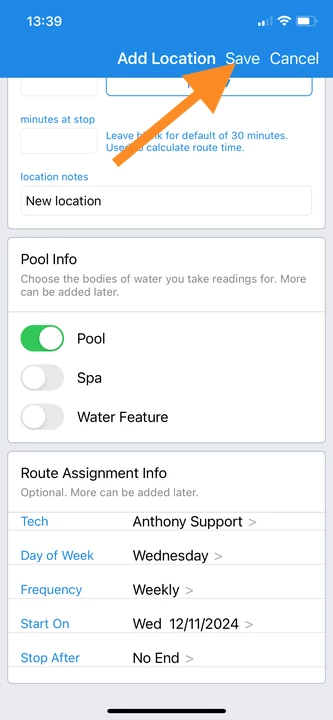
7. Click Save.
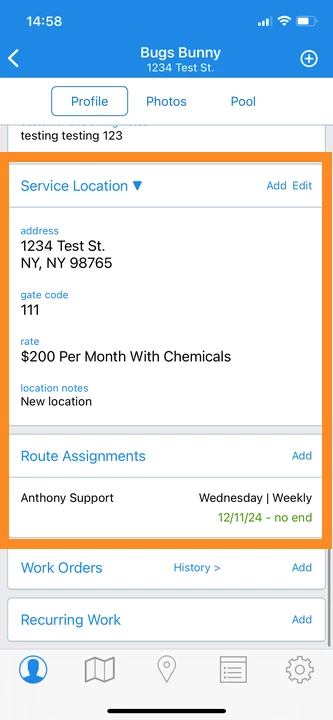
8. Service Location and Route Assignment will be visible on the Profile tab.
Last updated on December 12, 2024