



Watch the video or scroll down for step-by-step instructions.
Tiers: All
Step-by-step instructions
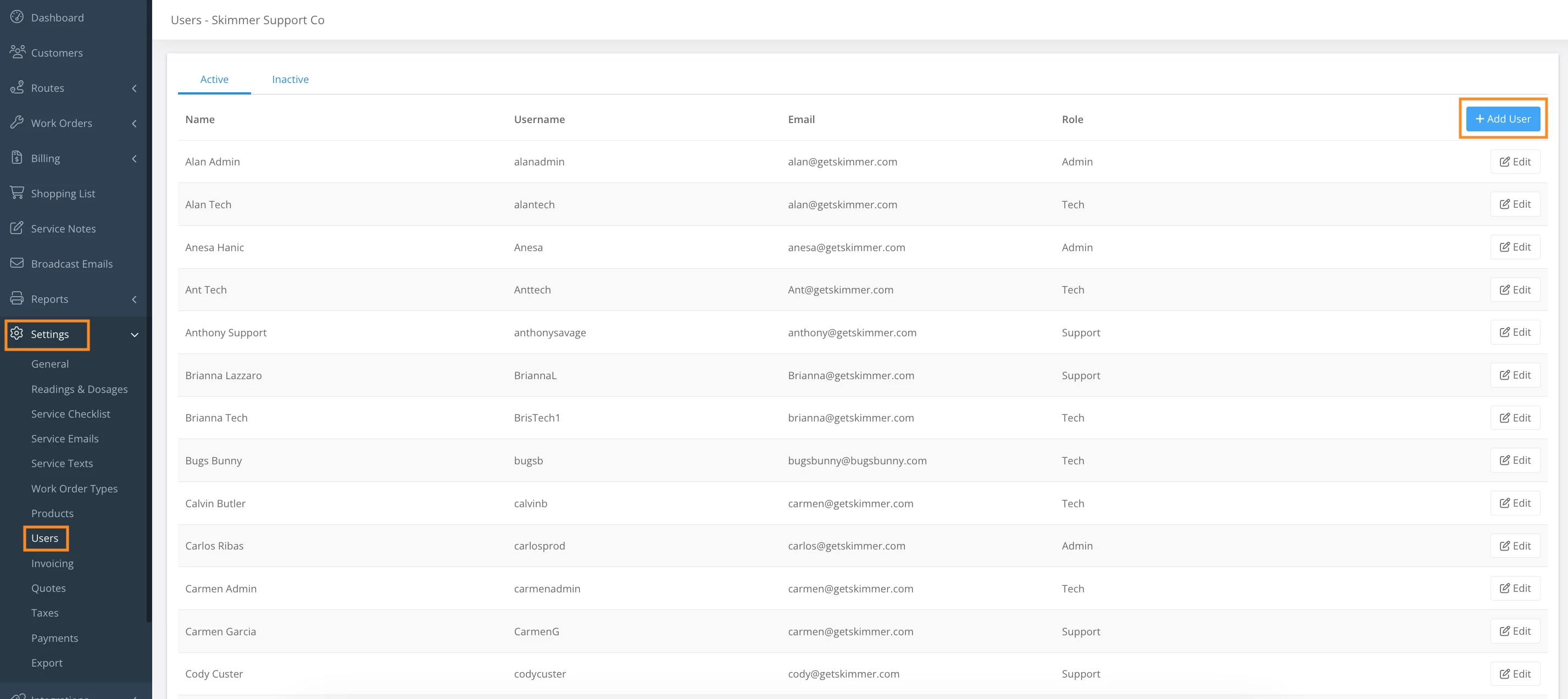
1. Select Settings > Users > Add User.
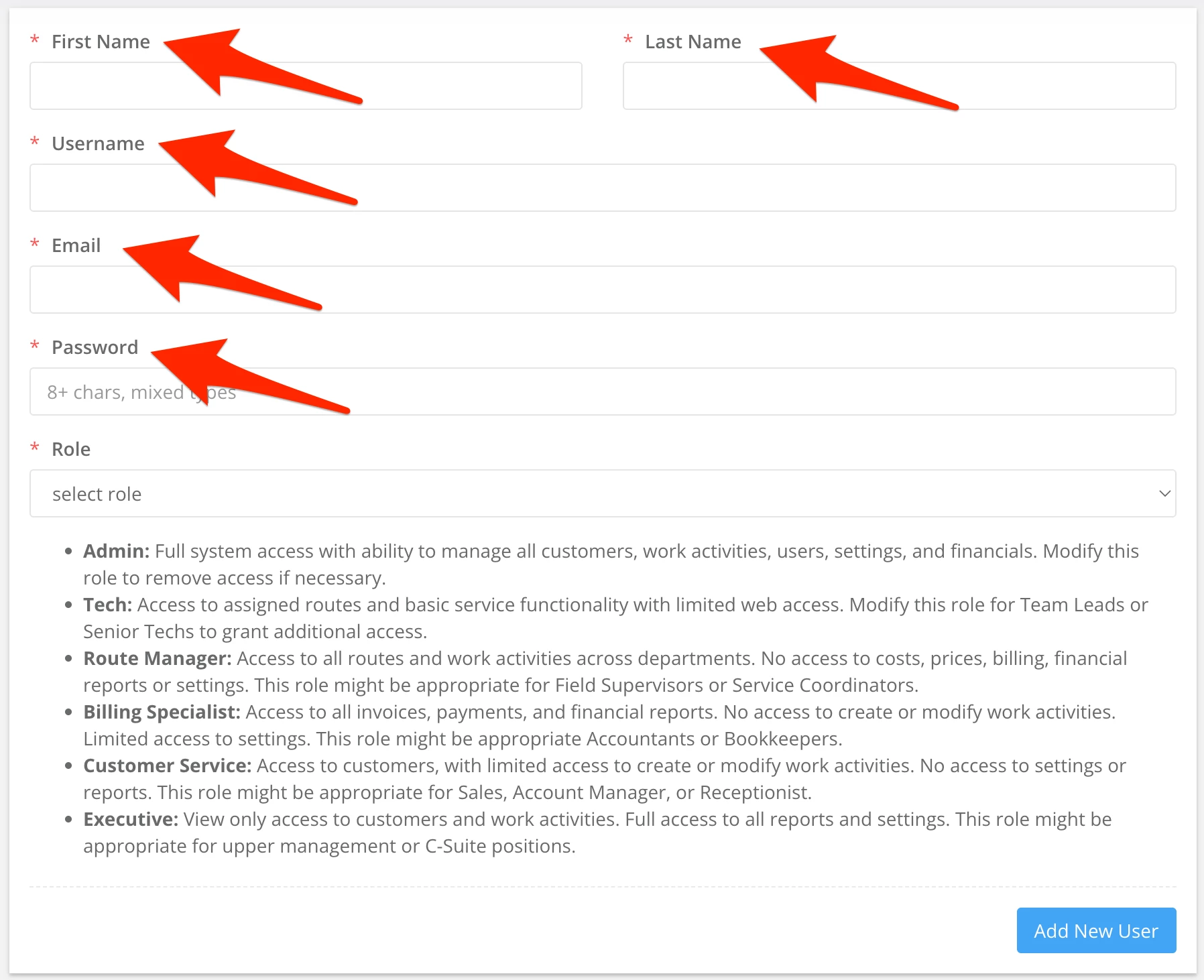
2. Enter the required information within all User fields.
- Note: The Username must be unique as Skimmer is taking all Skimmer Usernames into account. The email address you enter will receive the reset password email if/when needed.
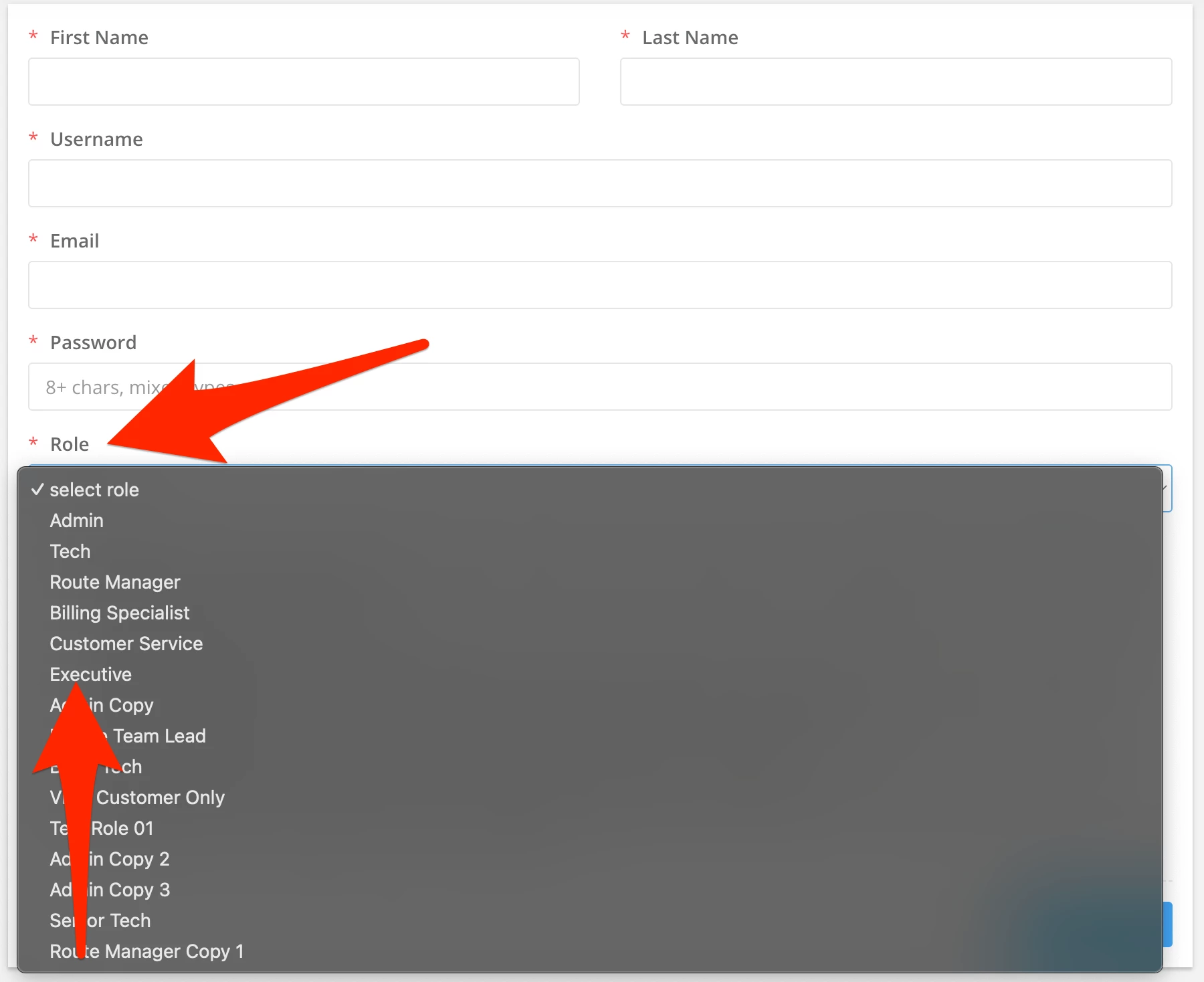
3. Select Role. In general, there are six default roles you can choose from, each with predefined permission levels ranging from very limited Tech access to full Admin access. Or you can create your own custom roles and choose from over 100 possible access options. Both default and custom roles will show in this dropdown list, allowing you to choose exactly which access you want this user to have.
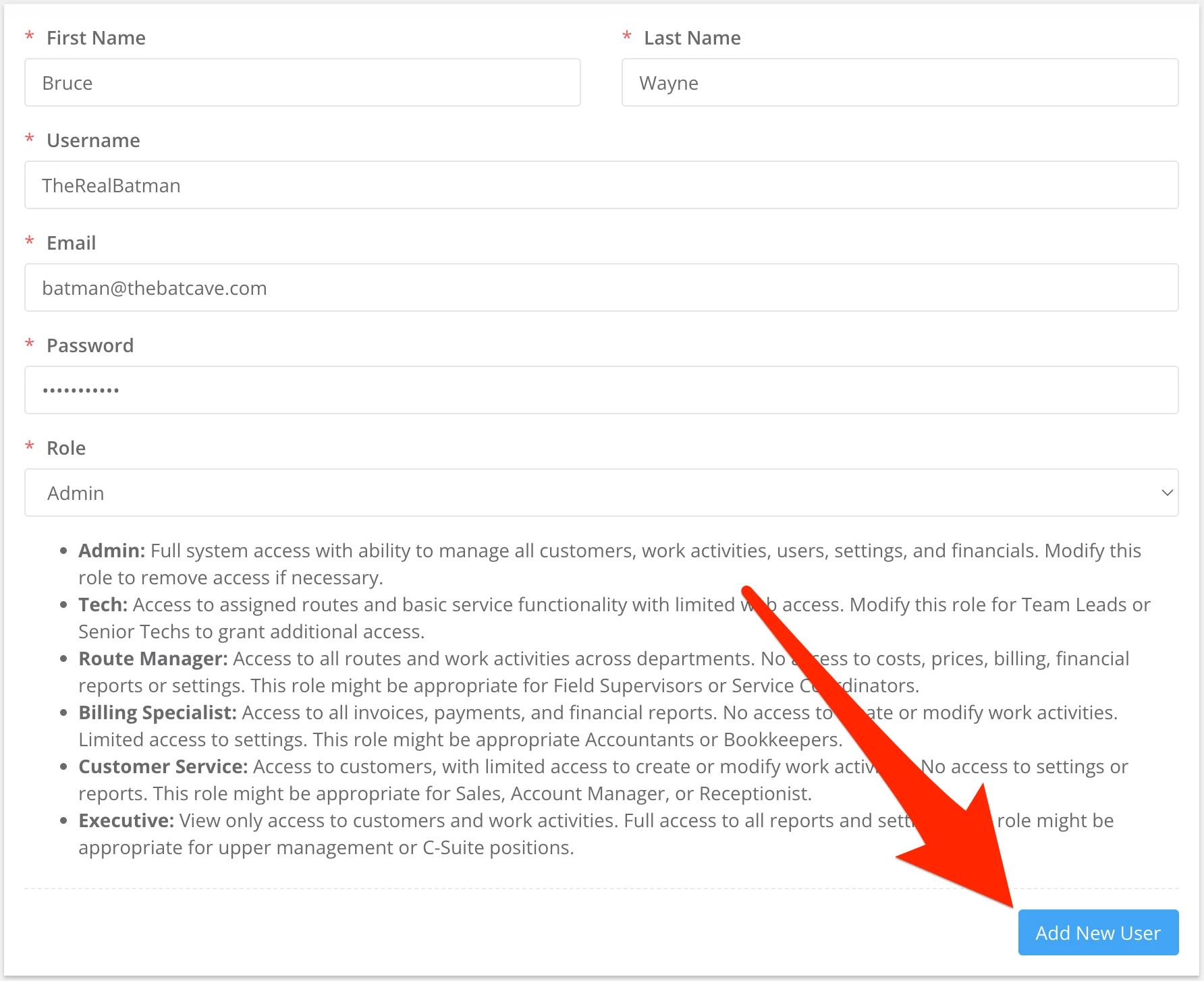
4. When finished, click Add New User.
5. To edit a User’s information, select Settings > Users > Edit > Save User Info.
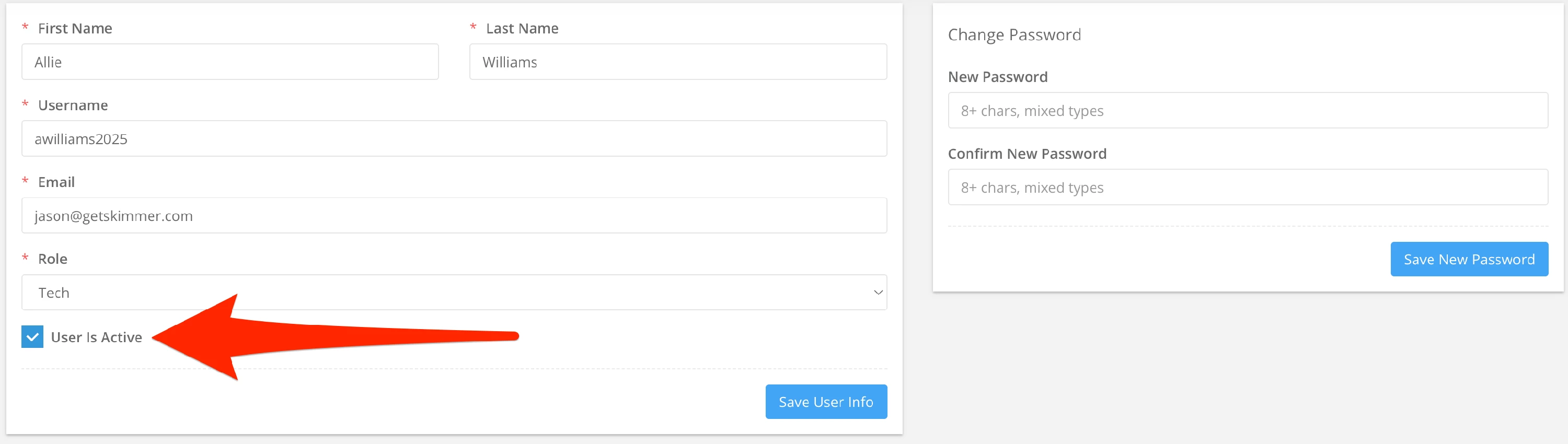
- Note: If updating a User’s password, click Save New Password.
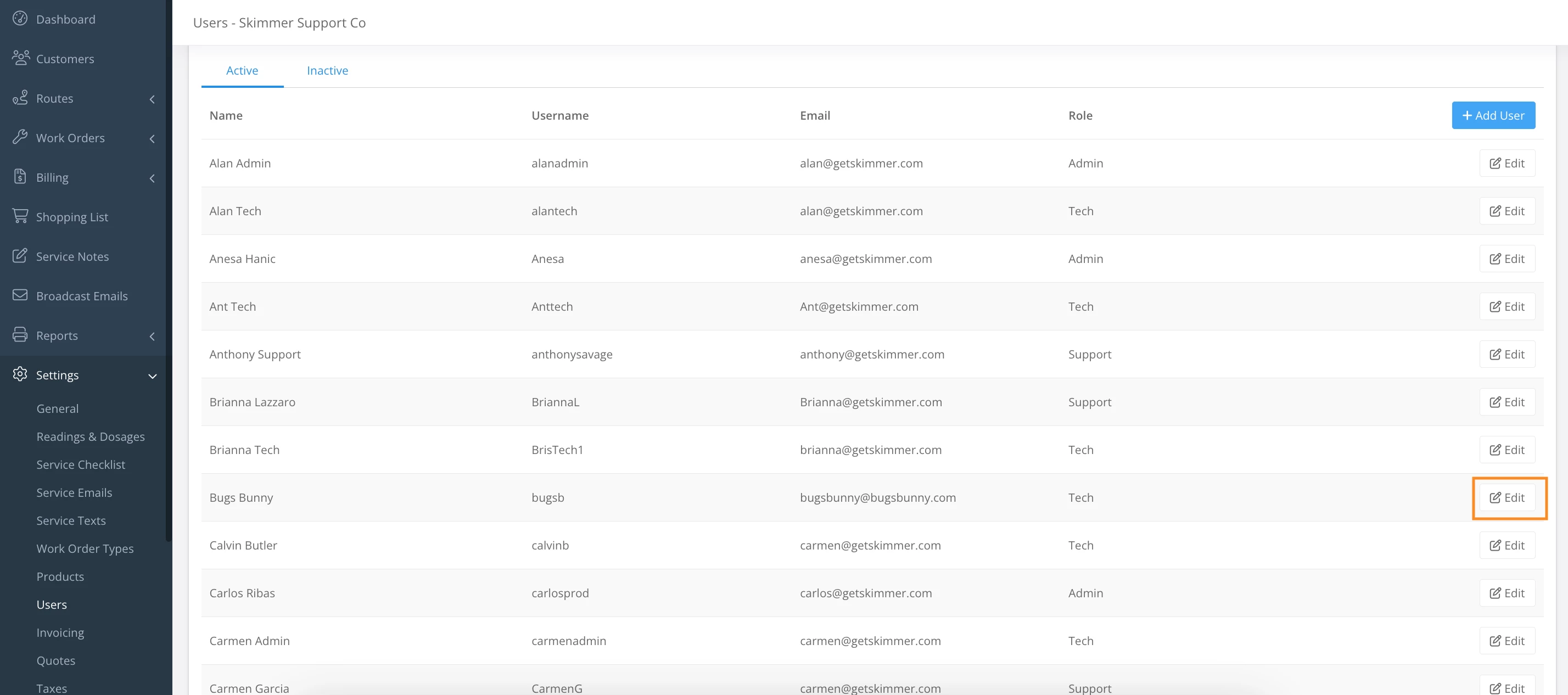
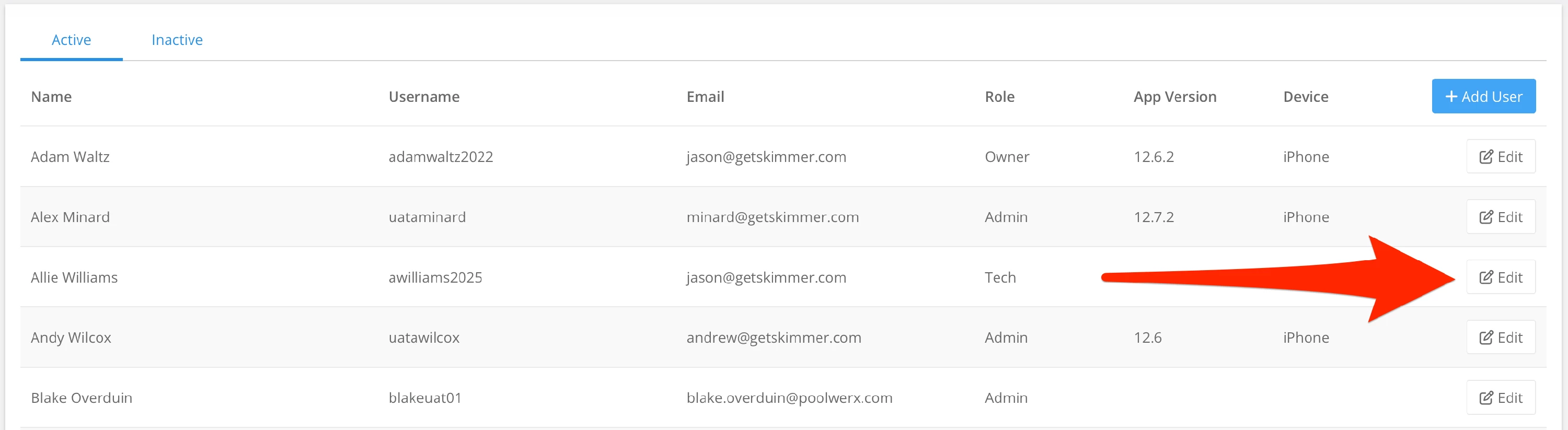
6. To make a User inactive, select Settings > Users > Edit > uncheck User is Active > Save User Info.
- Note: Click the Inactive tab to view inactive Users.
Last updated on February 5, 2026